> ## Documentation Index
> Fetch the complete documentation index at: https://docs.meetjamie.ai/llms.txt
> Use this file to discover all available pages before exploring further.
# Google Calendar
> How to connect your calendar in Jamie.
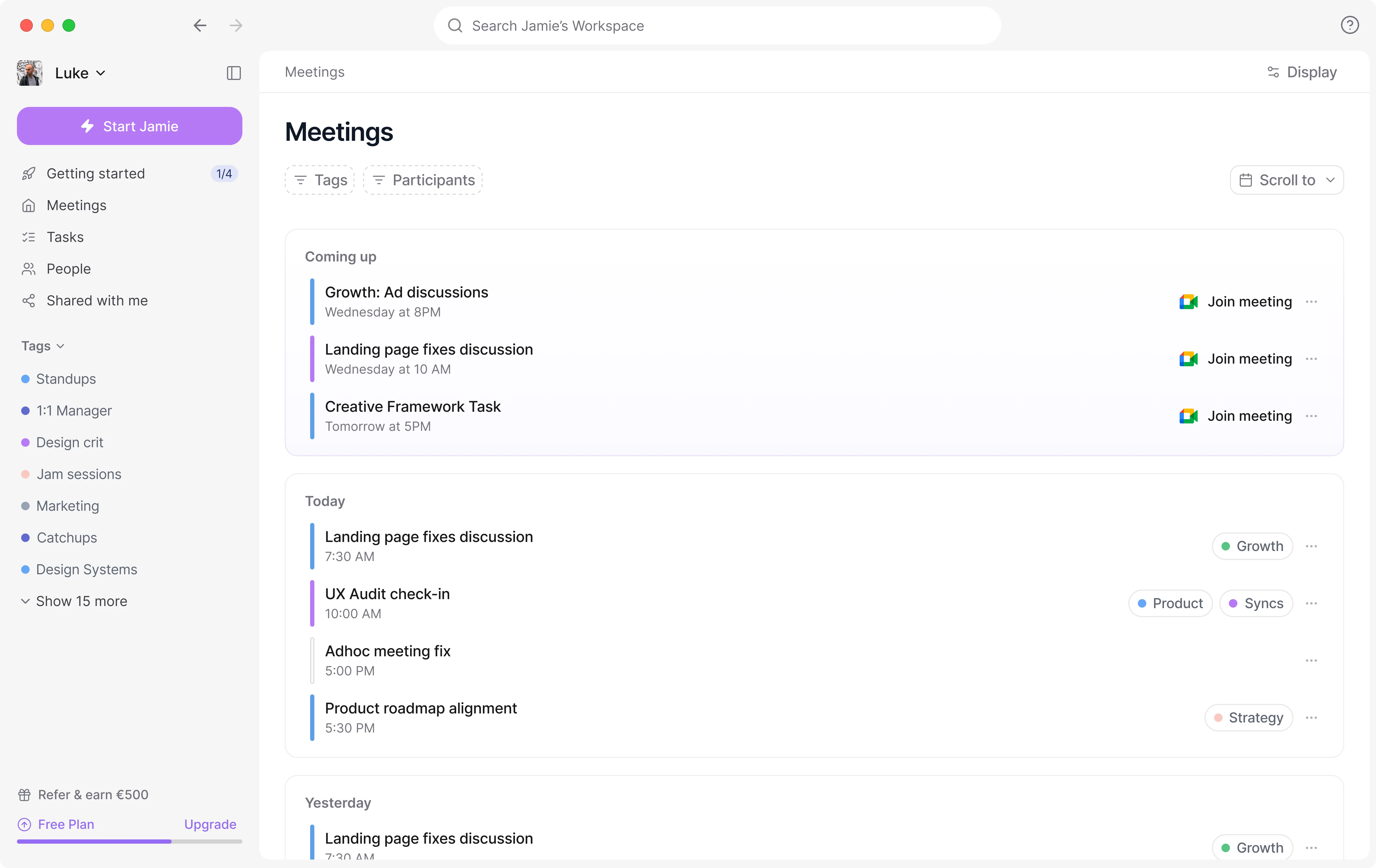
Connect your Google calendar with Jamie to see upcoming meetings, get automatic meeting titles, and enhanced speaker identification.
 ## How to connect your calendar?
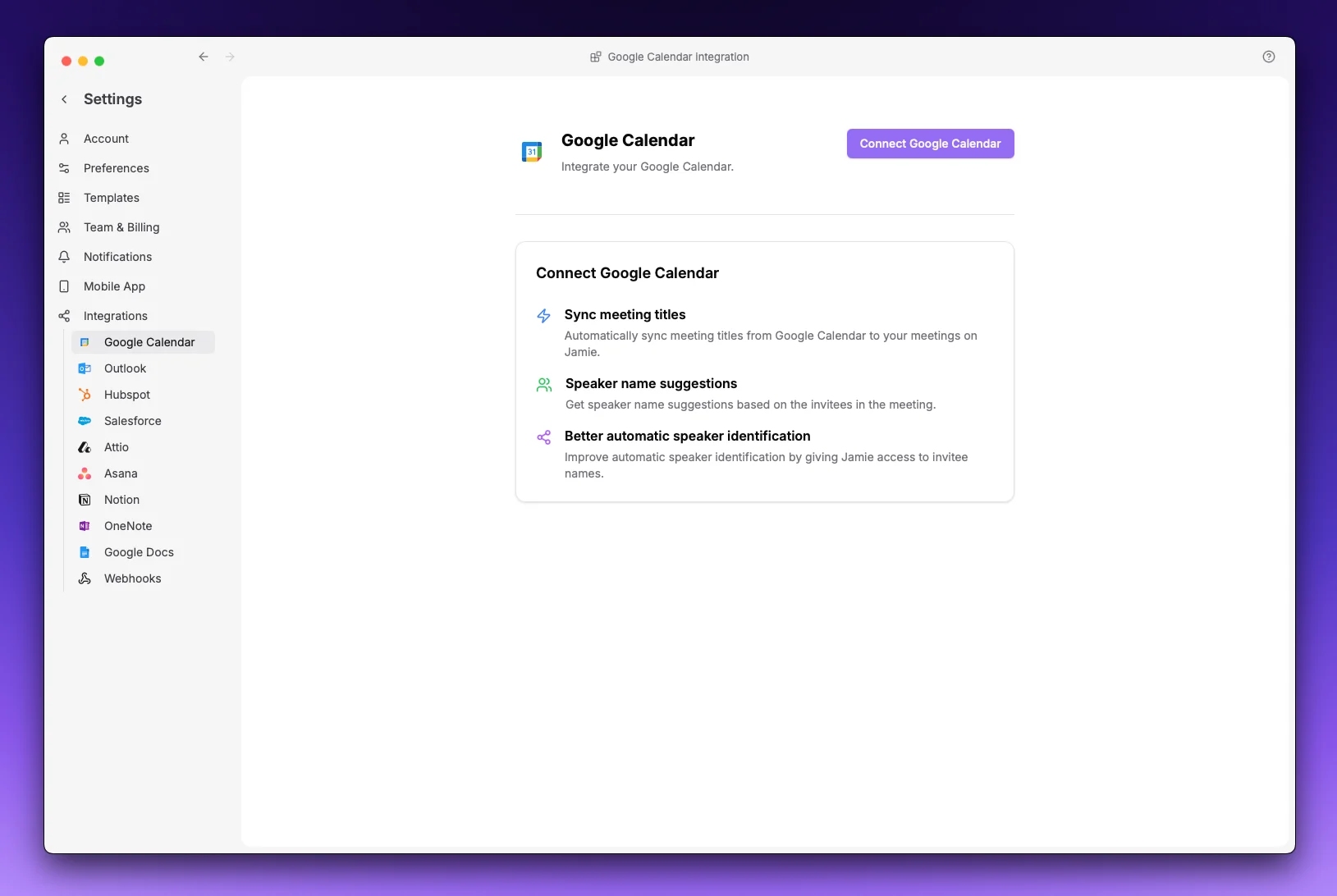
You can integrate your Google Calendar by following these steps:
1. Click on your workspace name (top left corner)
2. Go to **Settings**
3. Navigate to **Integrations** > **Google Calendar**
4. Click **Connect Google Calendar**
5. Sign in with your Google account when prompted
6. Grant the requested permissions
7. Once complete, you'll be redirected back to Jamie
## How to connect your calendar?
You can integrate your Google Calendar by following these steps:
1. Click on your workspace name (top left corner)
2. Go to **Settings**
3. Navigate to **Integrations** > **Google Calendar**
4. Click **Connect Google Calendar**
5. Sign in with your Google account when prompted
6. Grant the requested permissions
7. Once complete, you'll be redirected back to Jamie
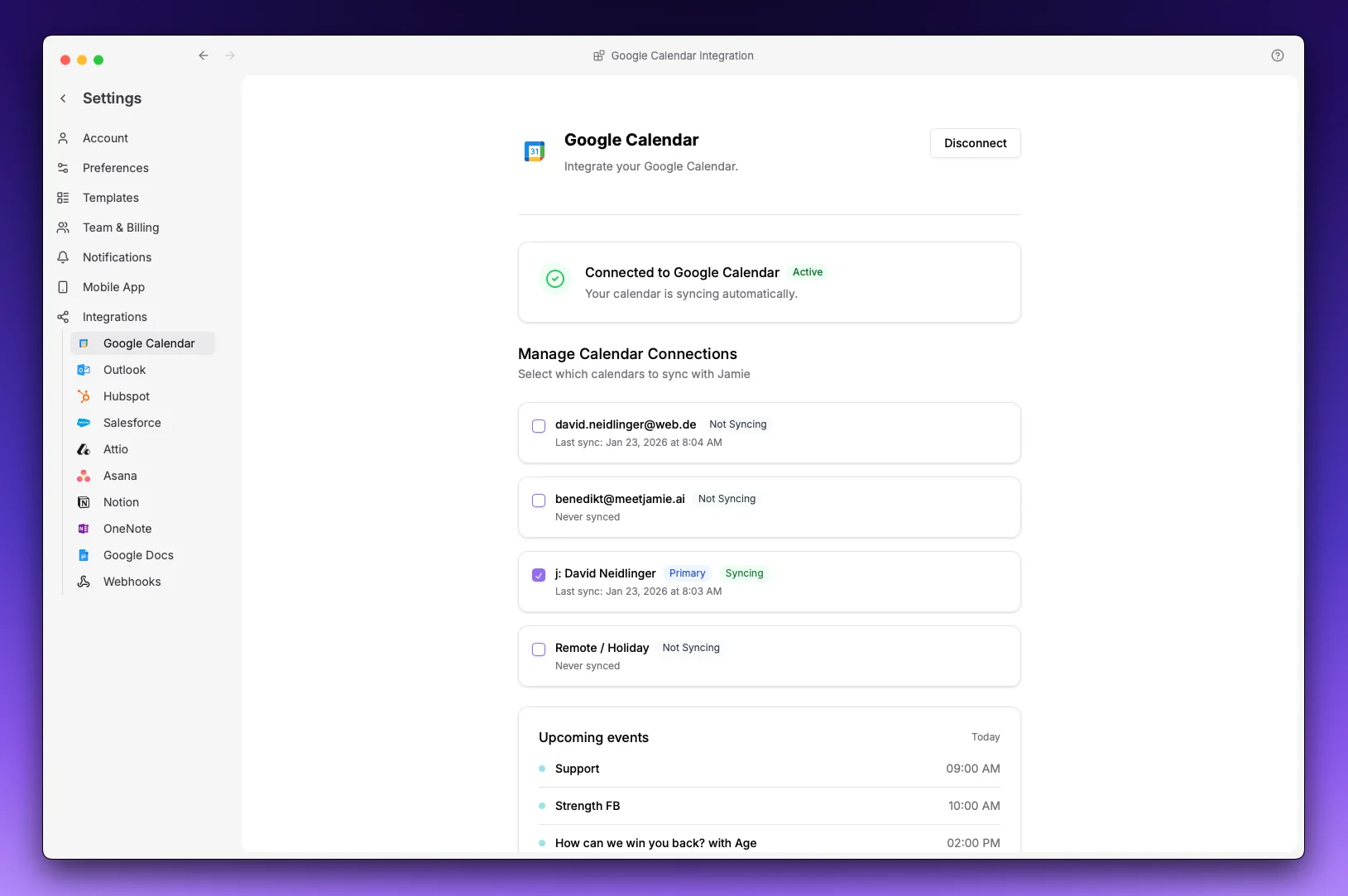
 That's it! Jamie will now sync your upcoming meetings and send you reminders when it's time to start recording.
> **Tip:** If you have multiple calendars in your Google account, you can select which ones to sync by selecting the calendars and pressing **Apply**. The system will schedule those calendars to sync.
That's it! Jamie will now sync your upcoming meetings and send you reminders when it's time to start recording.
> **Tip:** If you have multiple calendars in your Google account, you can select which ones to sync by selecting the calendars and pressing **Apply**. The system will schedule those calendars to sync.
 ### FAQs
Jamie only uses the following data to increase your user experience:
* **Event metadata (Name, Time)**
send custom notifications and set meeting titles based on event name
* **Email of participants**
so you can share your meeting notes with the click of a button with others.
**Note:** Meeting notes are not automatically shared. You have full control whether you want to send them out or not.
Jamie only syncs events that look like real meetings, so your upcoming list stays focused on what matters. An event is synced when it:
* Falls within roughly the next 10 days (Jamie keeps a rolling window of upcoming events)
* Has at least two participants (you plus at least one other person)
* Hasn't been declined by you
* Isn't an all-day or multi-day event (24 hours or longer)
Jamie automatically skips events that are usually personal time rather than meetings:
* All-day and multi-day events
* Events you've declined
* Solo events with no other participants (personal holds and time blocks)
* Events whose title looks like focus or availability time — for example "Focus time", "Focus block", "Do not disturb", "No meetings", "Out of office", or "Off work"
* Google's special event types: **Focus Time**, **Out of Office**, and **Working Location** entries
Recurring meetings are synced as individual occurrences within the window, and events you cancel or delete are removed from Jamie automatically.
### FAQs
Jamie only uses the following data to increase your user experience:
* **Event metadata (Name, Time)**
send custom notifications and set meeting titles based on event name
* **Email of participants**
so you can share your meeting notes with the click of a button with others.
**Note:** Meeting notes are not automatically shared. You have full control whether you want to send them out or not.
Jamie only syncs events that look like real meetings, so your upcoming list stays focused on what matters. An event is synced when it:
* Falls within roughly the next 10 days (Jamie keeps a rolling window of upcoming events)
* Has at least two participants (you plus at least one other person)
* Hasn't been declined by you
* Isn't an all-day or multi-day event (24 hours or longer)
Jamie automatically skips events that are usually personal time rather than meetings:
* All-day and multi-day events
* Events you've declined
* Solo events with no other participants (personal holds and time blocks)
* Events whose title looks like focus or availability time — for example "Focus time", "Focus block", "Do not disturb", "No meetings", "Out of office", or "Off work"
* Google's special event types: **Focus Time**, **Out of Office**, and **Working Location** entries
Recurring meetings are synced as individual occurrences within the window, and events you cancel or delete are removed from Jamie automatically.