> ## Documentation Index
> Fetch the complete documentation index at: https://docs.meetjamie.ai/llms.txt
> Use this file to discover all available pages before exploring further.
# Quickstart
> Everything you need to know to start summarizing your meetings with Jamie. This quickstart guide will walk you through how to set up your account and start summarizing your meetings.
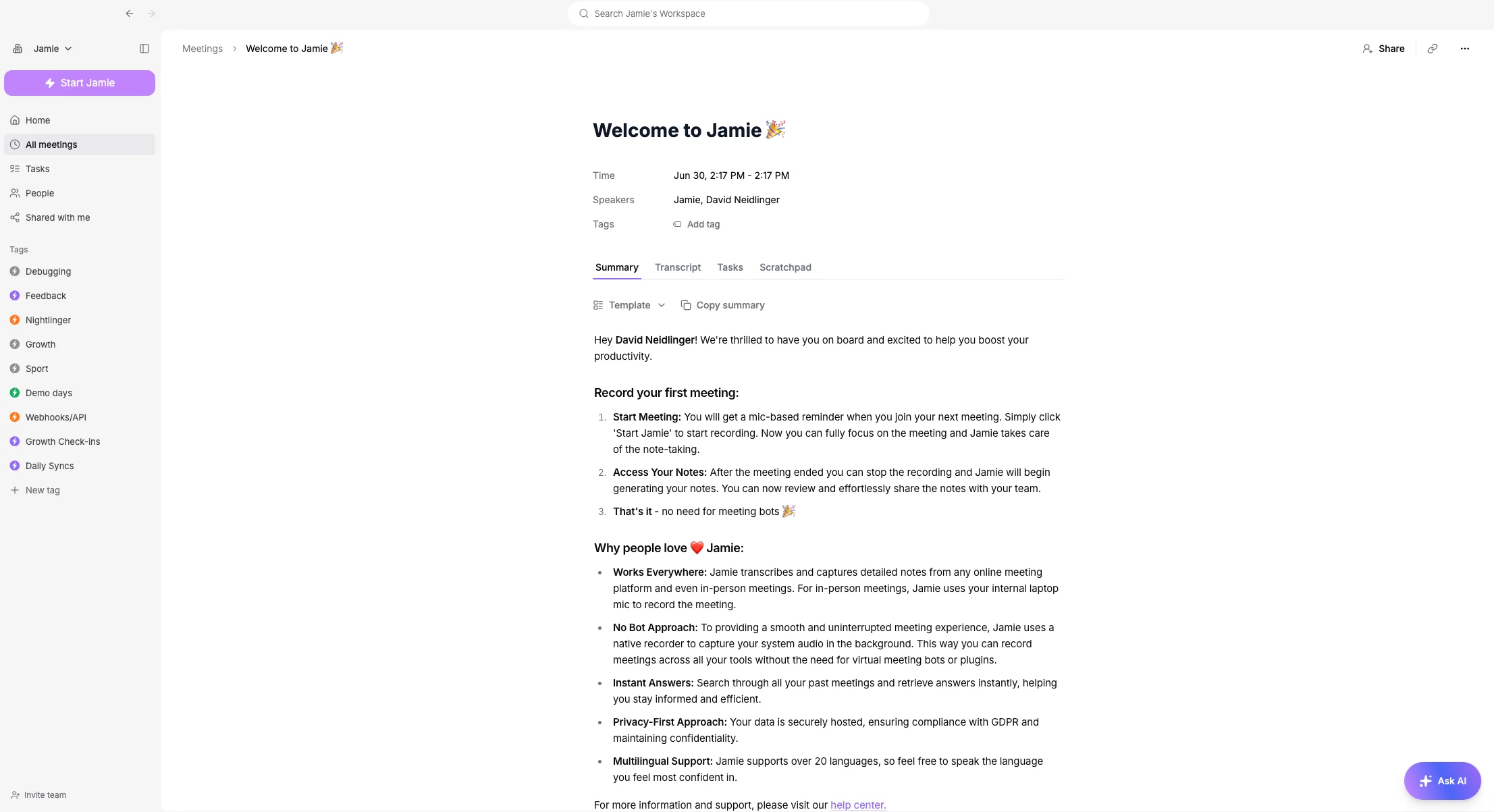 Jamie is the fastest and easiest way to summarize all your meetings (online & offline) and get actionable insights in minutes.
This quickstart guide will walk you through how to set up your account in Jamie and start summarizing your meetings.
## How to get started?
Everything in Jamie happens either in an individual account or a team workspace. This means, you can either join your team's existing workspace or create your own individual account.
To create an account, download the app from [https://www.meetjamie.ai/](https://www.meetjamie.ai/) and sign up with Google, Microsoft, Apple, or your email address. Please follow the onboarding process in the app.
**How to start a recording?**
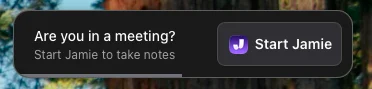
Mic-based reminder: You will get a mic-based reminder when you join your next online meeting. Simply click 'Start Jamie' to start recording.
Jamie is the fastest and easiest way to summarize all your meetings (online & offline) and get actionable insights in minutes.
This quickstart guide will walk you through how to set up your account in Jamie and start summarizing your meetings.
## How to get started?
Everything in Jamie happens either in an individual account or a team workspace. This means, you can either join your team's existing workspace or create your own individual account.
To create an account, download the app from [https://www.meetjamie.ai/](https://www.meetjamie.ai/) and sign up with Google, Microsoft, Apple, or your email address. Please follow the onboarding process in the app.
**How to start a recording?**
Mic-based reminder: You will get a mic-based reminder when you join your next online meeting. Simply click 'Start Jamie' to start recording.
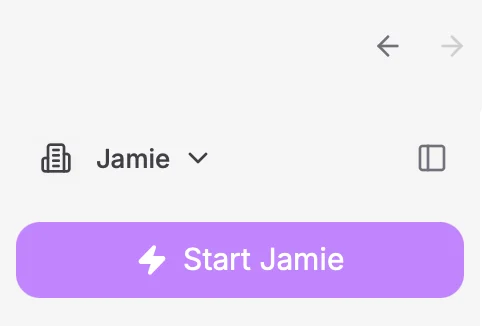
 Start recording manually: Simply head to your Jamie app and click on the **Start Jamie** button at the top left corner to start a recording.
 Now you can fully focus on the meeting and Jamie takes care of the note-taking.
**How to stop a recording?**
Once a meeting is done, simply stop the recording by clicking on the recording icon on the left.
Now you can fully focus on the meeting and Jamie takes care of the note-taking.
**How to stop a recording?**
Once a meeting is done, simply stop the recording by clicking on the recording icon on the left.
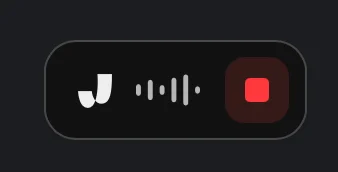 You can also stop the recording from the menu bar.
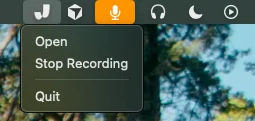 **Access Your Notes:** After you stopped the recording, Jamie will begin generating your notes.
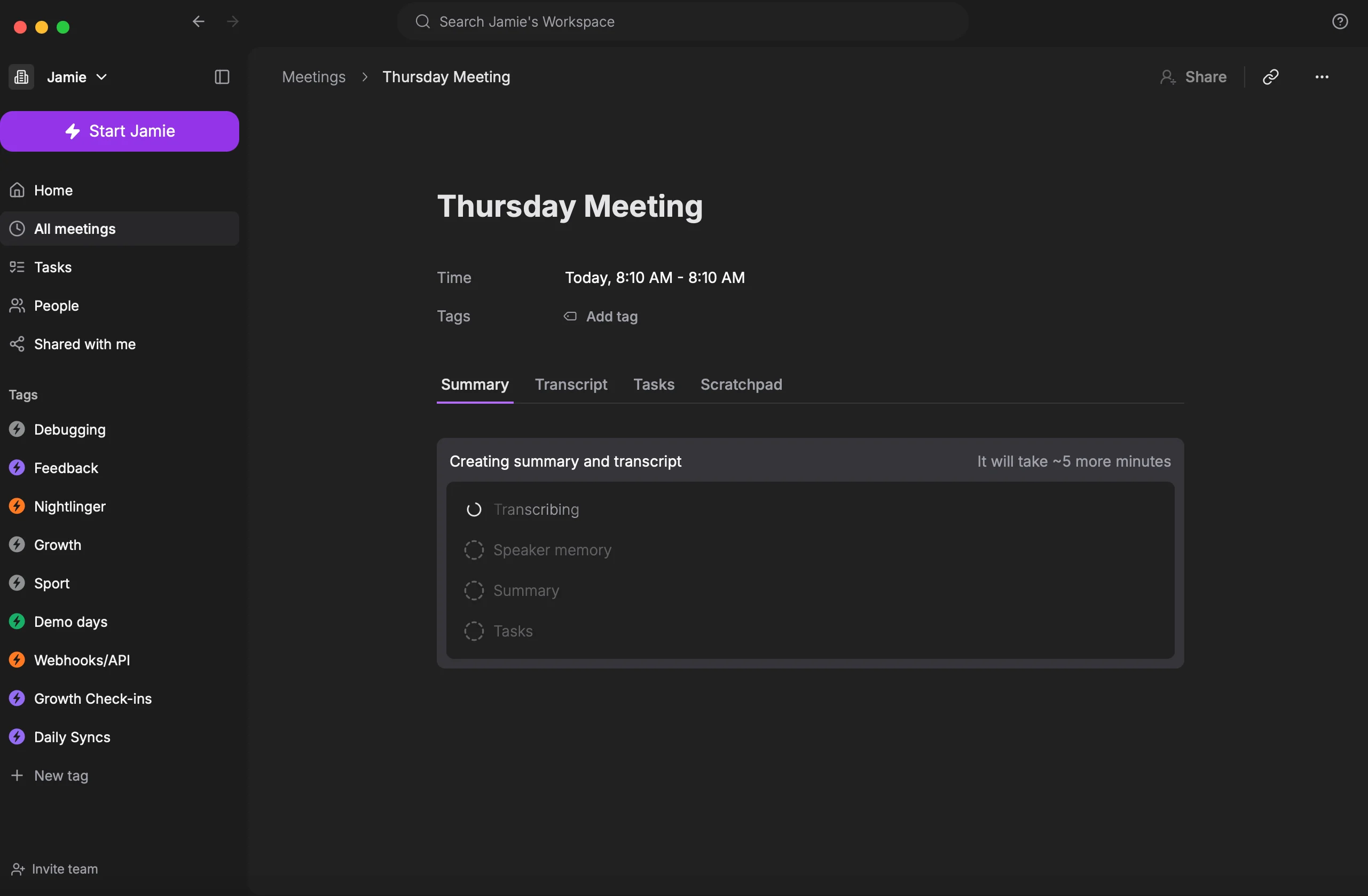 You can now review and effortlessly share the notes with your team.
**That's it** - no need for meeting bots **🎉**
To add team members to your workspace, navigate to the sidebar on the left → **Invite team**.
Jamie only captures the audio of your meetings and provides you with:
Get outstanding meeting notes
Capture all tasks and decisions
Get instant transcription for all your meetings
**Note:** Jamie can only be used on your **macOS** or **Windows** device and therefore does not require any virtual bot to join your meeting.
You can now review and effortlessly share the notes with your team.
**That's it** - no need for meeting bots **🎉**
To add team members to your workspace, navigate to the sidebar on the left → **Invite team**.
Jamie only captures the audio of your meetings and provides you with:
Get outstanding meeting notes
Capture all tasks and decisions
Get instant transcription for all your meetings
**Note:** Jamie can only be used on your **macOS** or **Windows** device and therefore does not require any virtual bot to join your meeting.