> ## Documentation Index
> Fetch the complete documentation index at: https://docs.meetjamie.ai/llms.txt
> Use this file to discover all available pages before exploring further.
# Tags
> Organise your meetings into projects, collaborate with colleagues using shared tags.
## What are tags?
Tags are keywords you attach to meetings to keep your notes organised. They are fully customisable so you can build a system around projects, clients, teams, or anything else you care about. A meeting can have multiple tags, and you can share tags with teammates so the right people see the right meetings.
## When you'd use tags
Group every meeting related to a project in one place so you can pull up the whole history in two clicks.
Tag every call with a client so all discovery, kickoff, and review meetings live together.
Use tags to separate engineering, sales, and operations meetings without spinning up new workspaces.
Track recurring topics such as hiring, planning, or retros across the whole organisation.
## How to use
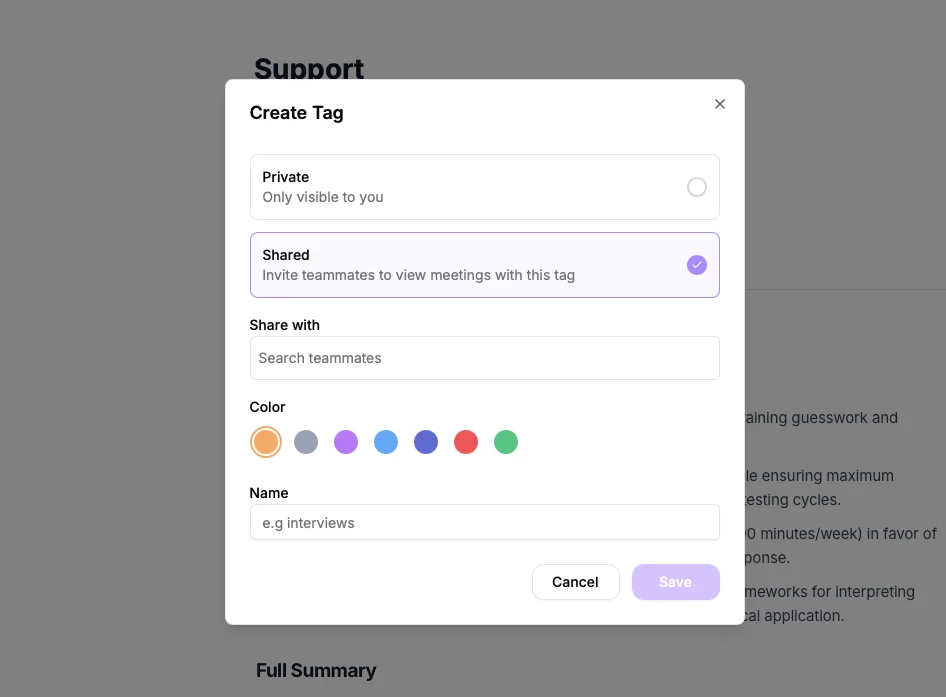
In the left sidebar, click **+ New tag**.
Pick **Private** if the tag is just for you, or **Shared** to invite teammates. Shared tags are available on Team and Enterprise plans.
Choose a colour that helps you spot the tag in the sidebar, then enter a short, descriptive name.
For shared tags, select the teammates who should be able to add their own meetings to the tag.
 From your meetings list, click any meeting to open the summary.
In the meeting header, click 🏷️ **Add tag**.
Start typing to filter your tags. If the name does not exist yet, select **Create** to make a new tag inline without leaving the meeting.
From your meetings list, click any meeting to open the summary.
In the meeting header, click 🏷️ **Add tag**.
Start typing to filter your tags. If the name does not exist yet, select **Create** to make a new tag inline without leaving the meeting.
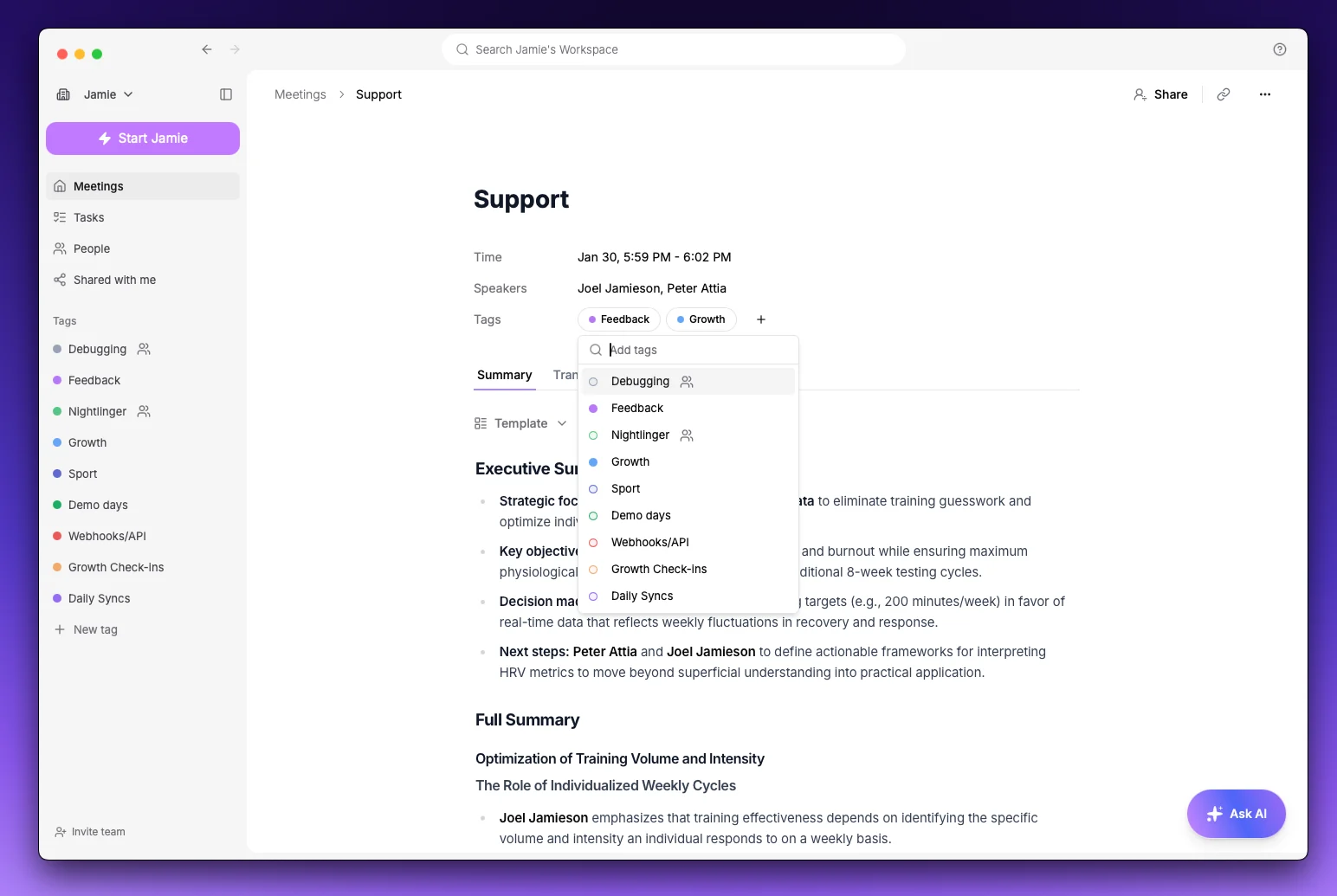 A meeting can have as many tags as you like. Use one for the client, one for the project, and one for the meeting type if that is how you think about it.
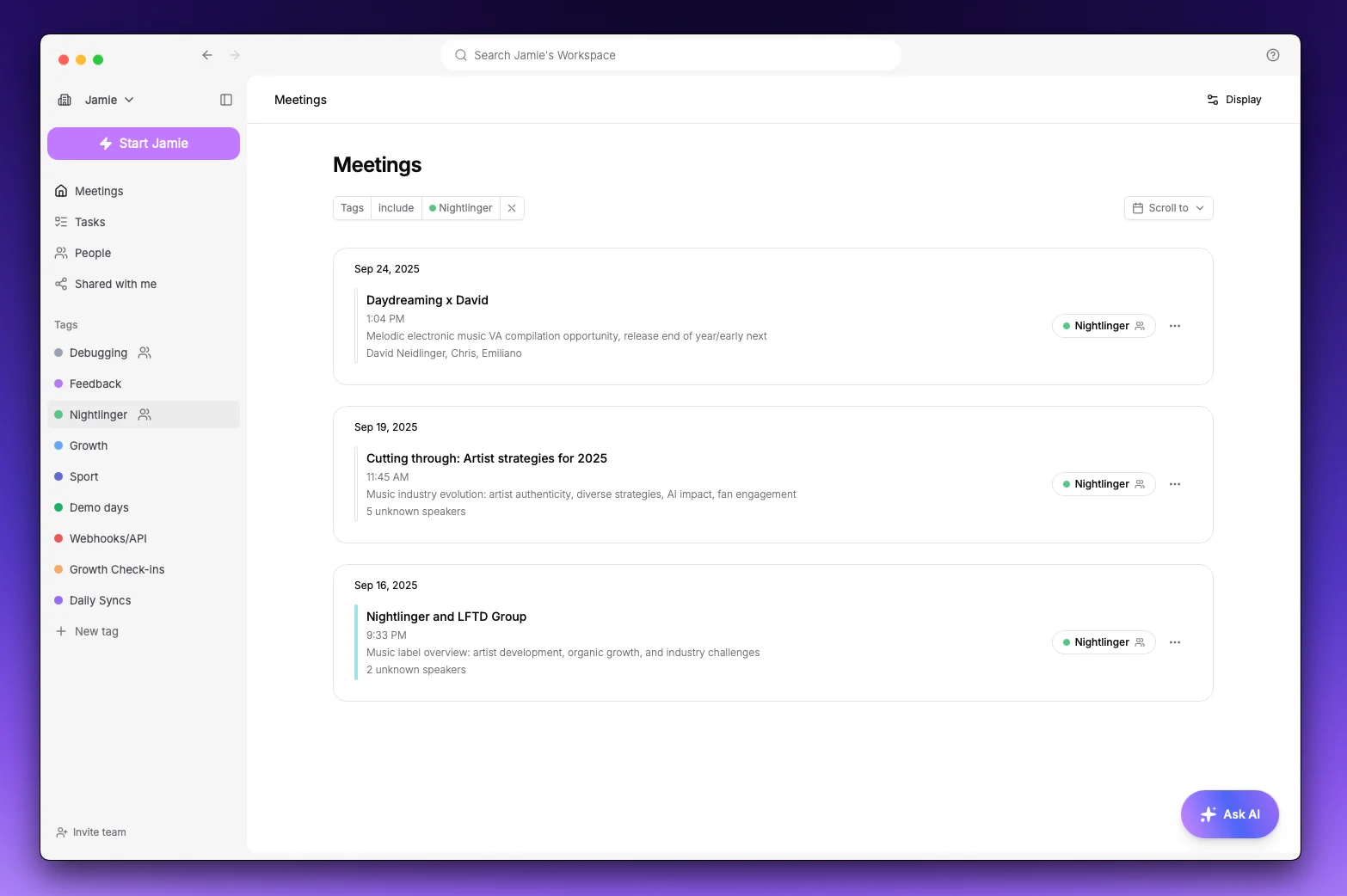
Selecting a tag filters your meetings list to just the meetings with that tag.
While filtered to a tag, you can still search by keyword to narrow further.
Click the tag again, or pick **All meetings**, to clear the filter.
A meeting can have as many tags as you like. Use one for the client, one for the project, and one for the meeting type if that is how you think about it.
Selecting a tag filters your meetings list to just the meetings with that tag.
While filtered to a tag, you can still search by keyword to narrow further.
Click the tag again, or pick **All meetings**, to clear the filter.
 ## Private vs shared tags
**Private tags** are only visible to you. They are great for personal organisation when you do not want to involve teammates.
**Shared tags** let you share a curated slice of your meeting library without giving teammates access to everything. When you add a meeting to a shared tag, every contributor of that tag can view that meeting. Shared tags are marked with a small users icon throughout the app.
Shared tags are available on the Team and Enterprise plans.
### How shared tags work
* **As the owner**: you create the tag and choose which teammates can contribute. Only the owner can add or remove members.
* **As a contributor**: you can view every meeting in the tag and add your own meetings to it.
### Managing shared tag members
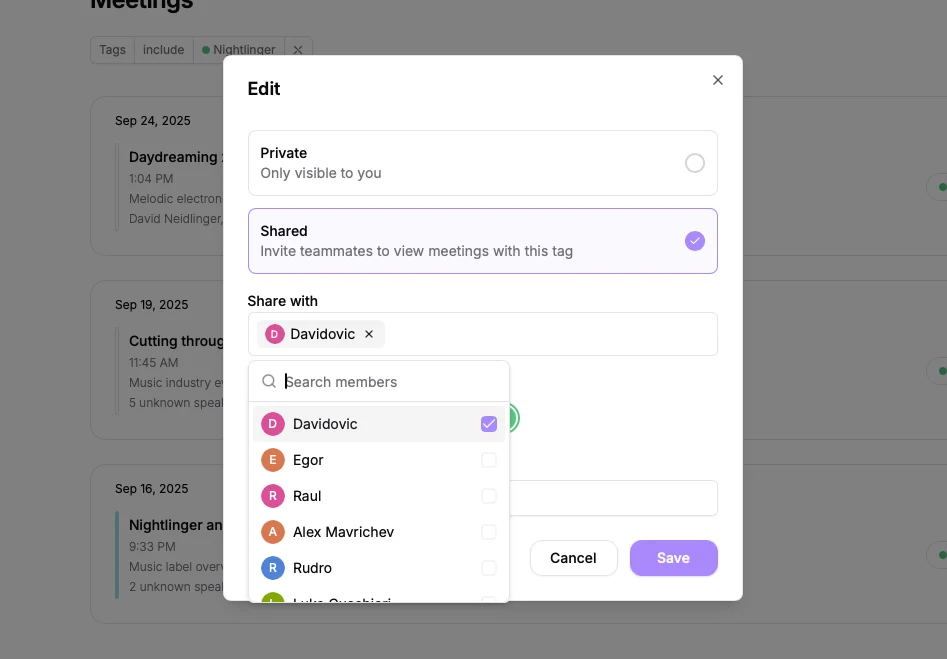
In the sidebar, click the three dots next to the shared tag.
Choose **Edit** or **Share** to open the sharing settings.
Update the list of contributors. Removing all contributors turns the tag back into a private tag.
## Private vs shared tags
**Private tags** are only visible to you. They are great for personal organisation when you do not want to involve teammates.
**Shared tags** let you share a curated slice of your meeting library without giving teammates access to everything. When you add a meeting to a shared tag, every contributor of that tag can view that meeting. Shared tags are marked with a small users icon throughout the app.
Shared tags are available on the Team and Enterprise plans.
### How shared tags work
* **As the owner**: you create the tag and choose which teammates can contribute. Only the owner can add or remove members.
* **As a contributor**: you can view every meeting in the tag and add your own meetings to it.
### Managing shared tag members
In the sidebar, click the three dots next to the shared tag.
Choose **Edit** or **Share** to open the sharing settings.
Update the list of contributors. Removing all contributors turns the tag back into a private tag.
 ### Leaving a shared tag
If you are a contributor and no longer want access to a shared tag, open its menu in the sidebar and select **Remove**. The tag and its meetings will no longer appear for you.
## Tag suggestions
Jamie looks at each new meeting and suggests the tags that fit. By default, suggested tags show up next to the meeting and only apply if you accept them. If you'd rather not review them one by one, you can let Jamie [apply them automatically](#applying-tags-automatically).
The more descriptive your tag names are, and the more meetings you have already tagged, the better the suggestions become. A handful of well-tagged meetings is usually enough to get useful results.
### Turning suggestions on or off
### Leaving a shared tag
If you are a contributor and no longer want access to a shared tag, open its menu in the sidebar and select **Remove**. The tag and its meetings will no longer appear for you.
## Tag suggestions
Jamie looks at each new meeting and suggests the tags that fit. By default, suggested tags show up next to the meeting and only apply if you accept them. If you'd rather not review them one by one, you can let Jamie [apply them automatically](#applying-tags-automatically).
The more descriptive your tag names are, and the more meetings you have already tagged, the better the suggestions become. A handful of well-tagged meetings is usually enough to get useful results.
### Turning suggestions on or off
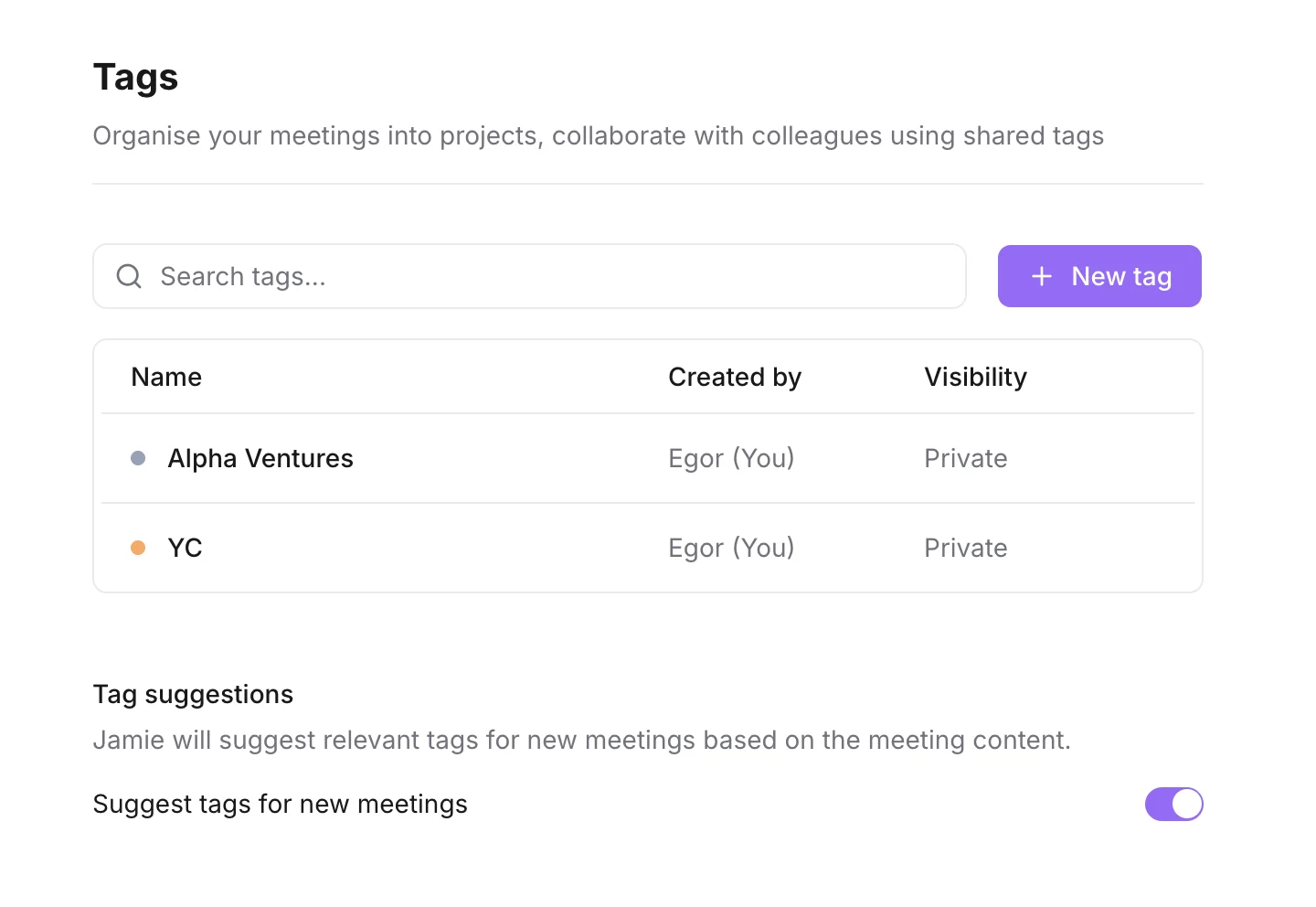 Go to **Settings → Tags**.
Scroll to the **Tag suggestions** section below the tags table.
Use the **Suggest tags for new meetings** toggle to turn suggestions on or off. The change applies to all of your future meetings.
Jamie only suggests tags you have already created. It will not create new tags for you.
## Applying tags automatically
If you find yourself accepting most suggestions anyway, you can let Jamie apply them for you. With automatic application turned on, suggested tags are added to new meetings straight away — there's no review step. You can still remove any tag that doesn't fit.
Automatic application is **off by default**: out of the box Jamie only ever suggests tags. After you've accepted a few suggestions, Jamie will offer to turn it on for you with a one-tap toast.
### Choosing which tags get applied
When you enable automatic application you decide how far it goes:
* **Private tags only** *(default)* — Jamie automatically applies only your personal tags. Shared tags are still suggested for you to review, so you stay in control of what your teammates see.
* **Private and shared tags** — Jamie also applies the tags you share with teammates. Keep in mind that adding a meeting to a shared tag makes it visible to everyone who contributes to that tag.
Go to **Settings → Tags** and find the **Tag suggestions** section.
Enable **Apply suggested tags automatically**. (Tag suggestions need to be on first.)
Choose **Private tags only** or **Private and shared tags**. New meetings are tagged automatically from now on.
Choosing **Private and shared tags** can change who sees a meeting: applying a shared tag exposes the meeting to every contributor on that tag. Use **Private tags only** if you'd rather review shared tags yourself.
## Tips and common questions
Yes. Open the tag menu in the sidebar and pick **Edit**. Renaming a tag updates it everywhere it has been applied — you never need to re-tag old meetings.
The tag is removed from every meeting that had it. The meetings themselves stay untouched. If the tag was shared, contributors lose access at the same time.
Only the tag owner can remove contributors. As a contributor you can always leave the tag yourself by opening its menu in the sidebar and selecting **Remove**.
Two common reasons: you have not created any tags yet, or suggestions are turned off in **Settings → Tags**. Suggestions also need a few existing tagged meetings to learn from.
Yes. That is exactly what shared tags are for. Contributors only see meetings that have been added to the shared tag, not the rest of your meeting library.
No. Shared tags require the Team or Enterprise plan. Private tags are available on every plan.
## Limits and things to keep in mind
Tag names must be non-empty and unique within your account. Renaming a tag to match an existing one is not allowed.
* Suggestions usually appear within a few seconds of a meeting finishing.
* Removing every contributor from a shared tag turns it back into a private tag.
* Filtering and search can be combined — filter to a tag and then search within it for a specific keyword.
* Suggestions only consider tags that already exist on your account; Jamie will never create a new tag for you automatically.
Go to **Settings → Tags**.
Scroll to the **Tag suggestions** section below the tags table.
Use the **Suggest tags for new meetings** toggle to turn suggestions on or off. The change applies to all of your future meetings.
Jamie only suggests tags you have already created. It will not create new tags for you.
## Applying tags automatically
If you find yourself accepting most suggestions anyway, you can let Jamie apply them for you. With automatic application turned on, suggested tags are added to new meetings straight away — there's no review step. You can still remove any tag that doesn't fit.
Automatic application is **off by default**: out of the box Jamie only ever suggests tags. After you've accepted a few suggestions, Jamie will offer to turn it on for you with a one-tap toast.
### Choosing which tags get applied
When you enable automatic application you decide how far it goes:
* **Private tags only** *(default)* — Jamie automatically applies only your personal tags. Shared tags are still suggested for you to review, so you stay in control of what your teammates see.
* **Private and shared tags** — Jamie also applies the tags you share with teammates. Keep in mind that adding a meeting to a shared tag makes it visible to everyone who contributes to that tag.
Go to **Settings → Tags** and find the **Tag suggestions** section.
Enable **Apply suggested tags automatically**. (Tag suggestions need to be on first.)
Choose **Private tags only** or **Private and shared tags**. New meetings are tagged automatically from now on.
Choosing **Private and shared tags** can change who sees a meeting: applying a shared tag exposes the meeting to every contributor on that tag. Use **Private tags only** if you'd rather review shared tags yourself.
## Tips and common questions
Yes. Open the tag menu in the sidebar and pick **Edit**. Renaming a tag updates it everywhere it has been applied — you never need to re-tag old meetings.
The tag is removed from every meeting that had it. The meetings themselves stay untouched. If the tag was shared, contributors lose access at the same time.
Only the tag owner can remove contributors. As a contributor you can always leave the tag yourself by opening its menu in the sidebar and selecting **Remove**.
Two common reasons: you have not created any tags yet, or suggestions are turned off in **Settings → Tags**. Suggestions also need a few existing tagged meetings to learn from.
Yes. That is exactly what shared tags are for. Contributors only see meetings that have been added to the shared tag, not the rest of your meeting library.
No. Shared tags require the Team or Enterprise plan. Private tags are available on every plan.
## Limits and things to keep in mind
Tag names must be non-empty and unique within your account. Renaming a tag to match an existing one is not allowed.
* Suggestions usually appear within a few seconds of a meeting finishing.
* Removing every contributor from a shared tag turns it back into a private tag.
* Filtering and search can be combined — filter to a tag and then search within it for a specific keyword.
* Suggestions only consider tags that already exist on your account; Jamie will never create a new tag for you automatically.