> ## Documentation Index
> Fetch the complete documentation index at: https://docs.meetjamie.ai/llms.txt
> Use this file to discover all available pages before exploring further.
# Dynamics 365
> Save meeting notes to Dynamics 365 Sales records and meetings
Connect Jamie to Dynamics 365 Sales to save your meeting notes as notes (annotations) linked to Leads, Contacts, Opportunities, and Accounts, or add them to an existing Dynamics 365 meeting.
Dynamics 365 integration requires a **Pro**, **Team**, or **Enterprise** plan.
## Admin Setup (One-Time)
A Dynamics 365 admin should complete this setup before users connect:
1. Ensure the Jamie app registration has the necessary API permissions in your Azure AD / Entra ID tenant
2. Go to **Settings → Integrations → Dynamics 365** and click **Connect Dynamics 365**
3. Enter your environment subdomain and log in with your admin account
4. Grant the required permissions on the OAuth consent screen
## Connecting Dynamics 365
After admin setup, each user can connect:
1. Go to **Settings → Integrations → Dynamics 365**
2. Click **Connect Dynamics 365**
3. Enter your environment **subdomain** (e.g. `org123.crm`) — you can find this in your Dynamics 365 URL, which looks like `https://.dynamics.com`
4. Log in with your Microsoft account and grant access
5. Once verified, the integration shows as **Active**
You only need the subdomain — the `.dynamics.com` suffix is added automatically. Pasting the full URL works too; Jamie cleans it up for you.
## Sending Meetings to Dynamics 365
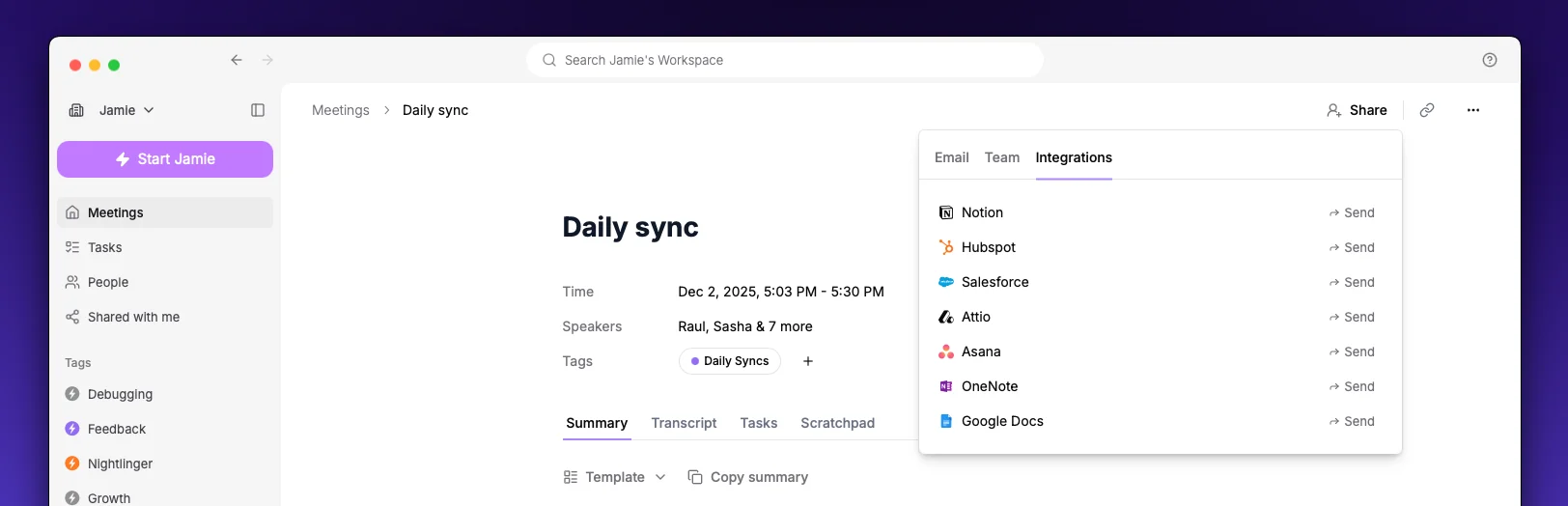 1. Open a meeting in Jamie
2. Click the **Share** button and navigate to **Integrations**
3. Select **Send to Dynamics 365**
4. Choose how you want to send the meeting:
### Create a note & link to records
1. Search for and select one or more **Leads**, **Contacts**, **Opportunities**, or **Accounts**
2. Click **Send**
Jamie creates a note in Dynamics 365 with your meeting content and links it to each selected record.
Dynamics 365 notes can only be linked to a single record, so Jamie creates one note per selected record.
### Update an existing meeting
1. Search for and select an existing Dynamics 365 **meeting** (appointment)
2. Click **Send**
Your meeting notes are added to the selected meeting's description.
### Updating a note
If you've already sent this meeting to Dynamics 365, the **Create note** option becomes **Update note & linked records**. Sending again updates the existing note content and adjusts the linked records instead of creating a duplicate.
## Settings
Once connected, each member can configure what content to include when sending:
| Option | Description |
| -------------- | ---------------------------------------------- |
| **Summary** | Meeting notes with executive summary and notes |
| **Transcript** | Full meeting transcript |
| **Tasks** | Action items and tasks from the meeting |
Use the **Sync all** toggle to include everything at once.
At least one option must be enabled.
1. Open a meeting in Jamie
2. Click the **Share** button and navigate to **Integrations**
3. Select **Send to Dynamics 365**
4. Choose how you want to send the meeting:
### Create a note & link to records
1. Search for and select one or more **Leads**, **Contacts**, **Opportunities**, or **Accounts**
2. Click **Send**
Jamie creates a note in Dynamics 365 with your meeting content and links it to each selected record.
Dynamics 365 notes can only be linked to a single record, so Jamie creates one note per selected record.
### Update an existing meeting
1. Search for and select an existing Dynamics 365 **meeting** (appointment)
2. Click **Send**
Your meeting notes are added to the selected meeting's description.
### Updating a note
If you've already sent this meeting to Dynamics 365, the **Create note** option becomes **Update note & linked records**. Sending again updates the existing note content and adjusts the linked records instead of creating a duplicate.
## Settings
Once connected, each member can configure what content to include when sending:
| Option | Description |
| -------------- | ---------------------------------------------- |
| **Summary** | Meeting notes with executive summary and notes |
| **Transcript** | Full meeting transcript |
| **Tasks** | Action items and tasks from the meeting |
Use the **Sync all** toggle to include everything at once.
At least one option must be enabled.