> ## Documentation Index
> Fetch the complete documentation index at: https://docs.meetjamie.ai/llms.txt
> Use this file to discover all available pages before exploring further.
# Google Docs
> Export meetings to Google Docs
Connect Jamie to Google Docs to create documents with your meeting summaries, transcripts, and tasks.
## Connecting Google Docs
1. Go to **Settings → Integrations → Google Docs**
2. Click **Connect Google Docs**
3. Select your Google account and authorize the connection
## Sending Meetings to Google Docs
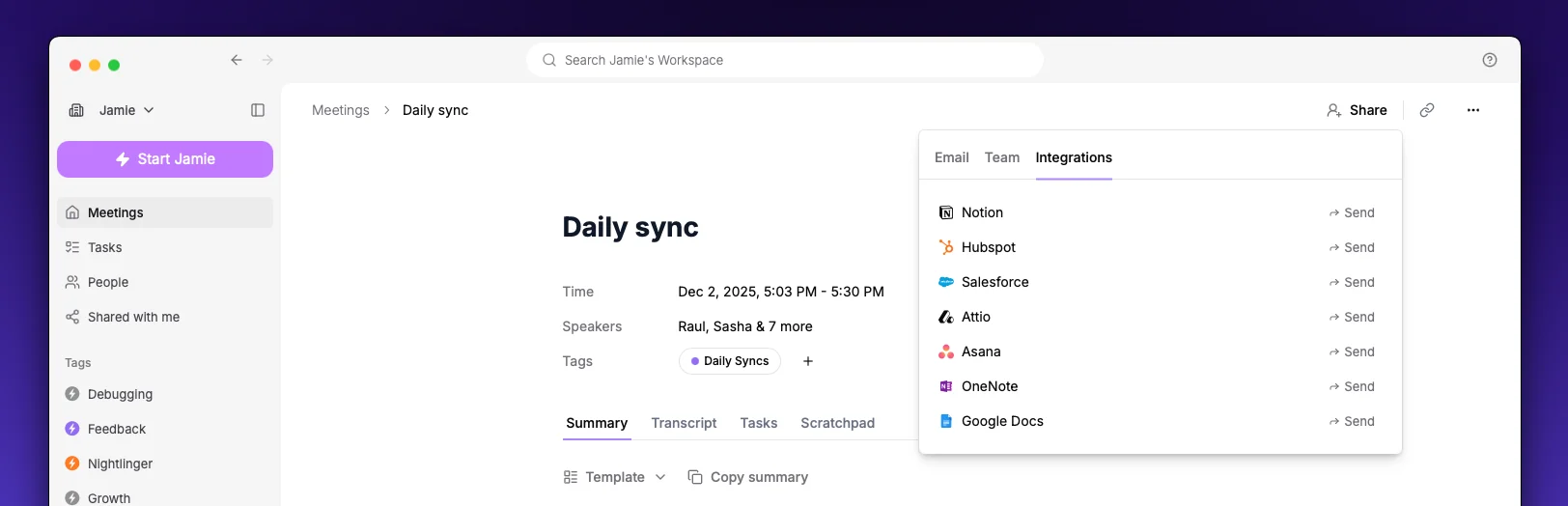 1. Open a meeting in Jamie
2. Click the **Share** button
3. Select **Send to Google Docs**
Jamie creates a new document in your Google Drive with the meeting content.
## Automatic Sync
Enable **Automatic sync** to create a Google Doc for every meeting automatically after processing completes. Toggle this in **Settings → Integrations → Google Docs**.
## Settings
1. Open a meeting in Jamie
2. Click the **Share** button
3. Select **Send to Google Docs**
Jamie creates a new document in your Google Drive with the meeting content.
## Automatic Sync
Enable **Automatic sync** to create a Google Doc for every meeting automatically after processing completes. Toggle this in **Settings → Integrations → Google Docs**.
## Settings
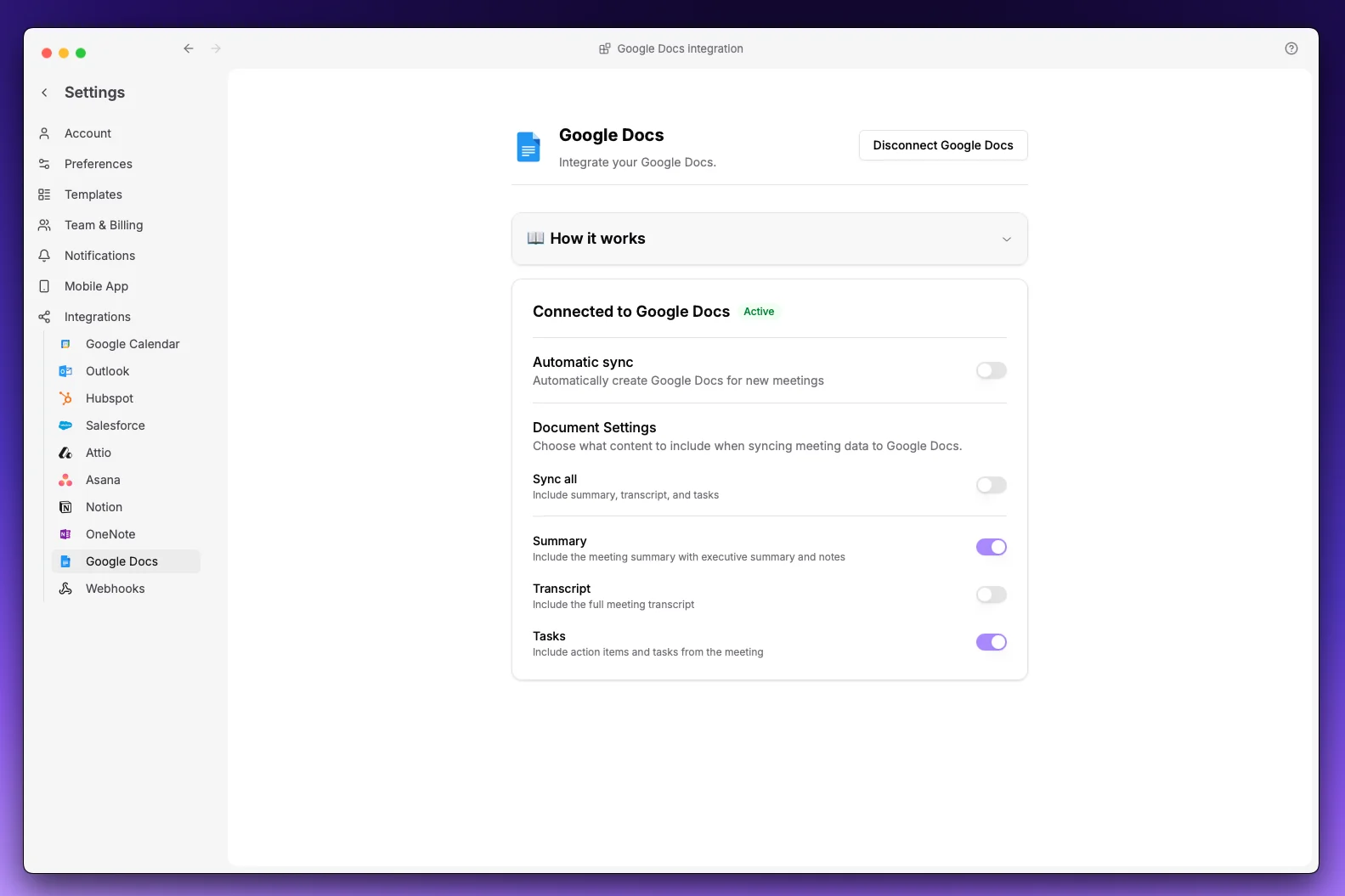 Configure what content to include:
| Option | Description |
| -------------- | ------------------------------------ |
| **Summary** | Meeting notes with executive summary |
| **Transcript** | Full meeting transcript |
| **Tasks** | Action items from the meeting |
At least one option must be enabled.
Configure what content to include:
| Option | Description |
| -------------- | ------------------------------------ |
| **Summary** | Meeting notes with executive summary |
| **Transcript** | Full meeting transcript |
| **Tasks** | Action items from the meeting |
At least one option must be enabled.