> ## Documentation Index
> Fetch the complete documentation index at: https://docs.meetjamie.ai/llms.txt
> Use this file to discover all available pages before exploring further.
# HubSpot
> Log meeting notes to your HubSpot CRM
Connect Jamie to HubSpot to seamlessly log meeting notes to contacts, companies, and deals.
HubSpot integration requires a **Pro**, **Team**, or **Enterprise** plan.
## Connecting HubSpot
1. Go to **Settings → Integrations → HubSpot**
2. Click **Connect HubSpot**
3. Select your HubSpot account and authorize the connection
## Sending Meetings to HubSpot
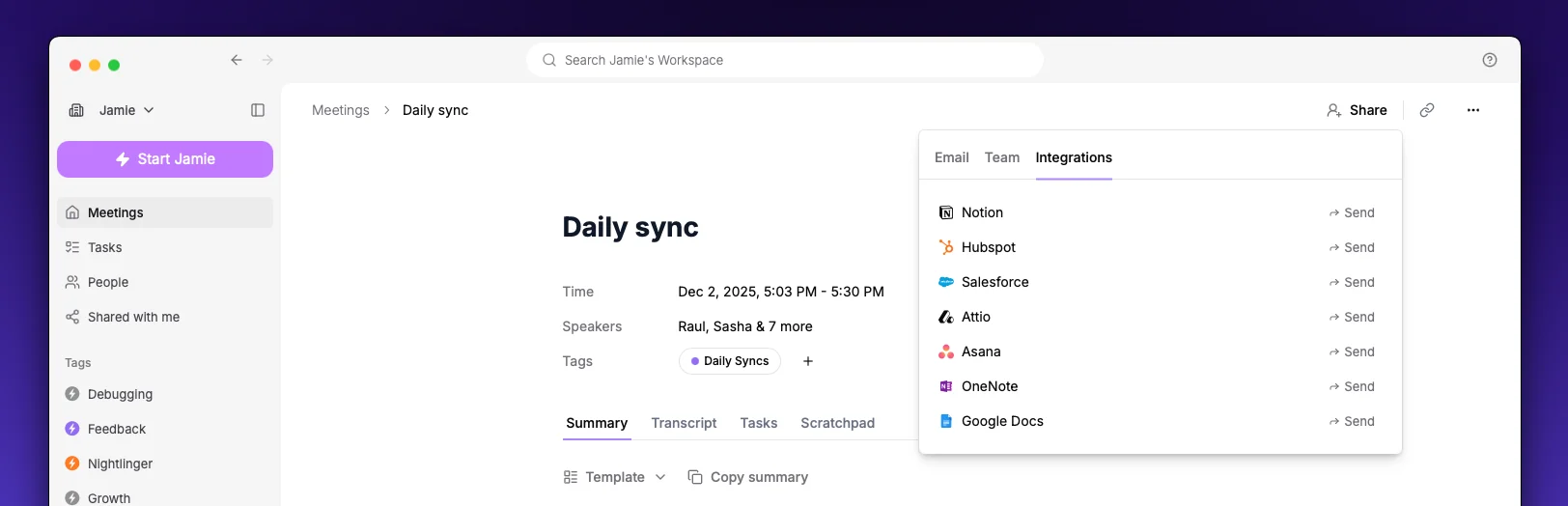 1. Open a meeting in Jamie
2. Click the **Share** button and navigate to **Integrations**
3. Select **Send to HubSpot**
4. Search for and select a contact, company, or deal
5. Click **Send**
Your meeting notes appear in the **Notes** section of the selected record. If transcript is enabled, it's attached as a PDF.
## Settings
1. Open a meeting in Jamie
2. Click the **Share** button and navigate to **Integrations**
3. Select **Send to HubSpot**
4. Search for and select a contact, company, or deal
5. Click **Send**
Your meeting notes appear in the **Notes** section of the selected record. If transcript is enabled, it's attached as a PDF.
## Settings
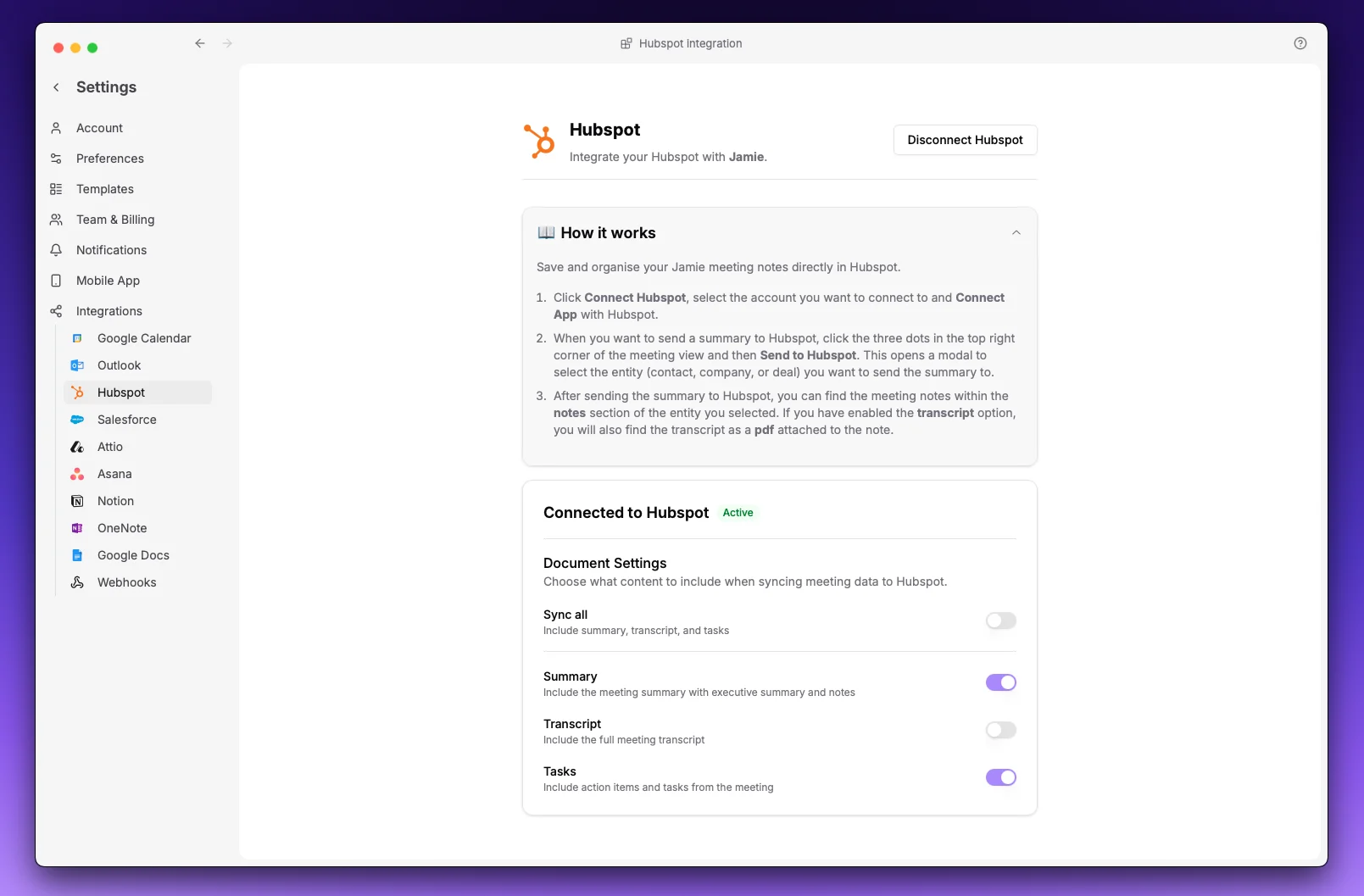 Once connected, configure what content to include:
| Option | Description |
| -------------- | ------------------------------------ |
| **Summary** | Meeting notes with executive summary |
| **Transcript** | Full transcript attached as PDF |
| **Tasks** | Action items from the meeting |
At least one option must be enabled.
Once connected, configure what content to include:
| Option | Description |
| -------------- | ------------------------------------ |
| **Summary** | Meeting notes with executive summary |
| **Transcript** | Full transcript attached as PDF |
| **Tasks** | Action items from the meeting |
At least one option must be enabled.