> ## Documentation Index
> Fetch the complete documentation index at: https://docs.meetjamie.ai/llms.txt
> Use this file to discover all available pages before exploring further.
# Setup Essentials
> The core of your rollout — logins, calendar access, activating users, driving adoption, the recording notice, and installing Jamie.
## Single Sign-On (SSO / SAML)
SSO lets your organization manage authentication centrally through your identity provider (IdP). Jamie supports SAML 2.0, compatible with Okta, Microsoft Entra ID, Google Workspace, Auth0, ADP, Cloudflare, and any standard SAML or OIDC provider.
Setup is two steps, in order, both under **Settings → Security** in the Jamie app.
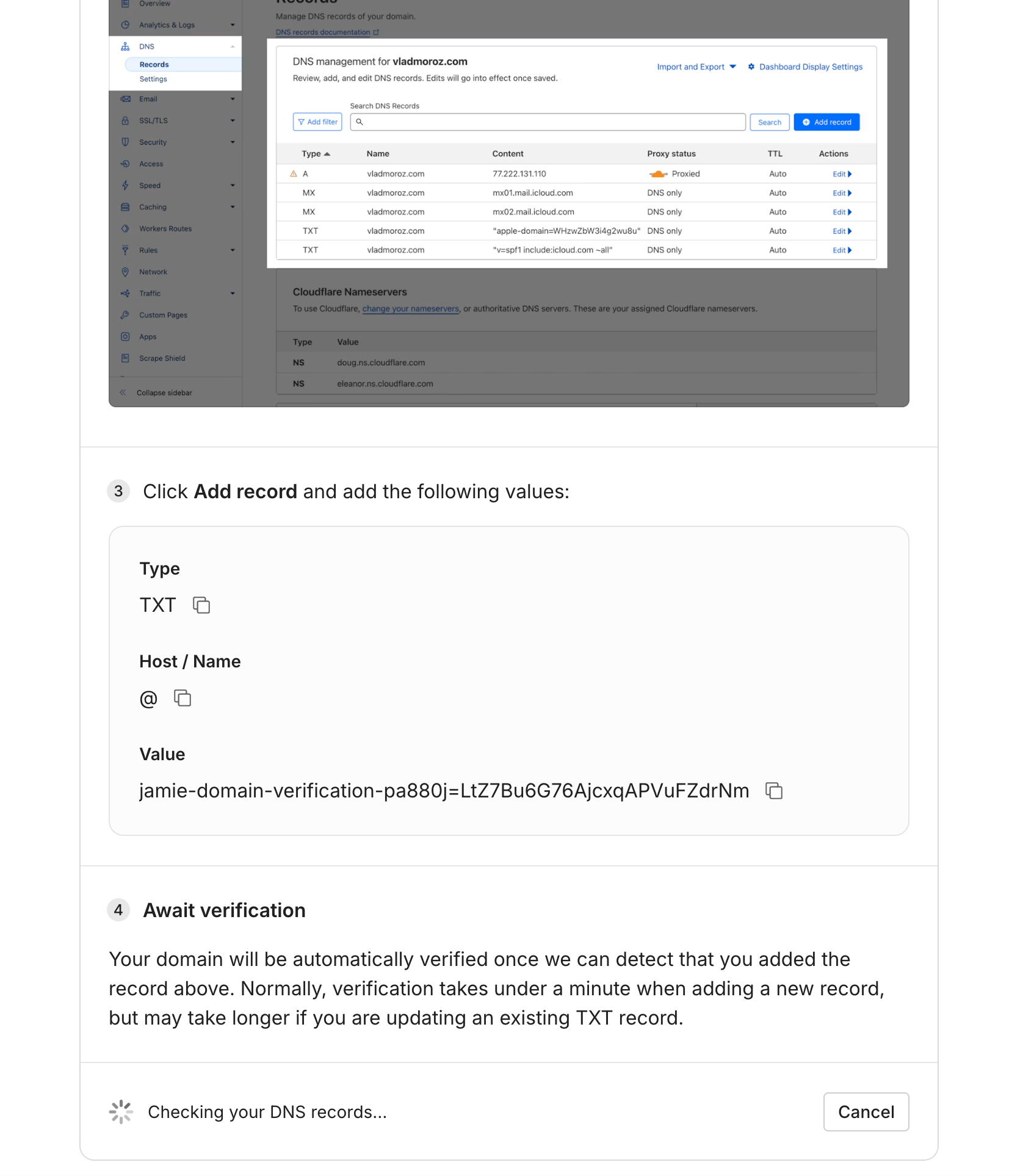
1. Go to **Settings → Security** and click **Configure** next to **Domain Verification Settings**.
2. Enter your domain (e.g. `example.com`).
3. Add the provided TXT record to your DNS (Cloudflare, Route 53, Google Domains, etc.).
4. Verification is automatic — usually under a minute, but up to 48 hours if you're editing an existing TXT record.
Repeat for multiple domains (e.g. a parent and subsidiary).
 1. Go to **Settings → Security** and click **Configure** next to **SSO-Provider Connection Settings**.
2. Select your IdP and follow the on-screen wizard.
3. You'll get an **ACS URL** and **Entity ID** to enter in your IdP; the wizard has step-by-step instructions per provider.
Supported IdPs: Okta, Microsoft Entra ID (Azure AD), Google Workspace, Auth0, ADP, Cloudflare, Custom SAML (any SAML 2.0 IdP), and Custom OIDC.
1. Go to **Settings → Security** and click **Configure** next to **SSO-Provider Connection Settings**.
2. Select your IdP and follow the on-screen wizard.
3. You'll get an **ACS URL** and **Entity ID** to enter in your IdP; the wizard has step-by-step instructions per provider.
Supported IdPs: Okta, Microsoft Entra ID (Azure AD), Google Workspace, Auth0, ADP, Cloudflare, Custom SAML (any SAML 2.0 IdP), and Custom OIDC.
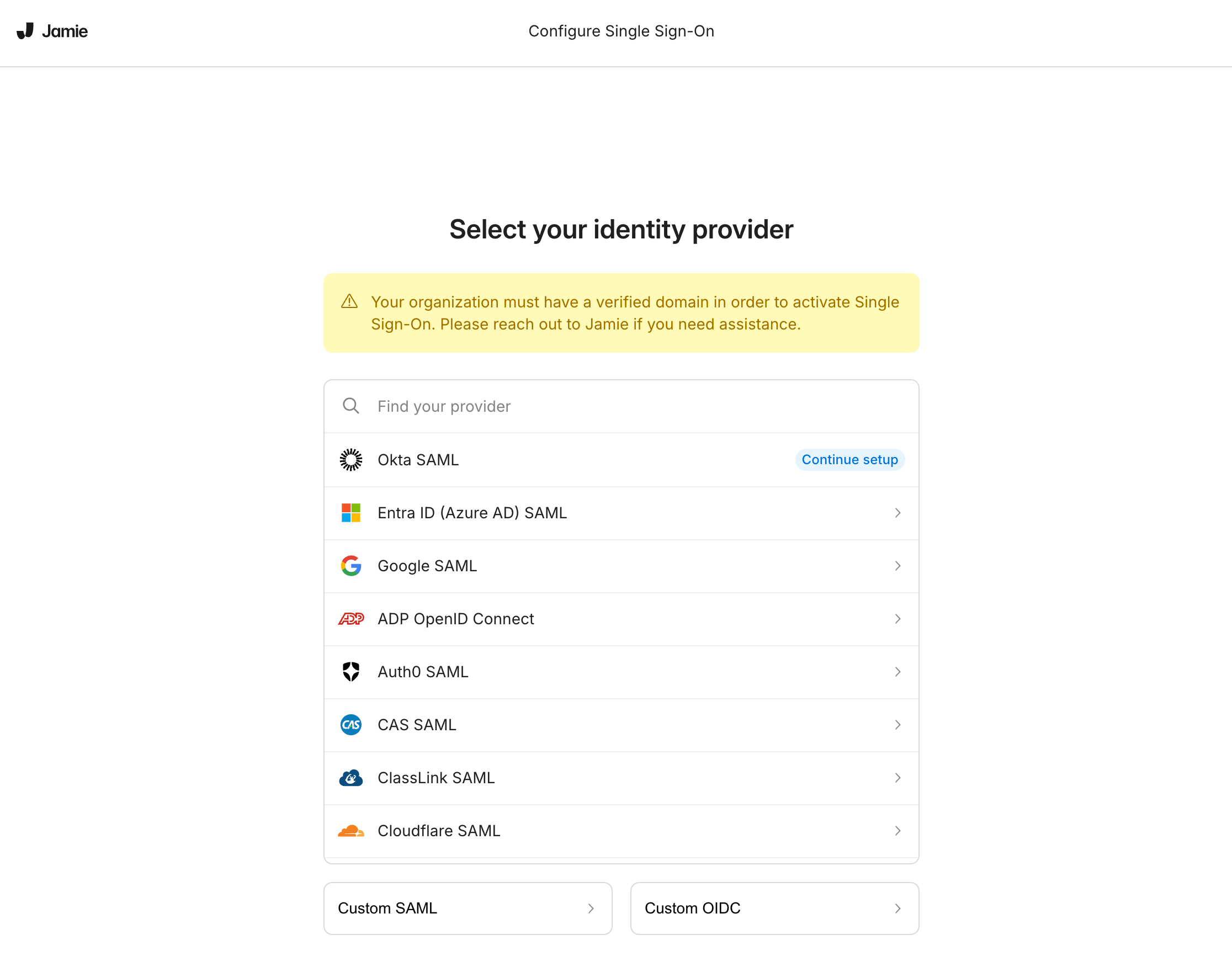 After setup, anyone signing in with a verified domain is **required** to authenticate through your IdP. Users who previously used email or social login get redirected to SSO on their next login.
**Directory Sync (SCIM)** — available on Enterprise. Automatically create, update, and deprovision users from your IdP under **Settings → Security → Directory Connection Settings**. See [Directory Sync](/enterprise/directory-sync) for setup instructions.
## Calendar permissions
Connecting a calendar is what makes most of Jamie's smart features work: it detects upcoming meetings, sends start-recording reminders, auto-fills meeting titles, improves speaker identification, and it's a hard requirement for the [automated recording notice](#recording-notification) and other upcoming features. Each user connects their own calendar — there is no org-wide calendar connection.
**How users connect** (Settings → Integrations):
* **Google Calendar** — Integrations → Google Calendar → **Connect Google Calendar** → sign in → grant permissions.
* **Outlook** — Integrations → Outlook → **Connect Outlook Calendar** → sign in → grant permissions.
Multiple calendars can be selected and synced individually.
**What you as an admin should know:**
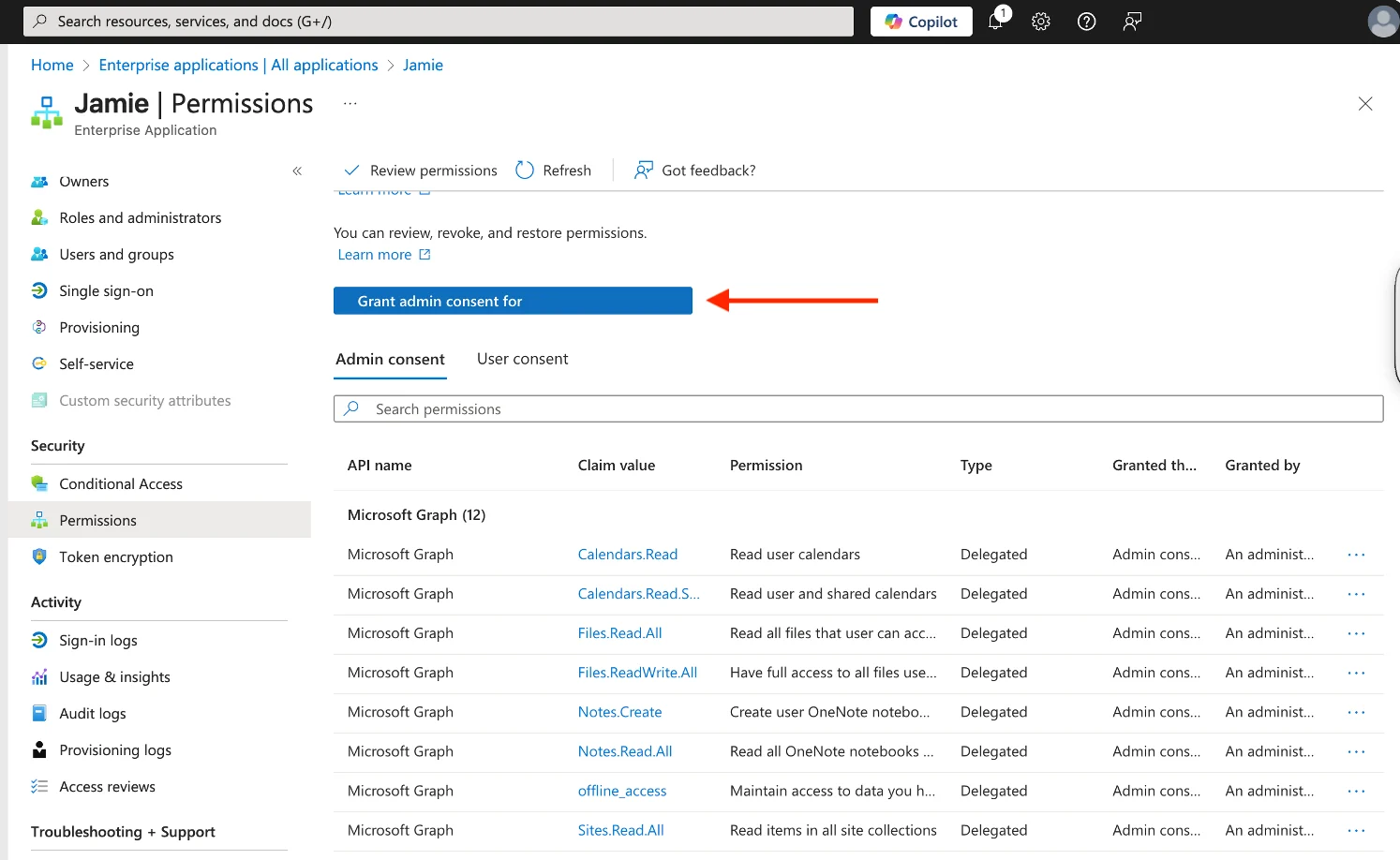
If your org requires admin consent for third-party apps, users will hit an "Approval required" screen. You can approve Jamie once for everyone instead of per-user: sign in to the **Microsoft Entra admin center** → **Identity → Applications → Enterprise applications** → find Jamie (or open the pending admin-consent request) → review permissions → **Grant admin consent**. After that, users connect without individual approval.
After setup, anyone signing in with a verified domain is **required** to authenticate through your IdP. Users who previously used email or social login get redirected to SSO on their next login.
**Directory Sync (SCIM)** — available on Enterprise. Automatically create, update, and deprovision users from your IdP under **Settings → Security → Directory Connection Settings**. See [Directory Sync](/enterprise/directory-sync) for setup instructions.
## Calendar permissions
Connecting a calendar is what makes most of Jamie's smart features work: it detects upcoming meetings, sends start-recording reminders, auto-fills meeting titles, improves speaker identification, and it's a hard requirement for the [automated recording notice](#recording-notification) and other upcoming features. Each user connects their own calendar — there is no org-wide calendar connection.
**How users connect** (Settings → Integrations):
* **Google Calendar** — Integrations → Google Calendar → **Connect Google Calendar** → sign in → grant permissions.
* **Outlook** — Integrations → Outlook → **Connect Outlook Calendar** → sign in → grant permissions.
Multiple calendars can be selected and synced individually.
**What you as an admin should know:**
If your org requires admin consent for third-party apps, users will hit an "Approval required" screen. You can approve Jamie once for everyone instead of per-user: sign in to the **Microsoft Entra admin center** → **Identity → Applications → Enterprise applications** → find Jamie (or open the pending admin-consent request) → review permissions → **Grant admin consent**. After that, users connect without individual approval.
 Jamie uses the Microsoft Graph API, which only reaches mailboxes hosted in Exchange Online. On-prem or un-migrated hybrid mailboxes will see a "mailbox is hosted on-premise" error. Options are migrating the mailbox to Exchange Online, or exploring Exchange Web Services with support.
**Permissions Jamie requests:**
| Permission | Purpose |
| ----------------------------------------- | -------------------------------------------------- |
| `openid`, `profile`, `email`, `User.Read` | Secure sign-in and basic profile |
| `Calendars.Read` | Detect meetings, reminders, auto-titles |
| `People.Read`, `Contacts.Read` | Speaker identification / Speaker Memory |
| `offline_access` | Keep the calendar synced without repeated sign-ins |
Data stored from the calendar: event details (title, time, location, description, conferencing links), attendee names/emails, and contact info for speaker memory.
`People.Read` / `Contacts.Read` power **Speaker Memory**, which creates voiceprints classed as **biometric data** under GDPR. Jamie can keep this deactivated by default at workspace level on request — the recommended default for most deployments.
## Activating users
How users get access depends on your setup:
* **With SSO:** anyone signing in with a verified domain is automatically routed through your IdP. Control exactly who gets in by assigning users or groups to the Jamie app in your identity provider (Entra ID, Okta, Google Workspace, etc.). Remove them there to revoke access.
* **Calendar approval:** make sure you've granted admin consent (see [Calendar permissions](#calendar-permissions)) so users can connect calendars without hitting an approval wall.
## Driving real adoption
Getting licenses assigned is the easy part — getting people to actually use Jamie is what matters.
What tends to work:
* **Make calendar connection step one.** Most of Jamie's value (reminders, auto-titles, speaker ID) depends on it. Push users to connect on day one.
* **Seed shared templates and tags.** If teams open Jamie and find ready-made formats for their meeting types, they adopt faster than from a blank slate.
* **Tie it to an existing habit** — e.g. "every client call gets a Jamie summary shared in the deal channel."
* **Set up integrations early** (CRM, Notion, Slack) so notes flow into tools people already live in, instead of being one more place to check.
* **Revisit usage after a couple of months** to see how it's going, where there are questions, etc.
Want usage visibility? If you want to know who's actively using Jamie across the org, ask your Account Manager.
## Recording notification
As the customer you are the **data controller**, so you're responsible for the legal basis (typically legitimate interest for routine business meetings) and for informing participants under GDPR Arts. 13 and 14. Jamie gives you several mechanisms to meet that transparency obligation.
**Automated recording notice:**
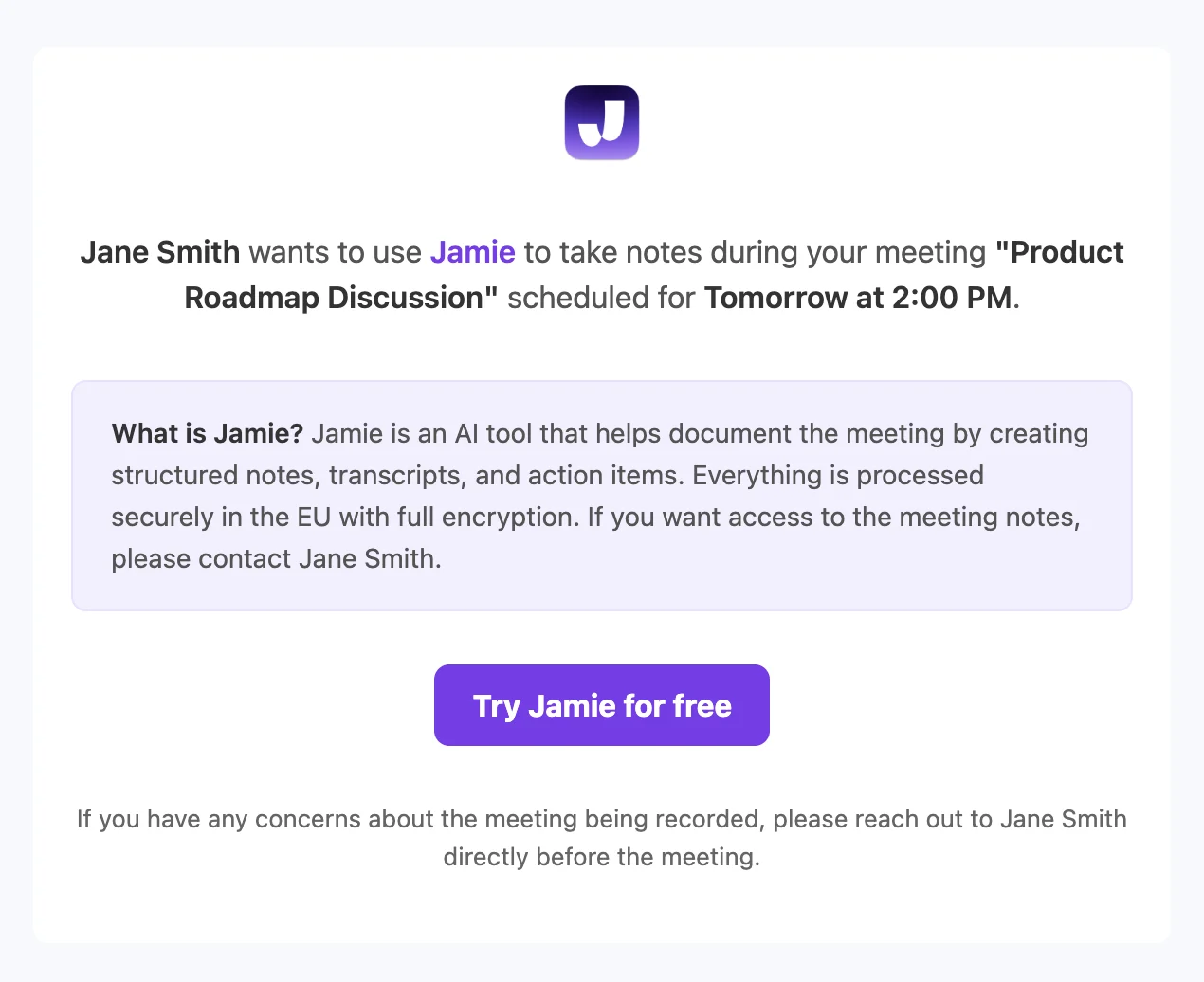
* Sends attendees an email \~24 hours before each meeting explaining you'll use Jamie.
* Requires a connected calendar.
* Attendees from your own workspace are auto-excluded, and domain exclusion can be configured for internal-only deployments.
* Enable it under **Settings → Notifications → Recording notice**.
Jamie uses the Microsoft Graph API, which only reaches mailboxes hosted in Exchange Online. On-prem or un-migrated hybrid mailboxes will see a "mailbox is hosted on-premise" error. Options are migrating the mailbox to Exchange Online, or exploring Exchange Web Services with support.
**Permissions Jamie requests:**
| Permission | Purpose |
| ----------------------------------------- | -------------------------------------------------- |
| `openid`, `profile`, `email`, `User.Read` | Secure sign-in and basic profile |
| `Calendars.Read` | Detect meetings, reminders, auto-titles |
| `People.Read`, `Contacts.Read` | Speaker identification / Speaker Memory |
| `offline_access` | Keep the calendar synced without repeated sign-ins |
Data stored from the calendar: event details (title, time, location, description, conferencing links), attendee names/emails, and contact info for speaker memory.
`People.Read` / `Contacts.Read` power **Speaker Memory**, which creates voiceprints classed as **biometric data** under GDPR. Jamie can keep this deactivated by default at workspace level on request — the recommended default for most deployments.
## Activating users
How users get access depends on your setup:
* **With SSO:** anyone signing in with a verified domain is automatically routed through your IdP. Control exactly who gets in by assigning users or groups to the Jamie app in your identity provider (Entra ID, Okta, Google Workspace, etc.). Remove them there to revoke access.
* **Calendar approval:** make sure you've granted admin consent (see [Calendar permissions](#calendar-permissions)) so users can connect calendars without hitting an approval wall.
## Driving real adoption
Getting licenses assigned is the easy part — getting people to actually use Jamie is what matters.
What tends to work:
* **Make calendar connection step one.** Most of Jamie's value (reminders, auto-titles, speaker ID) depends on it. Push users to connect on day one.
* **Seed shared templates and tags.** If teams open Jamie and find ready-made formats for their meeting types, they adopt faster than from a blank slate.
* **Tie it to an existing habit** — e.g. "every client call gets a Jamie summary shared in the deal channel."
* **Set up integrations early** (CRM, Notion, Slack) so notes flow into tools people already live in, instead of being one more place to check.
* **Revisit usage after a couple of months** to see how it's going, where there are questions, etc.
Want usage visibility? If you want to know who's actively using Jamie across the org, ask your Account Manager.
## Recording notification
As the customer you are the **data controller**, so you're responsible for the legal basis (typically legitimate interest for routine business meetings) and for informing participants under GDPR Arts. 13 and 14. Jamie gives you several mechanisms to meet that transparency obligation.
**Automated recording notice:**
* Sends attendees an email \~24 hours before each meeting explaining you'll use Jamie.
* Requires a connected calendar.
* Attendees from your own workspace are auto-excluded, and domain exclusion can be configured for internal-only deployments.
* Enable it under **Settings → Notifications → Recording notice**.
 **Other mechanisms you can combine:**
* A configurable notice inside the calendar invite or in your signature.
* A quick verbal heads-up at the start of the meeting.
## Intune guide
The app your users download from [meetjamie.ai](https://www.meetjamie.ai/) is a **per-user MSI installer** — the right choice for almost every deployment.
* **No admin rights needed.** Each user installs Jamie under their own profile, so it works even in locked-down corporate environments without local admin.
* **Automatic updates.** Jamie updates itself in the background — no admin privileges required.
* **Works with Intune too.** You can distribute the per-user MSI through Intune as a user-context (rather than device-context) assignment if you prefer a managed rollout.
If your organization runs an **application blocker** (e.g. AppLocker), you'll need to allow Jamie to install and update — see [Common deployment issues & troubleshooting](/onboarding/admins/troubleshooting#app-blocker-prevents-installation).
### Need a per-machine installation?
Some enterprises prefer a single **per-machine** installation shared by all users on a device. This option is available on request — reach out to your dedicated **[Account Manager](/onboarding/admins/troubleshooting#your-account-managers)** and we'll provide the per-machine deployment guide.
Hitting installation problems? See [Common deployment issues & troubleshooting](/onboarding/admins/troubleshooting).
**Other mechanisms you can combine:**
* A configurable notice inside the calendar invite or in your signature.
* A quick verbal heads-up at the start of the meeting.
## Intune guide
The app your users download from [meetjamie.ai](https://www.meetjamie.ai/) is a **per-user MSI installer** — the right choice for almost every deployment.
* **No admin rights needed.** Each user installs Jamie under their own profile, so it works even in locked-down corporate environments without local admin.
* **Automatic updates.** Jamie updates itself in the background — no admin privileges required.
* **Works with Intune too.** You can distribute the per-user MSI through Intune as a user-context (rather than device-context) assignment if you prefer a managed rollout.
If your organization runs an **application blocker** (e.g. AppLocker), you'll need to allow Jamie to install and update — see [Common deployment issues & troubleshooting](/onboarding/admins/troubleshooting#app-blocker-prevents-installation).
### Need a per-machine installation?
Some enterprises prefer a single **per-machine** installation shared by all users on a device. This option is available on request — reach out to your dedicated **[Account Manager](/onboarding/admins/troubleshooting#your-account-managers)** and we'll provide the per-machine deployment guide.
Hitting installation problems? See [Common deployment issues & troubleshooting](/onboarding/admins/troubleshooting).