> ## Documentation Index
> Fetch the complete documentation index at: https://docs.meetjamie.ai/llms.txt
> Use this file to discover all available pages before exploring further.
# Ask AI
> Chat with your meetings to get instant answers, summaries, and follow-ups.
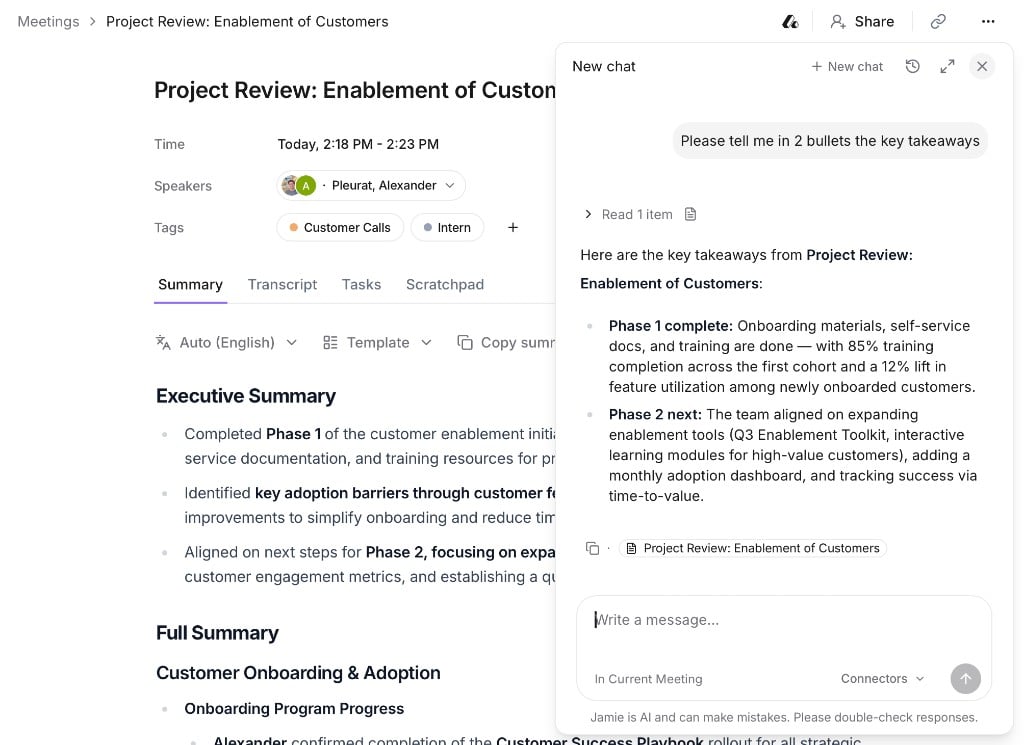
Ask AI lets you get answers and insights from your meetings in plain language.
## How to use it
Click the **Ask AI** widget at the bottom-right of your screen.
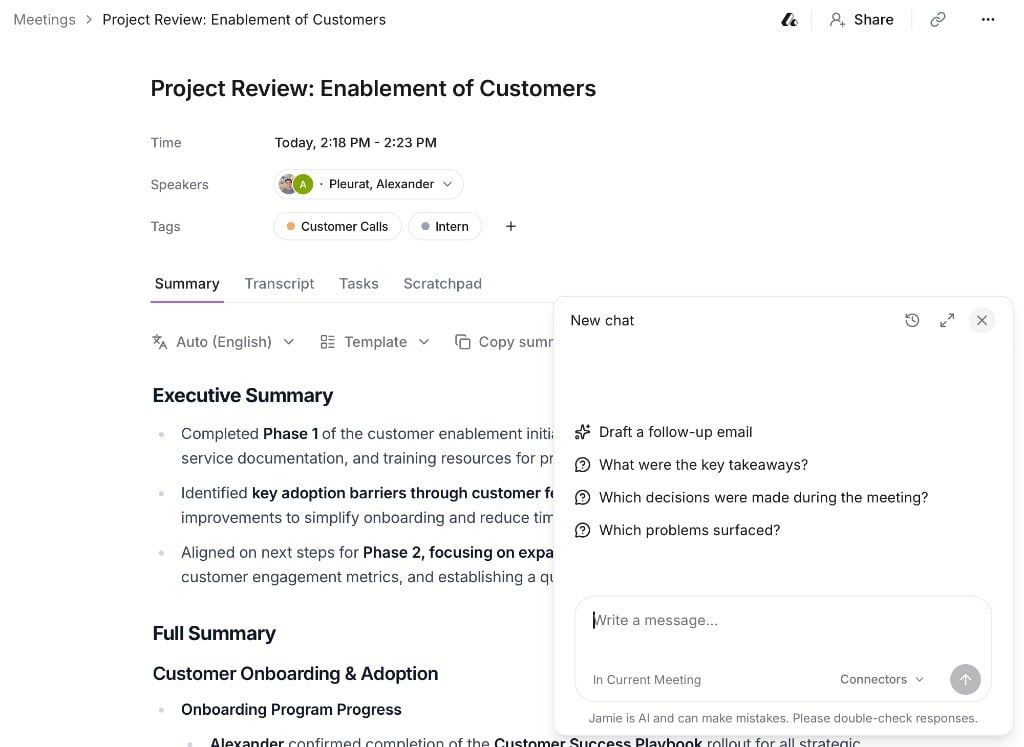 Use Ask AI across all your meetings, inside a tag's meetings, or in one specific meeting.
Draft follow-ups, find answers across your history, or summarize recent calls.
Use Ask AI across all your meetings, inside a tag's meetings, or in one specific meeting.
Draft follow-ups, find answers across your history, or summarize recent calls.