> ## Documentation Index
> Fetch the complete documentation index at: https://docs.meetjamie.ai/llms.txt
> Use this file to discover all available pages before exploring further.
# Connect your calendar
> Sync your calendar for smart reminders, automatic meeting titles, and better speaker identification.
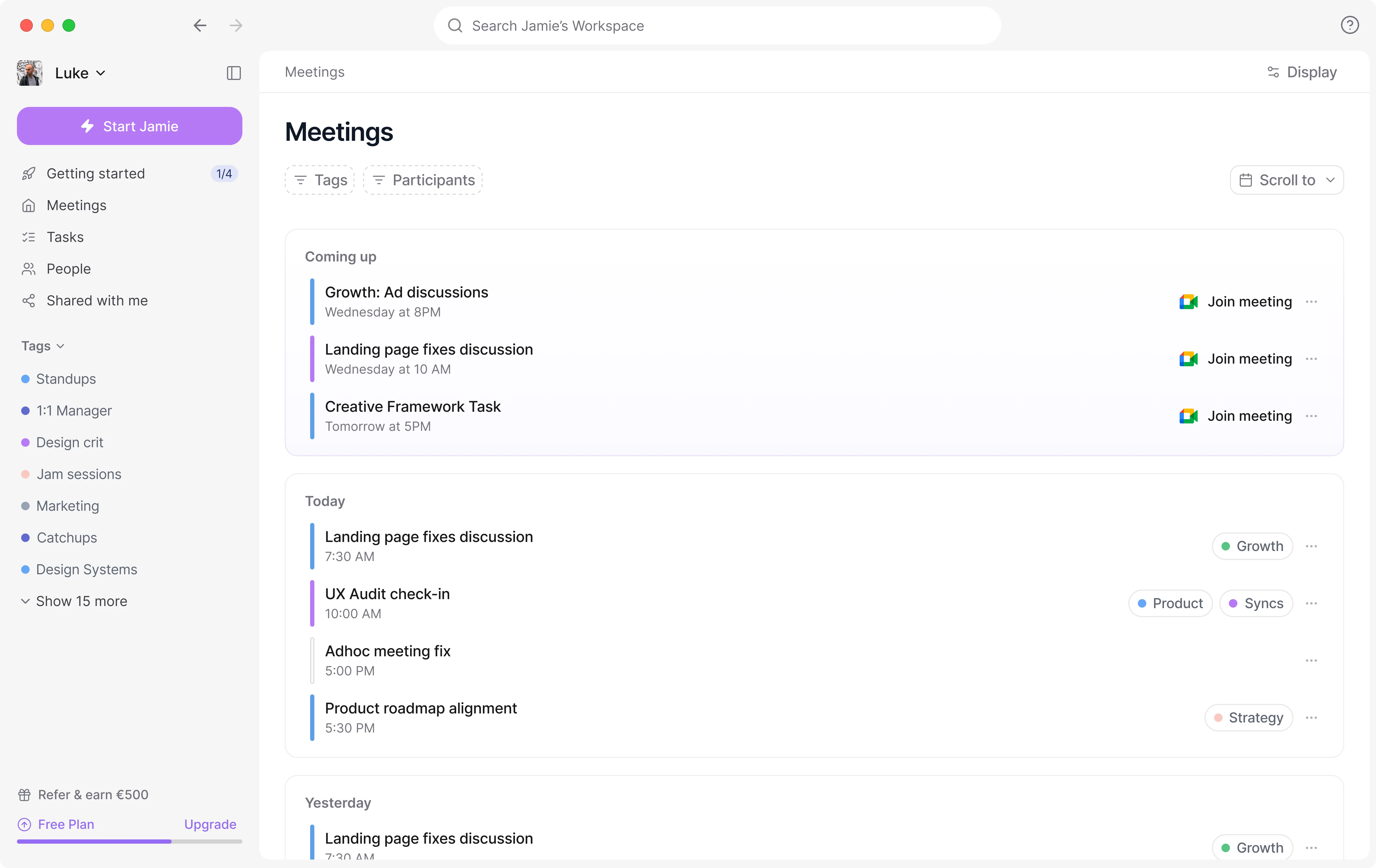
Connecting your calendar is one of the most important steps when setting up Jamie, so it's best done right at the start. Many features depend on it, and it makes using Jamie much smoother. The connection lets Jamie show your upcoming meetings, set meeting titles automatically, and improve speaker identification.
## How to connect
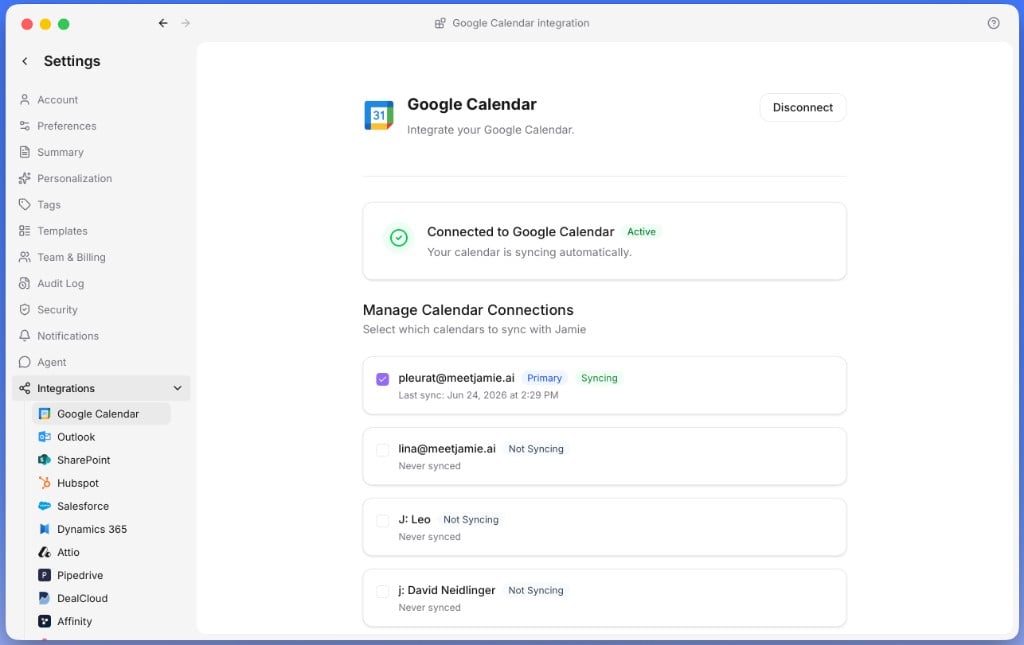 Click your workspace name (top-left) → **Settings**.
Go to **Integrations** → **Google Calendar / Outlook Calendar**.
Click **Connect Calendar**, sign in, and grant permissions.
Once done, Jamie syncs your **upcoming meetings** and reminds you when it's time to start recording.
Click your workspace name (top-left) → **Settings**.
Go to **Integrations** → **Google Calendar / Outlook Calendar**.
Click **Connect Calendar**, sign in, and grant permissions.
Once done, Jamie syncs your **upcoming meetings** and reminds you when it's time to start recording.