> ## Documentation Index
> Fetch the complete documentation index at: https://docs.meetjamie.ai/llms.txt
> Use this file to discover all available pages before exploring further.

# Get started

> Sign up, record your first meeting, and pick the right microphone — everything you need for your first great set of notes.

<Frame>
  <iframe width="100%" height="400" src="https://www.loom.com/embed/64f6ba544d3b4e0f9da50204276f7bfd" title="Get started with Jamie" allowfullscreen />
</Frame>

## Sign up

<Steps>
  <Step title="Download Jamie">
    Go to [meetjamie.ai](https://www.meetjamie.ai/) and click **Download Jamie**.
  </Step>

  <Step title="Install the app">
    Install Jamie on your laptop.
  </Step>

  <Step title="Sign up">
    Sign up with **Google**, **Microsoft**, **Apple**, or your **email**. Then follow the onboarding steps in the app.
  </Step>
</Steps>

## Record your first meeting

<Steps>
  <Step title="Start Jamie">
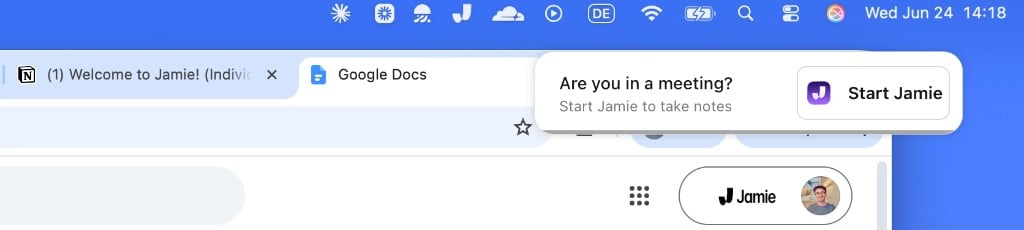
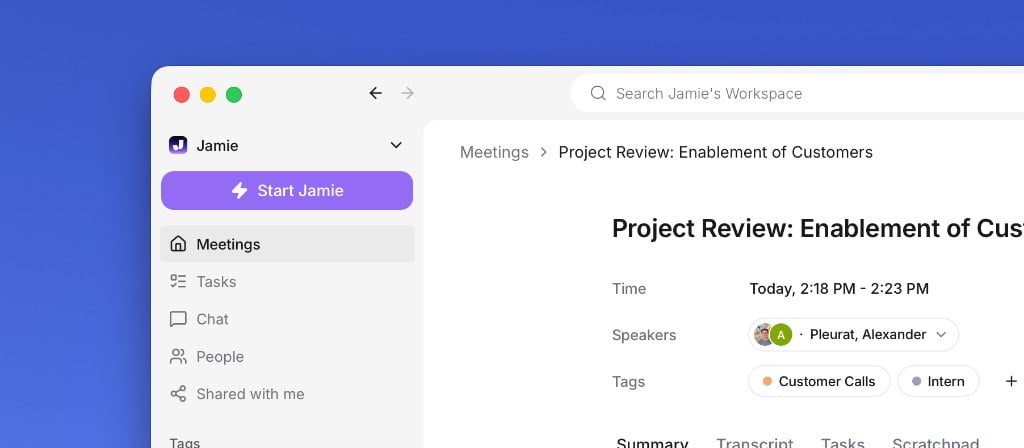
    Join a call and click **Start Jamie** when the reminder pops up, or click **Start Jamie** in the top-left corner of the app.
    <img src="https://mintcdn.com/jamie-9c8bb406/dAY5kCzhOsnX5U2c/images/onboarding/record-meeting-reminder.png?fit=max&auto=format&n=dAY5kCzhOsnX5U2c&q=85&s=0b74e1a5d587e72eda38c55582cb7653" alt="Start Jamie from the meeting reminder" width="1024" height="230" data-path="images/onboarding/record-meeting-reminder.png" />

    <div style={{ height: "1rem" }} />

    <img src="https://mintcdn.com/jamie-9c8bb406/dAY5kCzhOsnX5U2c/images/onboarding/record-meeting-app-v2.png?fit=max&auto=format&n=dAY5kCzhOsnX5U2c&q=85&s=dde6b9ec68078edda4969239e8ebaad9" alt="Start Jamie from the app" width="1024" height="448" data-path="images/onboarding/record-meeting-app-v2.png" />
  </Step>

  <Step title="Let Jamie record">
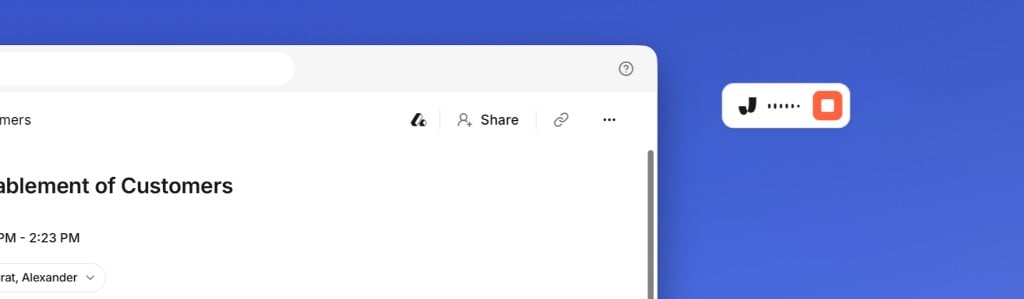
    The recorder widget shows that Jamie is running. You can see the elapsed time, change your microphone, and jot private notes in the **Scratchpad**. Click the widget when you want to stop.
    <img src="https://mintcdn.com/jamie-9c8bb406/dAY5kCzhOsnX5U2c/images/onboarding/recorder-closed-v2.png?fit=max&auto=format&n=dAY5kCzhOsnX5U2c&q=85&s=63fc276afdba89079b87dc0ae6a07504" alt="The recorder widget" width="1024" height="299" data-path="images/onboarding/recorder-closed-v2.png" />
  </Step>

  <Step title="Get your notes">
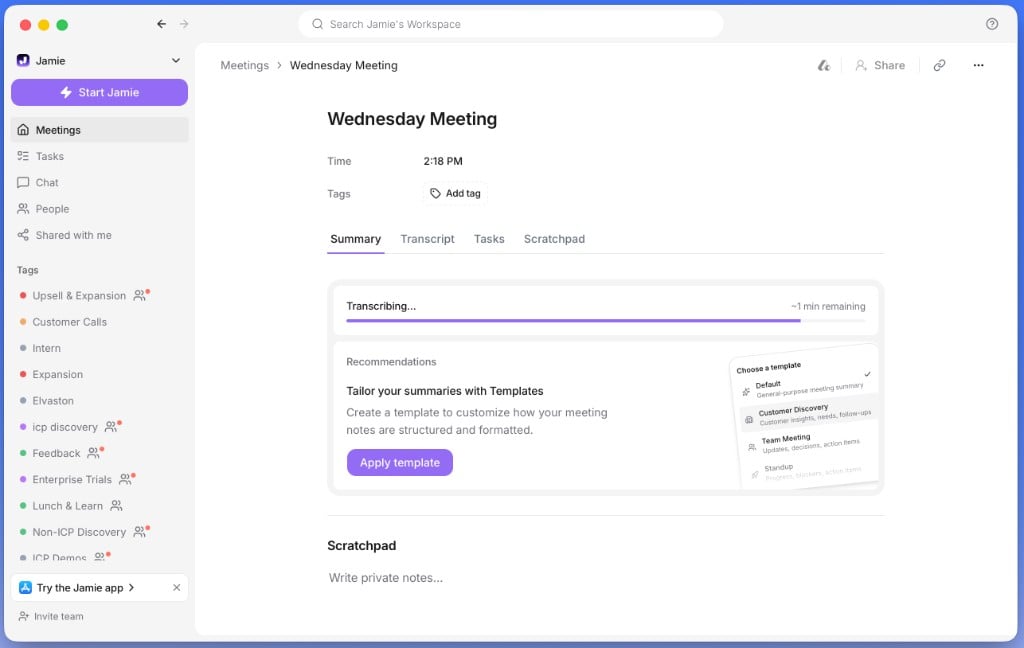
    Your summary, transcript, and action items are ready a couple of minutes after the meeting ends.
    <img src="https://mintcdn.com/jamie-9c8bb406/dAY5kCzhOsnX5U2c/images/onboarding/transcribing.png?fit=max&auto=format&n=dAY5kCzhOsnX5U2c&q=85&s=48155843c25b3549b204c55f6f6aec6c" alt="Jamie transcribing your meeting" width="1024" height="648" data-path="images/onboarding/transcribing.png" />
  </Step>
</Steps>

## Change your microphone

<Steps>
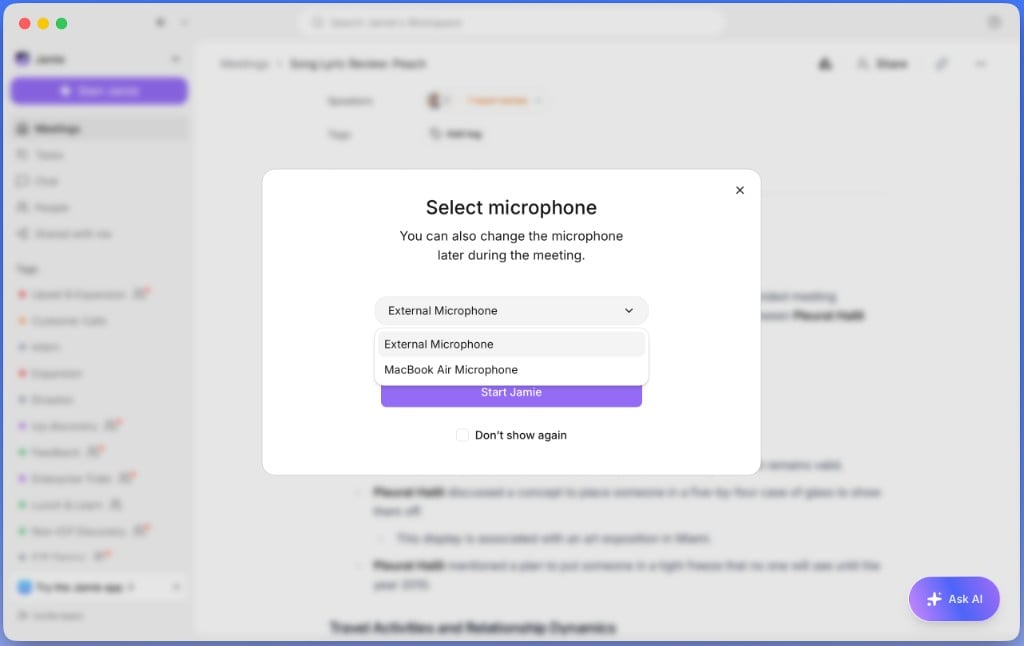
  <Step title="Pick a mic when you start">
    Jamie uses your system's default mic automatically, but you can choose a different one in the start dialog.
    <img src="https://mintcdn.com/jamie-9c8bb406/dAY5kCzhOsnX5U2c/images/onboarding/mic-selection.png?fit=max&auto=format&n=dAY5kCzhOsnX5U2c&q=85&s=6e4e2f952c57930f7414ded43239bf86" alt="Choosing your microphone before starting" width="1024" height="646" data-path="images/onboarding/mic-selection.png" />
  </Step>

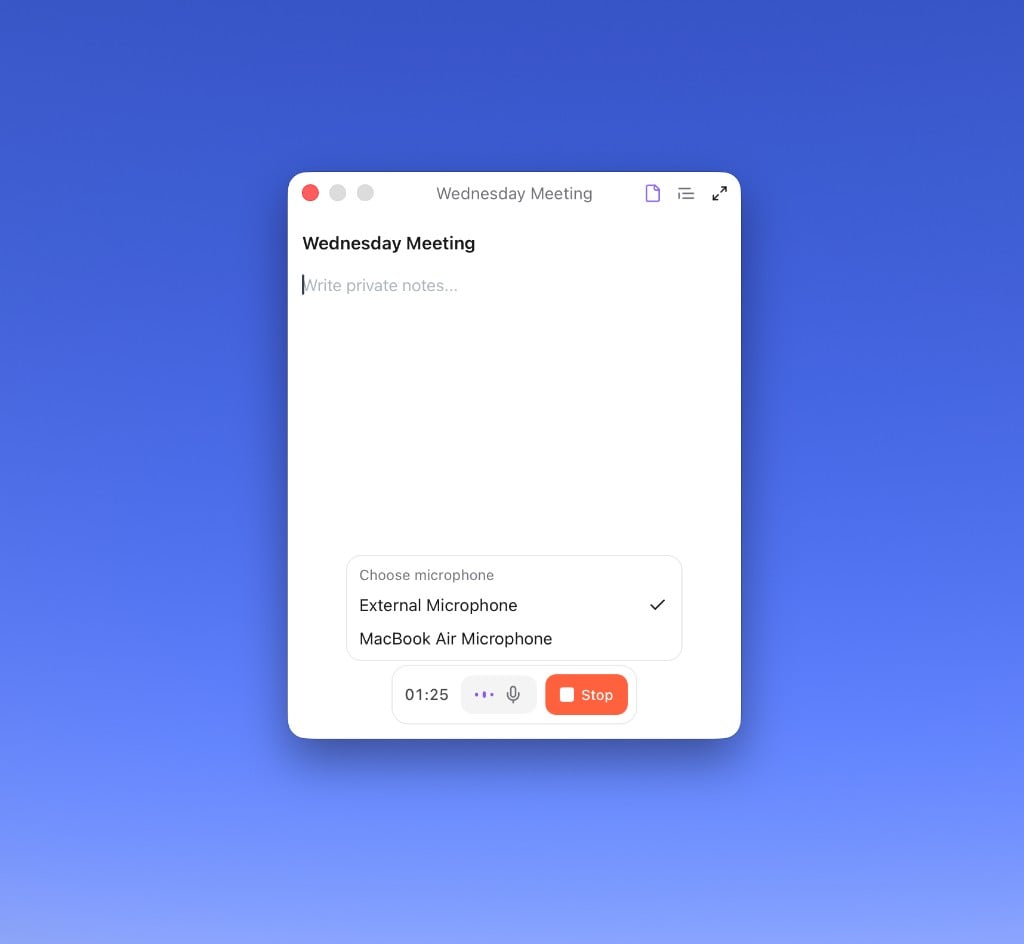
  <Step title="Switch mid-meeting">
    Need to change devices during a call? Click the microphone icon in the recorder widget to switch.
    <img src="https://mintcdn.com/jamie-9c8bb406/dAY5kCzhOsnX5U2c/images/onboarding/mic-change-v2.png?fit=max&auto=format&n=dAY5kCzhOsnX5U2c&q=85&s=25247a0890f8658be3d7cdd4bfb85fe3" alt="Changing the mic from the recorder widget" width="1024" height="944" data-path="images/onboarding/mic-change-v2.png" />
  </Step>
</Steps>

## What's next?

<Card title="Connect your calendar" icon="calendar" href="/onboarding/users/calendar-connection">
  Get smart reminders and automatic meeting titles.
</Card>
