> ## Documentation Index
> Fetch the complete documentation index at: https://docs.meetjamie.ai/llms.txt
> Use this file to discover all available pages before exploring further.
# Integrations
> Send your meeting notes to the tools you already use — CRMs, docs, and task managers.
You can send your meeting notes straight to the tools you already use — like your CRM, docs, or other apps.
## How to connect
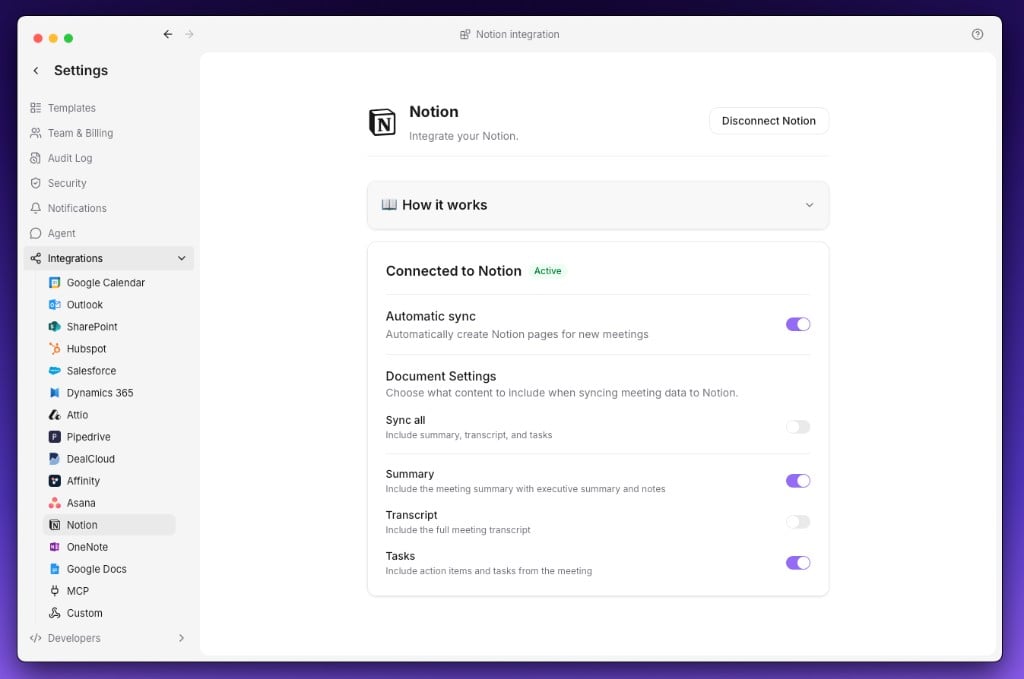
Go to **Settings → Integrations**, pick a tool, and click **Connect**.
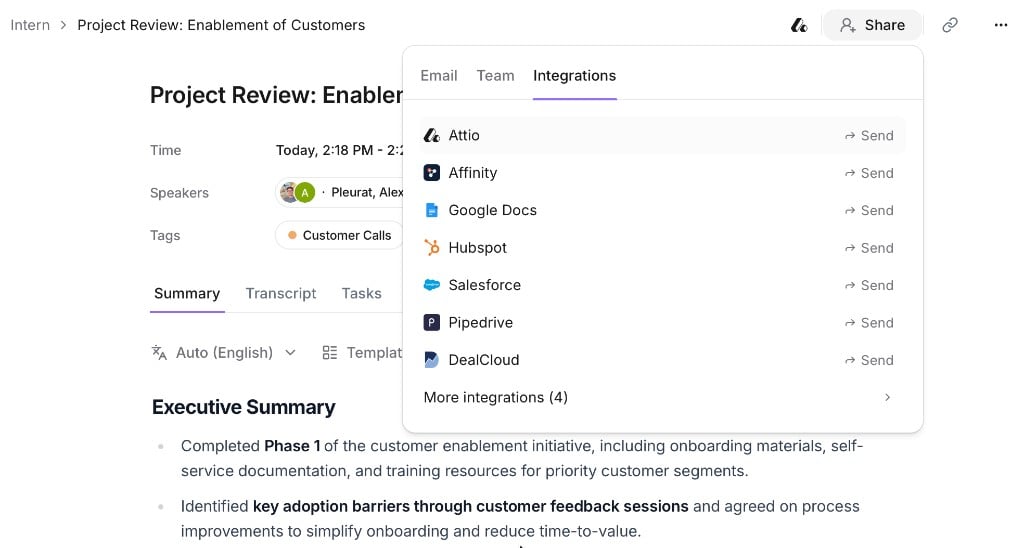
 Share any meeting manually via the **Integrations** tab, or turn on **auto-sync** to send every new one.
Auto-sync is currently only available for **Notion**, **OneNote**, and **Google Docs**.
Share any meeting manually via the **Integrations** tab, or turn on **auto-sync** to send every new one.
Auto-sync is currently only available for **Notion**, **OneNote**, and **Google Docs**.