> ## Documentation Index
> Fetch the complete documentation index at: https://docs.meetjamie.ai/llms.txt
> Use this file to discover all available pages before exploring further.
# Identify Speakers
> How to identify speakers in Jamie.
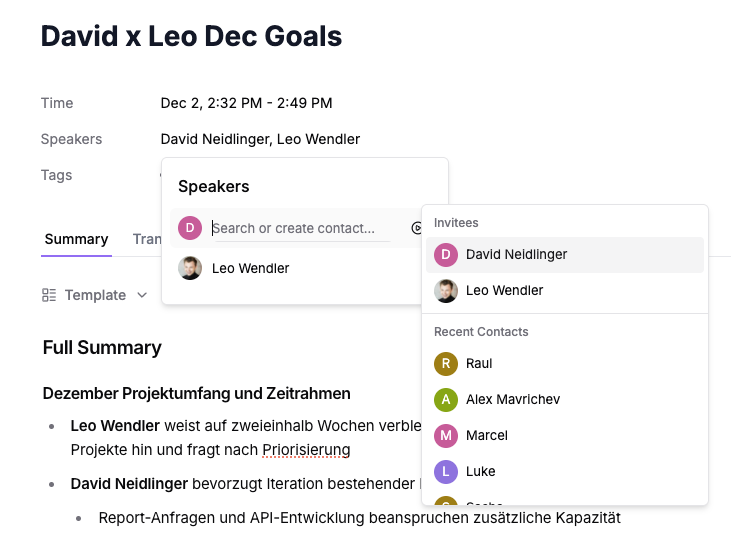
To identify speakers in a meeting, Jamie uses a speaker identification process. After your meeting notes have been generated, you'll be asked to listen to an audio clip and identify the speakers who attended the meeting.
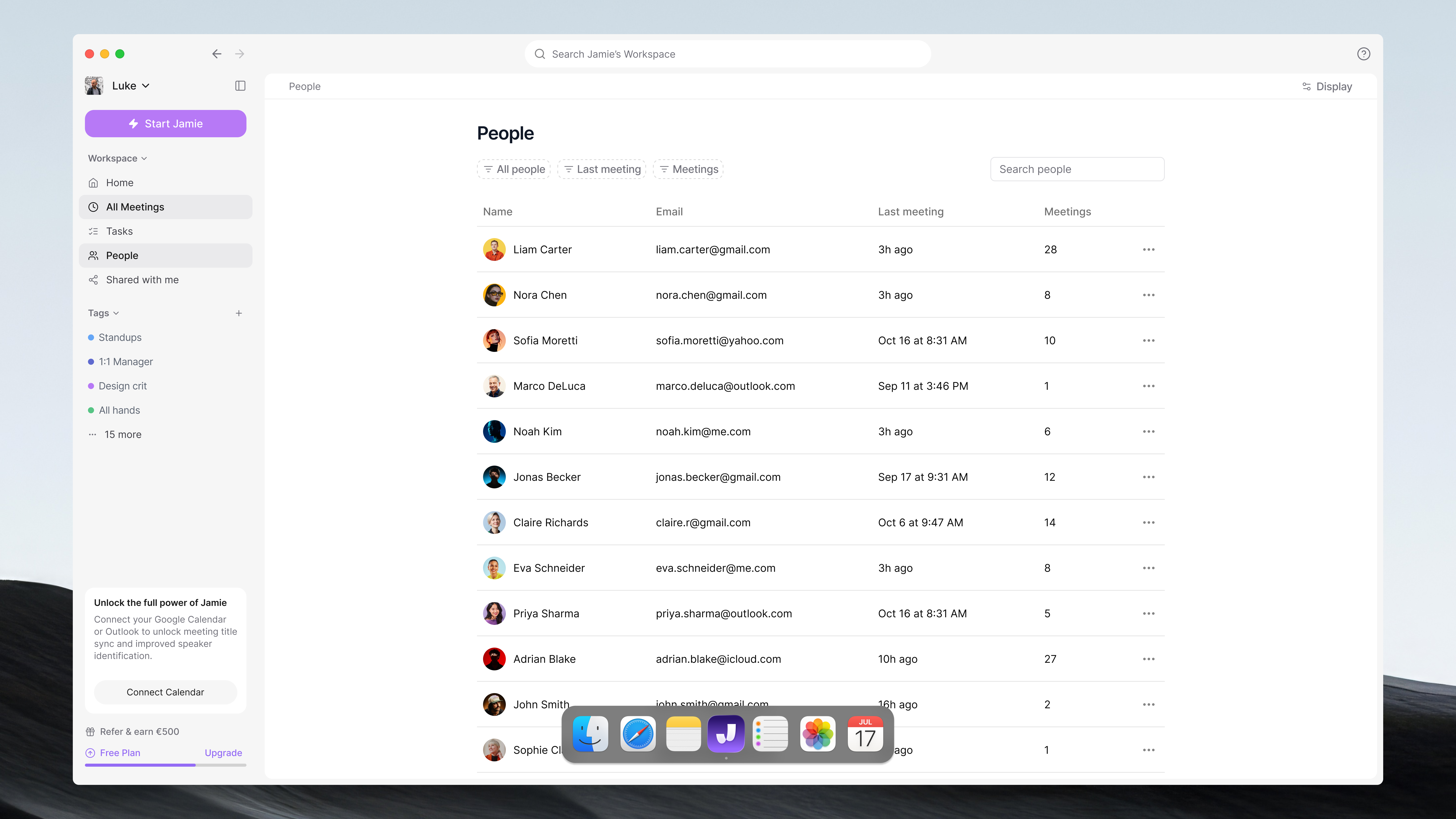
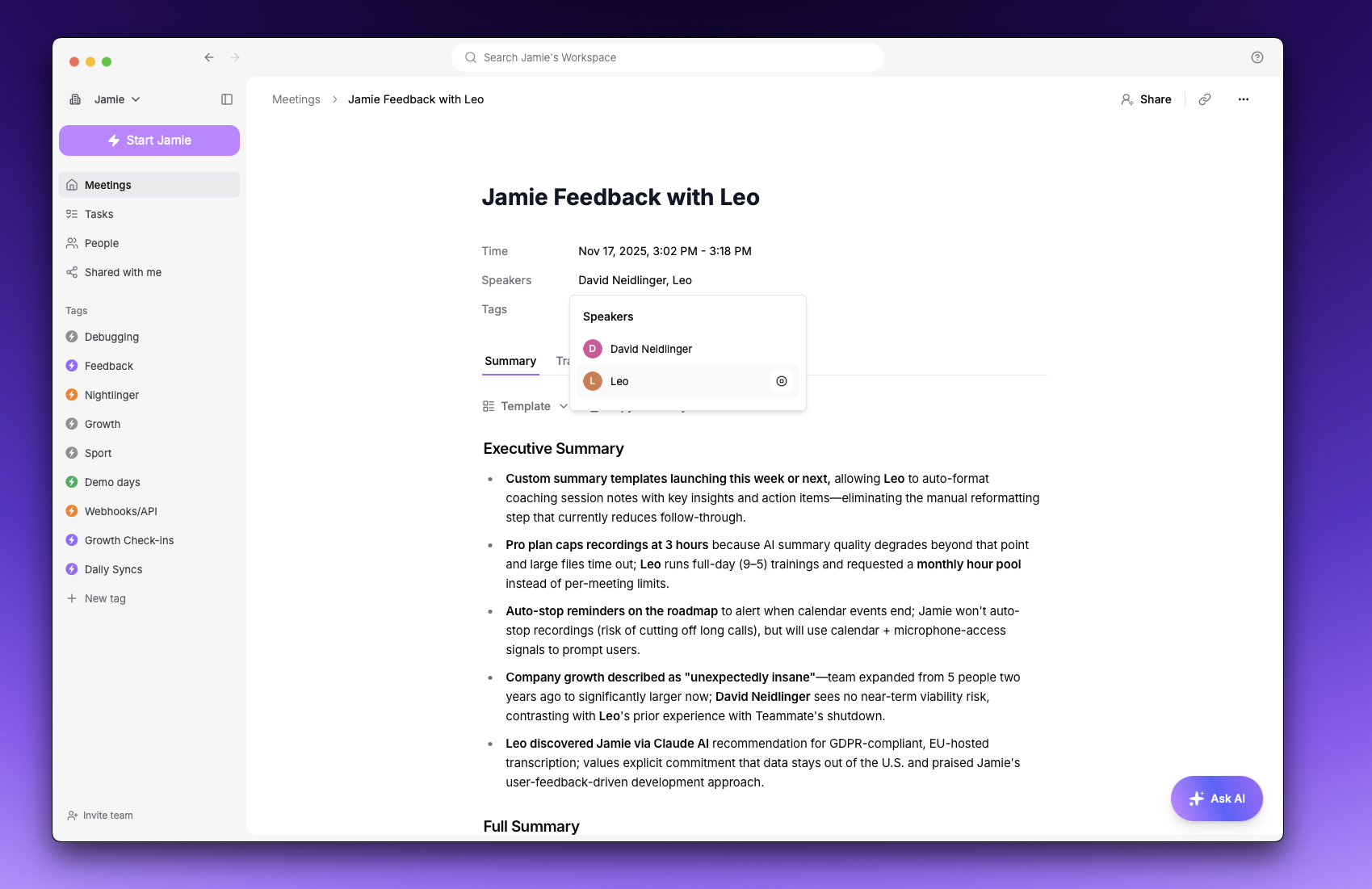 Some of the speakers can be already automatically recognized and named by Jamie. You can edit auto-assigned speaker names or even assign speaker with the contact from People tab. Disabling automatic speaker identification is possible under Preferences tab in Settings.
 This information will then be used to include speaker names in both your meeting summary and your transcript.
You can change the name at any point.
**Note:** Once a speaker is identified, Jamie will remember this information and automatically identify speakers in future meetings. There is no need to identify the same speaker more than once.
### How does the speaker identification process work?
1. Hover over the **Speakers** list in the header of your meeting
2. Click on the play button to play a short audio clip
3. Listen to the audio clip of each speaker
4. Type the speaker name in the text field
5. You can either create a new speaker or choose one from your **Recent Contacts**
This information will then be used to include speaker names in both your meeting summary and your transcript.
You can change the name at any point.
**Note:** Once a speaker is identified, Jamie will remember this information and automatically identify speakers in future meetings. There is no need to identify the same speaker more than once.
### How does the speaker identification process work?
1. Hover over the **Speakers** list in the header of your meeting
2. Click on the play button to play a short audio clip
3. Listen to the audio clip of each speaker
4. Type the speaker name in the text field
5. You can either create a new speaker or choose one from your **Recent Contacts**
 **Note:** The number of speakers identified by Jamie might be more or less than the number of active speakers in the meeting. This is caused by varying audio quality during meetings or fast speaker turns.
## FAQs
In rare occasions, the number of speakers identified in Jamie can differ from the actual count of active participants. This is due to varying audio quality during meetings or fast speaker turns. Jamie might identify the same speaker as two different speakers, or miss a speaker. Reasons can be background noise, internet issues, or microphone issues. Just add the same name twice and Jamie will add it to the summary.
If the audio clip does not play any sound, don't just enter any name. This can be because Jamie identifies loud background noise or other noises during the meeting. If it turns out that Jamie did assign a speaker to that voice, you can change it in the summary.
Yes, you can edit a speaker's name. Simply click on the speaker again and rename it to the correct name.
**Note:** The number of speakers identified by Jamie might be more or less than the number of active speakers in the meeting. This is caused by varying audio quality during meetings or fast speaker turns.
## FAQs
In rare occasions, the number of speakers identified in Jamie can differ from the actual count of active participants. This is due to varying audio quality during meetings or fast speaker turns. Jamie might identify the same speaker as two different speakers, or miss a speaker. Reasons can be background noise, internet issues, or microphone issues. Just add the same name twice and Jamie will add it to the summary.
If the audio clip does not play any sound, don't just enter any name. This can be because Jamie identifies loud background noise or other noises during the meeting. If it turns out that Jamie did assign a speaker to that voice, you can change it in the summary.
Yes, you can edit a speaker's name. Simply click on the speaker again and rename it to the correct name.