

Single Sign-On (SSO / SAML)
SSO lets your organization manage authentication centrally through your identity provider (IdP). Jamie supports SAML 2.0, compatible with Okta, Microsoft Entra ID, Google Workspace, Auth0, ADP, Cloudflare, and any standard SAML or OIDC provider. Setup is two steps, in order, both under Settings → Security in the Jamie app.Verify your domain (required before SAML)
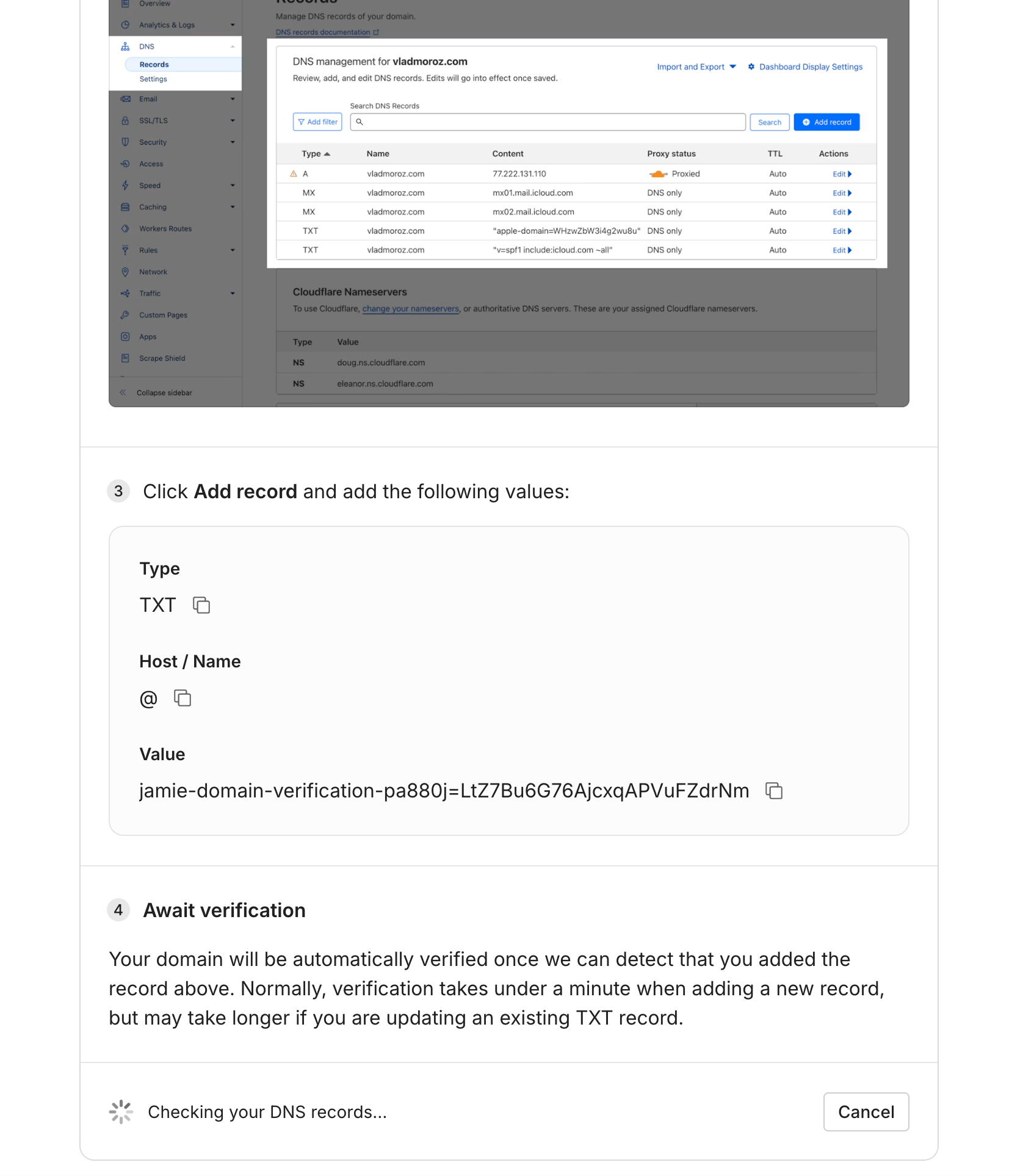
- Go to Settings → Security and click Configure next to Domain Verification Settings.
- Enter your domain (e.g.
example.com). - Add the provided TXT record to your DNS (Cloudflare, Route 53, Google Domains, etc.).
- Verification is automatic — usually under a minute, but up to 48 hours if you’re editing an existing TXT record.
Configure SAML
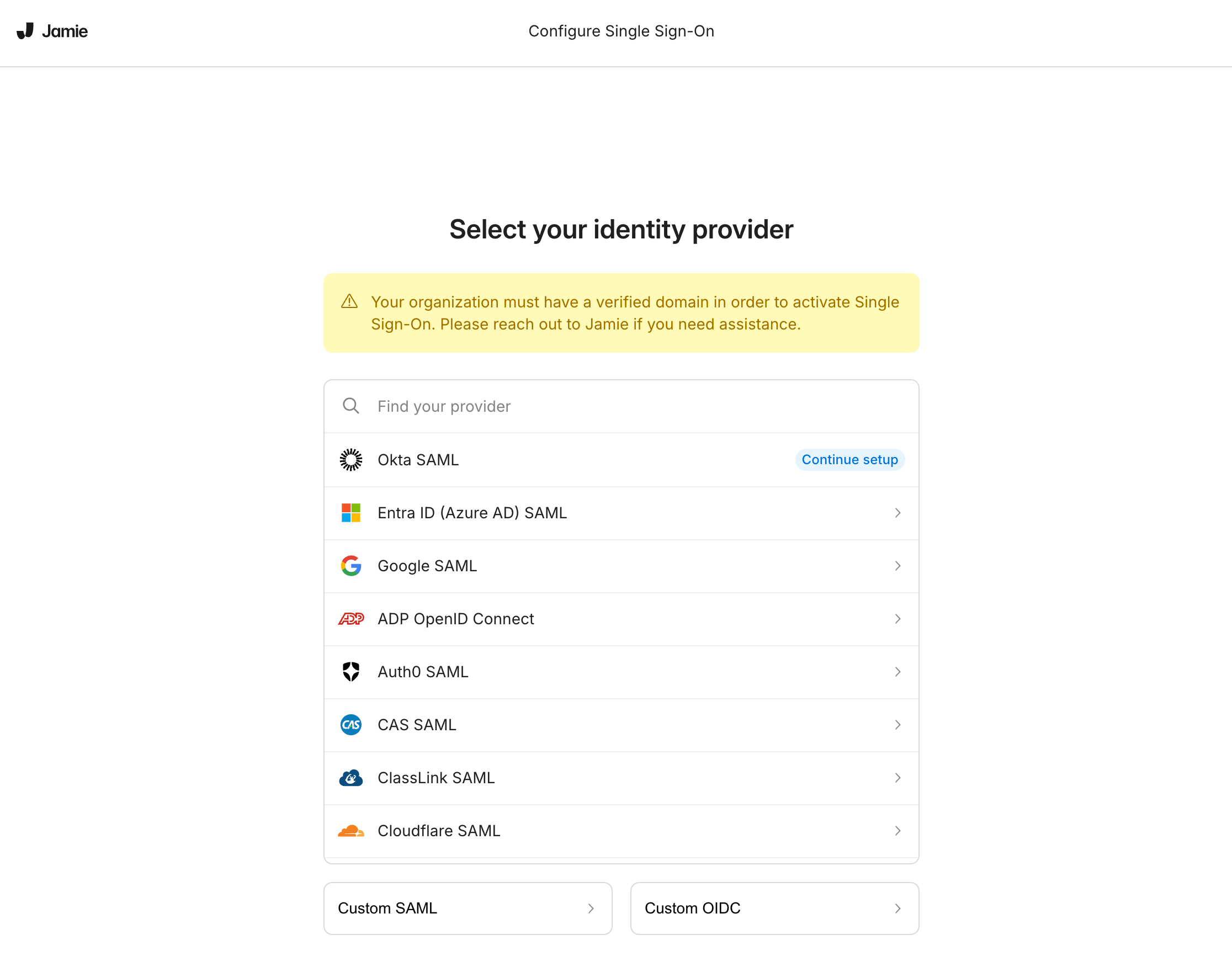
- Go to Settings → Security and click Configure next to SSO-Provider Connection Settings.
- Select your IdP and follow the on-screen wizard.
- You’ll get an ACS URL and Entity ID to enter in your IdP; the wizard has step-by-step instructions per provider.
SCIM provisioning — automated create/update/deprovision from your IdP is coming soon. See Directory sync.
Calendar permissions
Connecting a calendar is what makes most of Jamie’s smart features work: it detects upcoming meetings, sends start-recording reminders, auto-fills meeting titles, improves speaker identification, and it’s a hard requirement for the automated recording notice and other upcoming features. Each user connects their own calendar — there is no org-wide calendar connection. How users connect (Settings → Integrations):- Google Calendar — Integrations → Google Calendar → Connect Google Calendar → sign in → grant permissions.
- Outlook — Integrations → Outlook → Connect Outlook Calendar → sign in → grant permissions.
Microsoft 365 / Entra ID approval
Microsoft 365 / Entra ID approval
If your org requires admin consent for third-party apps, users will hit an “Approval required” screen. You can approve Jamie once for everyone instead of per-user: sign in to the Microsoft Entra admin center → Identity → Applications → Enterprise applications → find Jamie (or open the pending admin-consent request) → review permissions → Grant admin consent. After that, users connect without individual approval.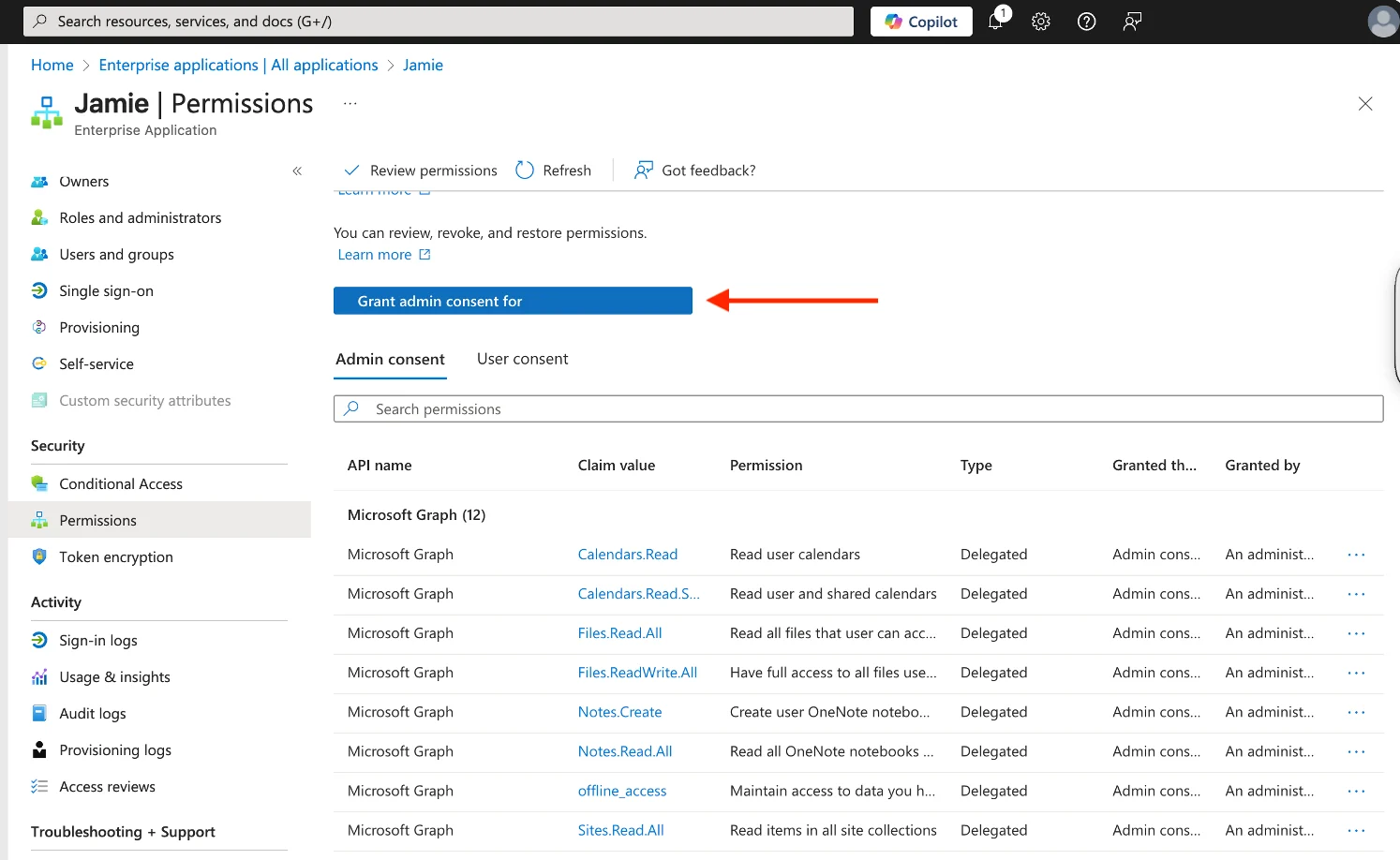
On-premise Exchange
On-premise Exchange
Jamie uses the Microsoft Graph API, which only reaches mailboxes hosted in Exchange Online. On-prem or un-migrated hybrid mailboxes will see a “mailbox is hosted on-premise” error. Options are migrating the mailbox to Exchange Online, or exploring Exchange Web Services with support.
| Permission | Purpose |
|---|---|
openid, profile, email, User.Read | Secure sign-in and basic profile |
Calendars.Read | Detect meetings, reminders, auto-titles |
People.Read, Contacts.Read | Speaker identification / Speaker Memory |
offline_access | Keep the calendar synced without repeated sign-ins |
Activating users
How users get access depends on your setup:- With SSO: anyone signing in with a verified domain is automatically routed through your IdP. Control exactly who gets in by assigning users or groups to the Jamie app in your identity provider (Entra ID, Okta, Google Workspace, etc.). Remove them there to revoke access.
- Calendar approval: make sure you’ve granted admin consent (see Calendar permissions) so users can connect calendars without hitting an approval wall.
Driving real adoption
Getting licenses assigned is the easy part — getting people to actually use Jamie is what matters. What tends to work:- Make calendar connection step one. Most of Jamie’s value (reminders, auto-titles, speaker ID) depends on it. Push users to connect on day one.
- Seed shared templates and tags. If teams open Jamie and find ready-made formats for their meeting types, they adopt faster than from a blank slate.
- Tie it to an existing habit — e.g. “every client call gets a Jamie summary shared in the deal channel.”
- Set up integrations early (CRM, Notion, Slack) so notes flow into tools people already live in, instead of being one more place to check.
- Revisit usage after a couple of months to see how it’s going, where there are questions, etc.
Recording notification
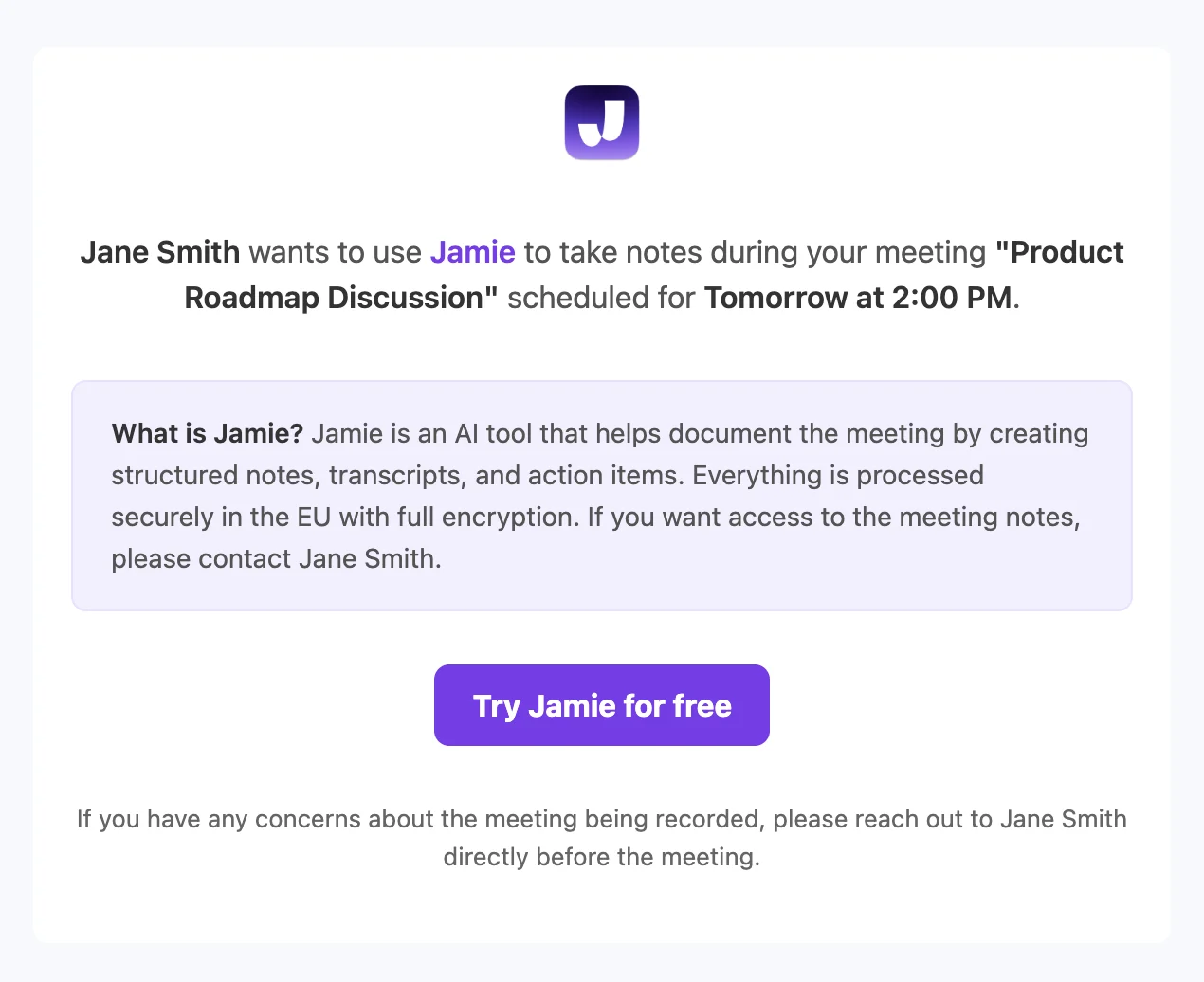
As the customer you are the data controller, so you’re responsible for the legal basis (typically legitimate interest for routine business meetings) and for informing participants under GDPR Arts. 13 and 14. Jamie gives you several mechanisms to meet that transparency obligation. Automated recording notice:- Sends attendees an email ~24 hours before each meeting explaining you’ll use Jamie.
- Requires a connected calendar.
- Attendees from your own workspace are auto-excluded, and domain exclusion can be configured for internal-only deployments.
- Enable it under Settings → Notifications → Recording notice.
- A configurable notice inside the calendar invite or in your signature.
- A quick verbal heads-up at the start of the meeting.
Intune guide
The app your users download from meetjamie.ai is a per-user MSI installer — the right choice for almost every deployment.- No admin rights needed. Each user installs Jamie under their own profile, so it works even in locked-down corporate environments without local admin.
- Automatic updates. Jamie updates itself in the background — no admin privileges required.
- Works with Intune too. You can distribute the per-user MSI through Intune as a user-context (rather than device-context) assignment if you prefer a managed rollout.