

Sign up
1
Download Jamie
Go to meetjamie.ai and click Download Jamie.
2
Install the app
Install Jamie on your laptop.
3
Sign up
Sign up with Google, Microsoft, Apple, or your email. Then follow the onboarding steps in the app.
Record your first meeting
1
Start Jamie
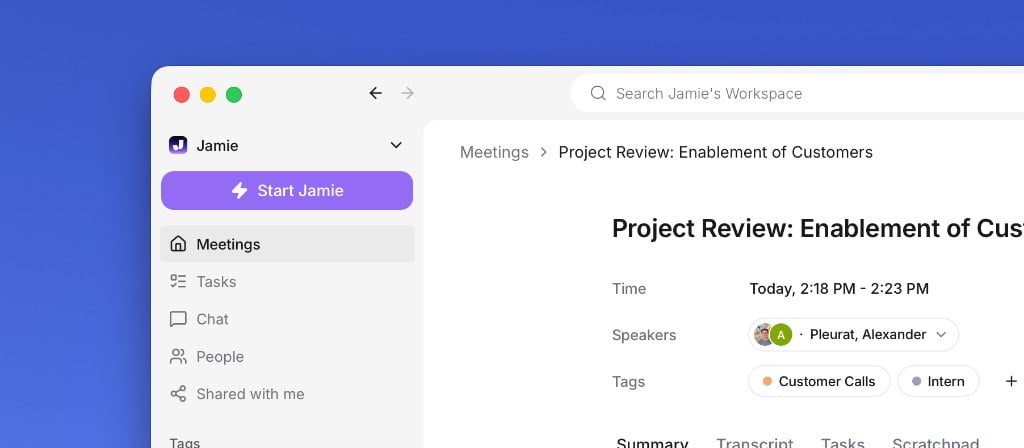
Join a call and click Start Jamie when the reminder pops up, or click Start Jamie in the top-left corner of the app.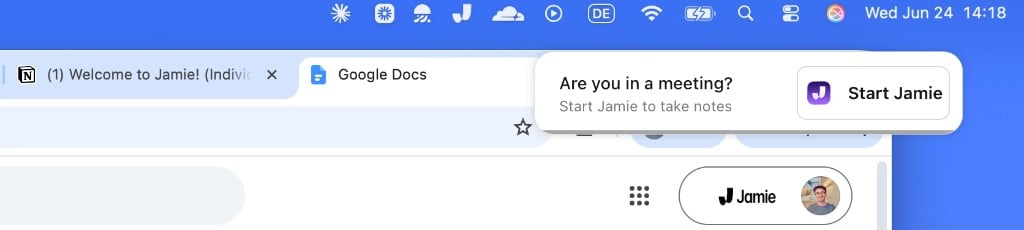
2
Let Jamie record
The recorder widget shows that Jamie is running. You can see the elapsed time, change your microphone, and jot private notes in the Scratchpad. Click the widget when you want to stop.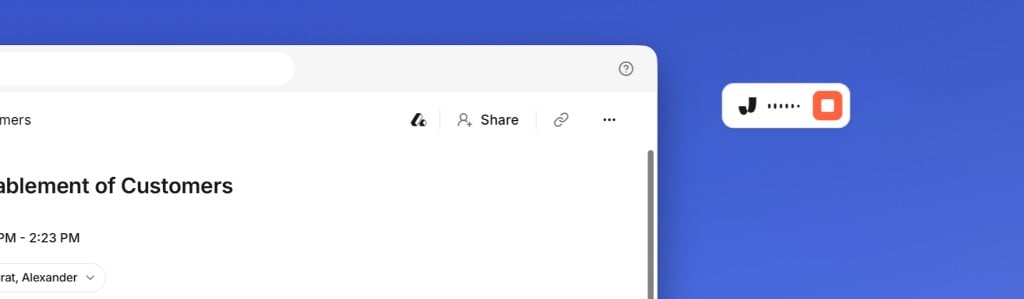
3
Get your notes
Your summary, transcript, and action items are ready a couple of minutes after the meeting ends.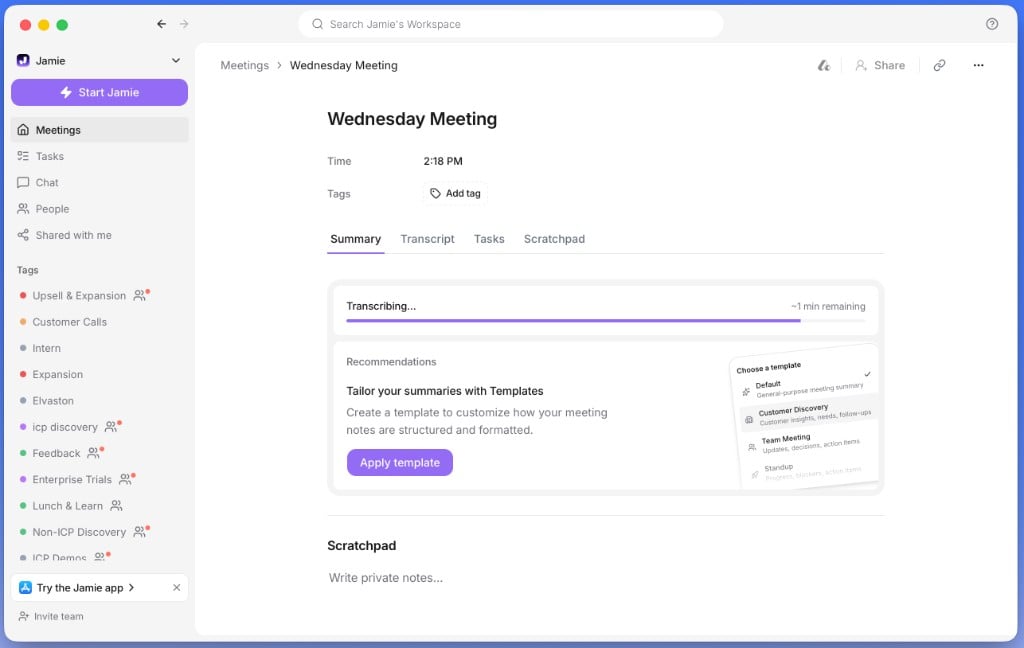
Change your microphone
1
Pick a mic when you start
Jamie uses your system’s default mic automatically, but you can choose a different one in the start dialog.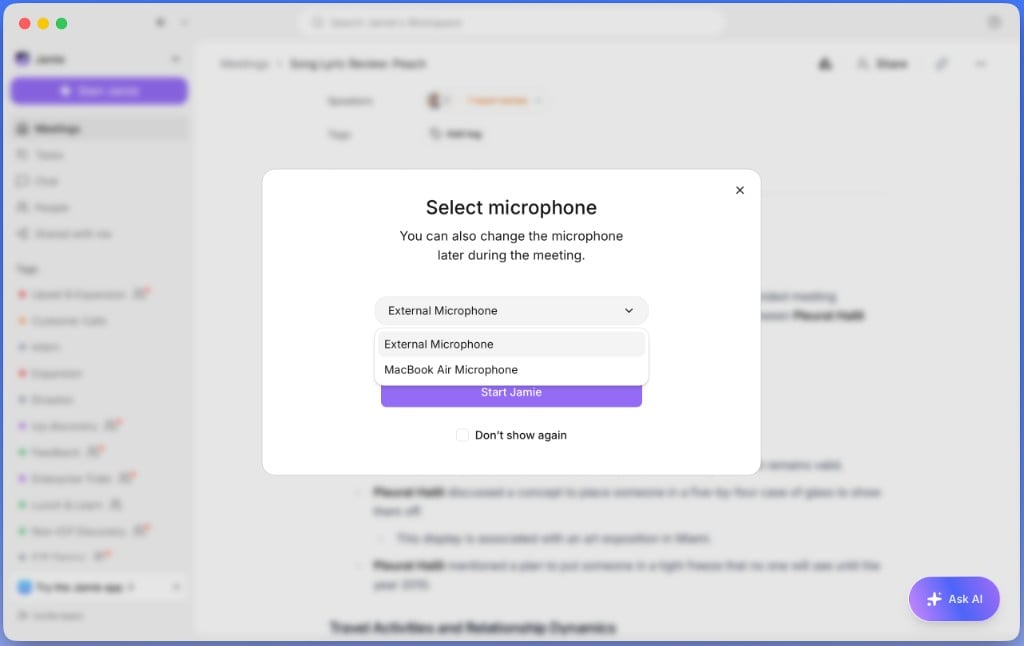
2
Switch mid-meeting
Need to change devices during a call? Click the microphone icon in the recorder widget to switch.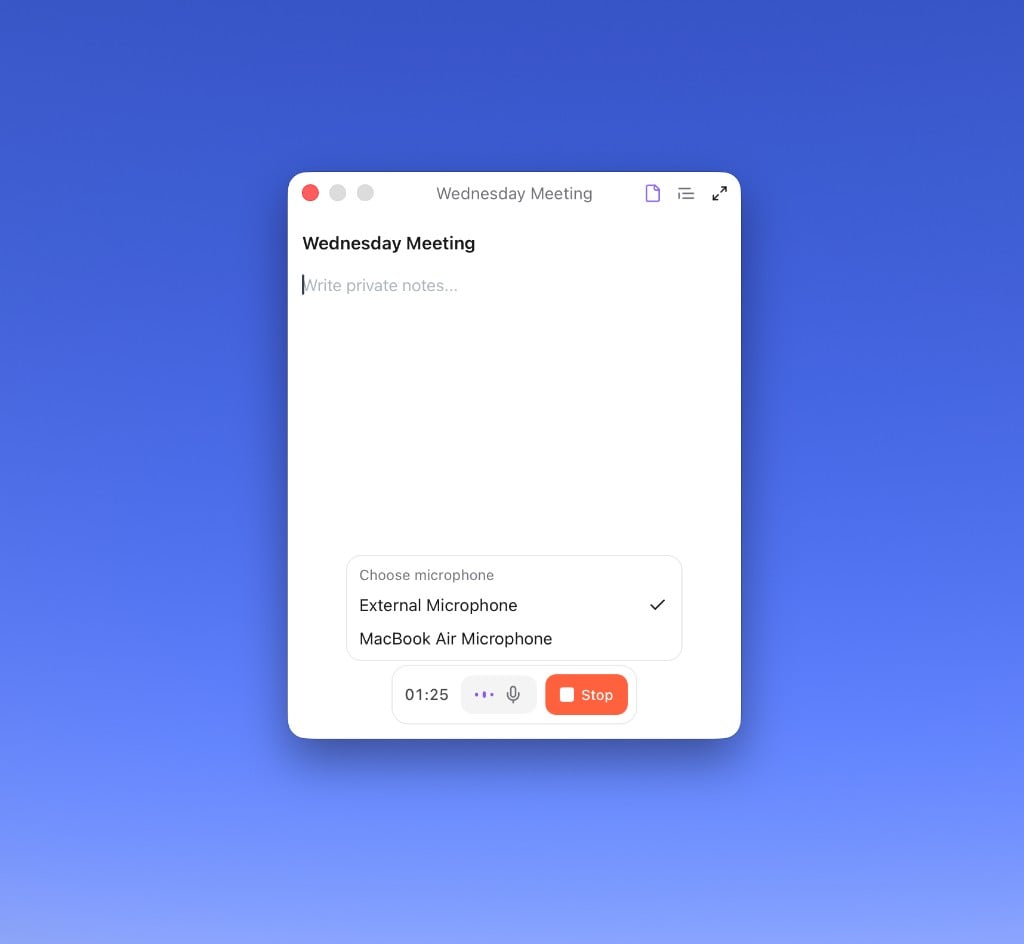
What’s next?
Connect your calendar
Get smart reminders and automatic meeting titles.