

Set up Jamie in ChatGPT
1
Open the plugin directory
Sign in to ChatGPT and click Plugins in the left sidebar to open the directory.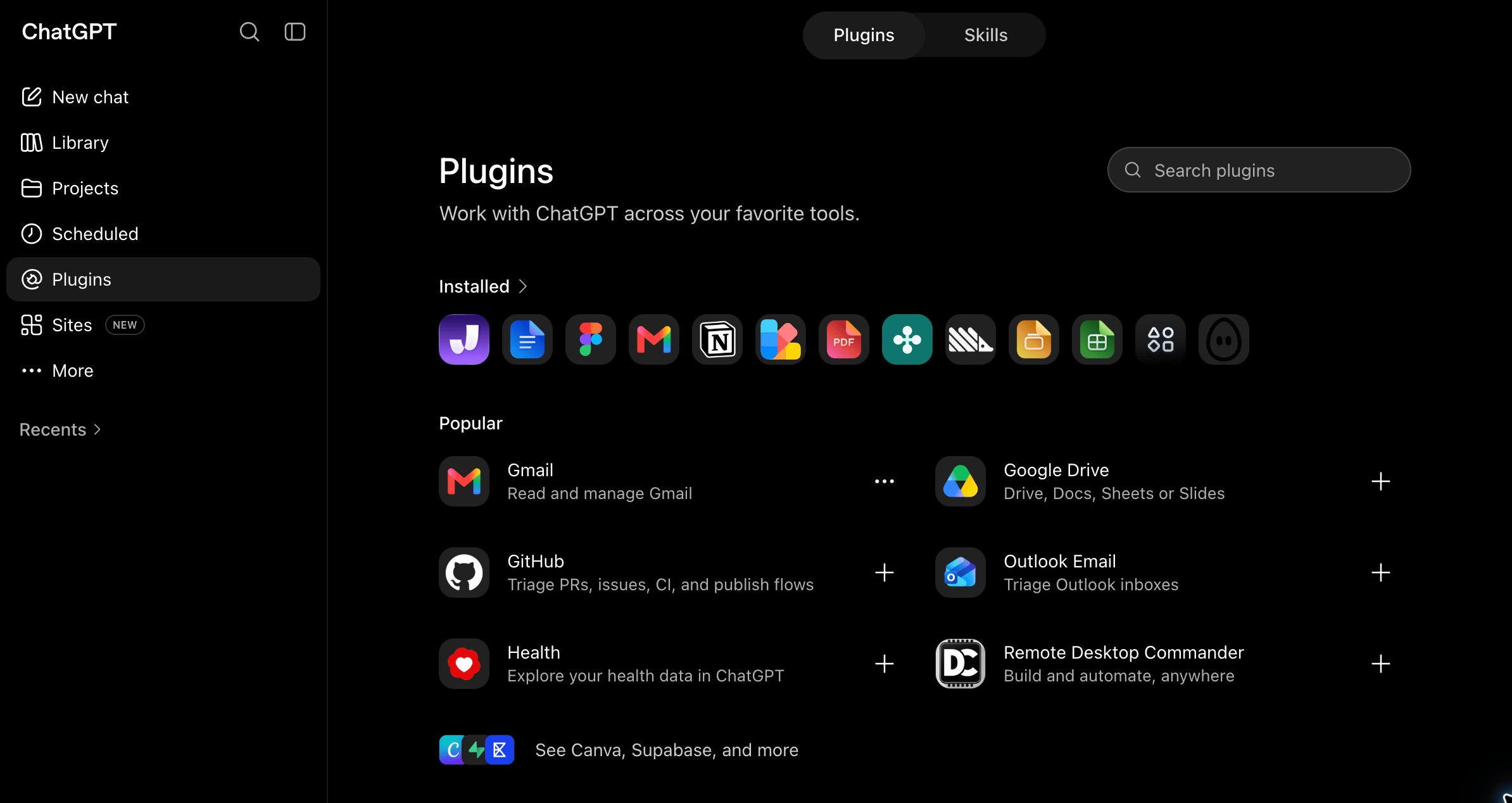
2
Find Jamie
Search for Jamie, then click the Jamie — Access your meeting history result.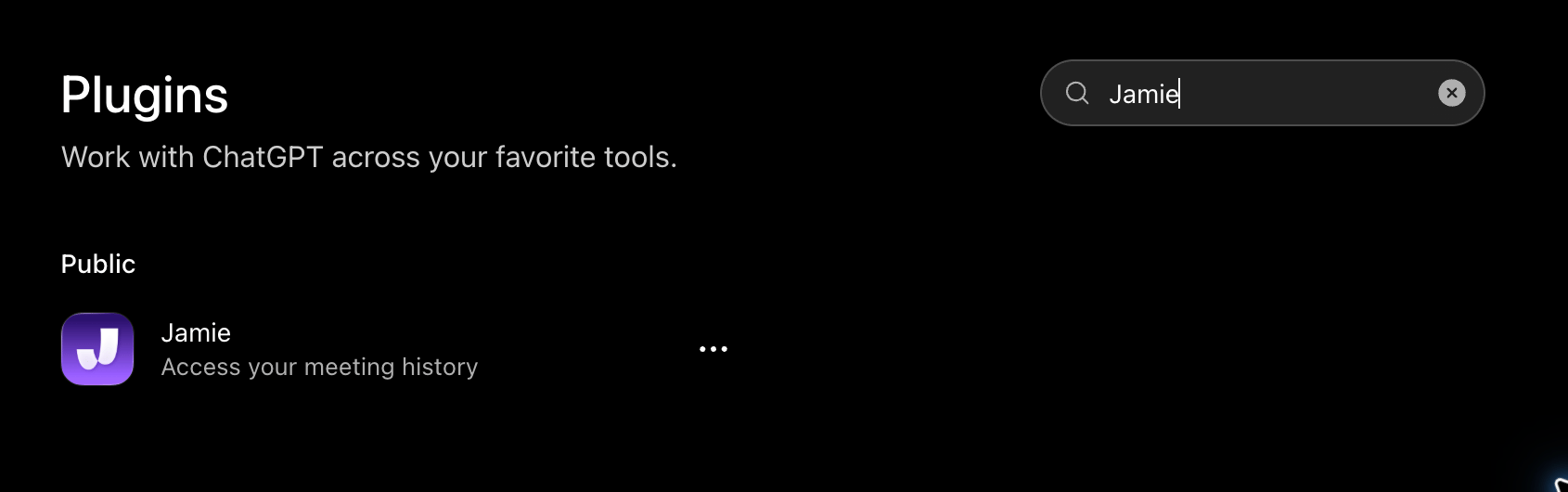
3
Install and connect
Click the + button to install Jamie. When prompted, connect your Jamie account, sign in with the email you use for Jamie, and review and approve the requested access.If you’re already connected, you can go straight to Try in chat. ChatGPT may also ask you to connect the first time you use Jamie.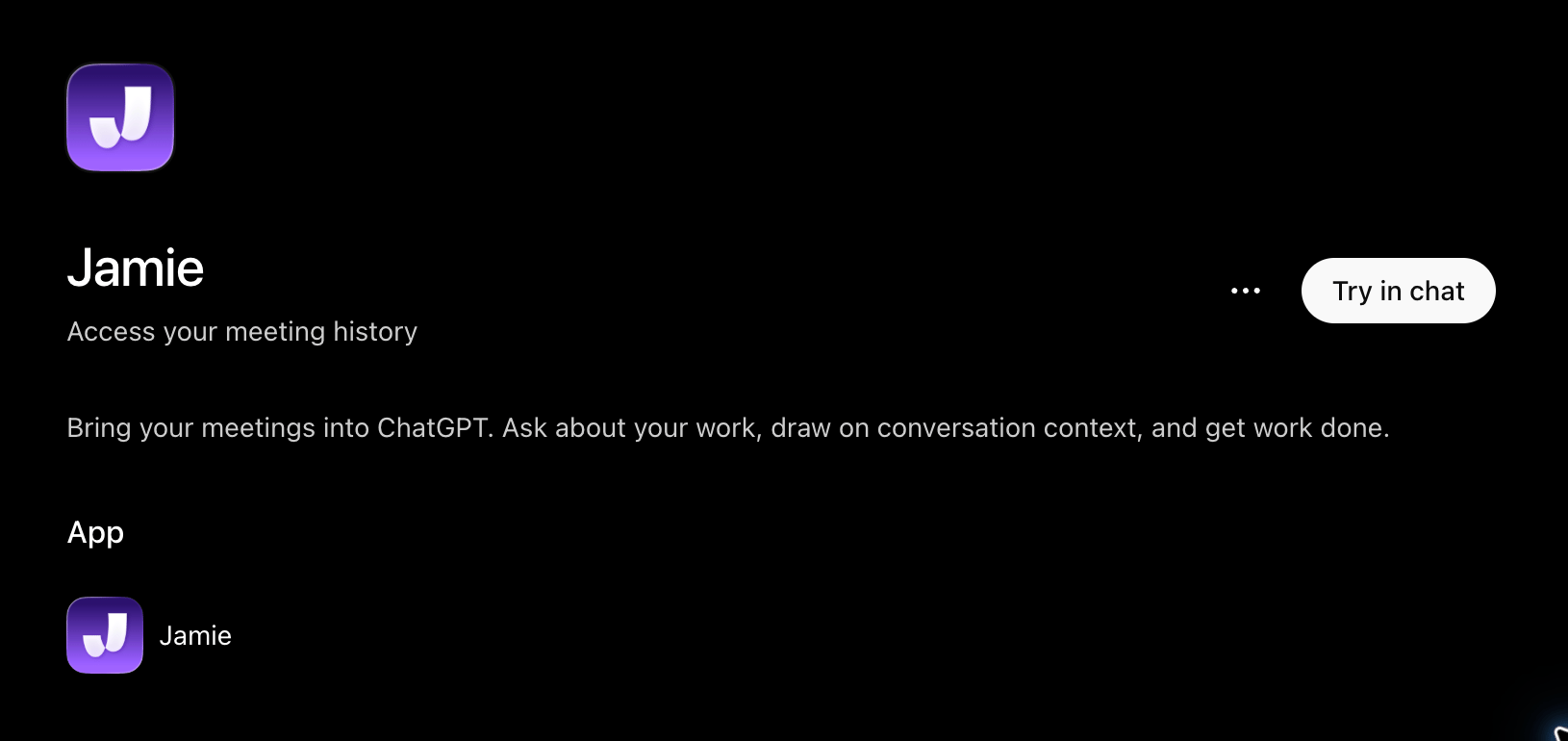
4
Ask about your meetings
Click Try in chat to open a new chat with Jamie selected. Type a question and send it, for example: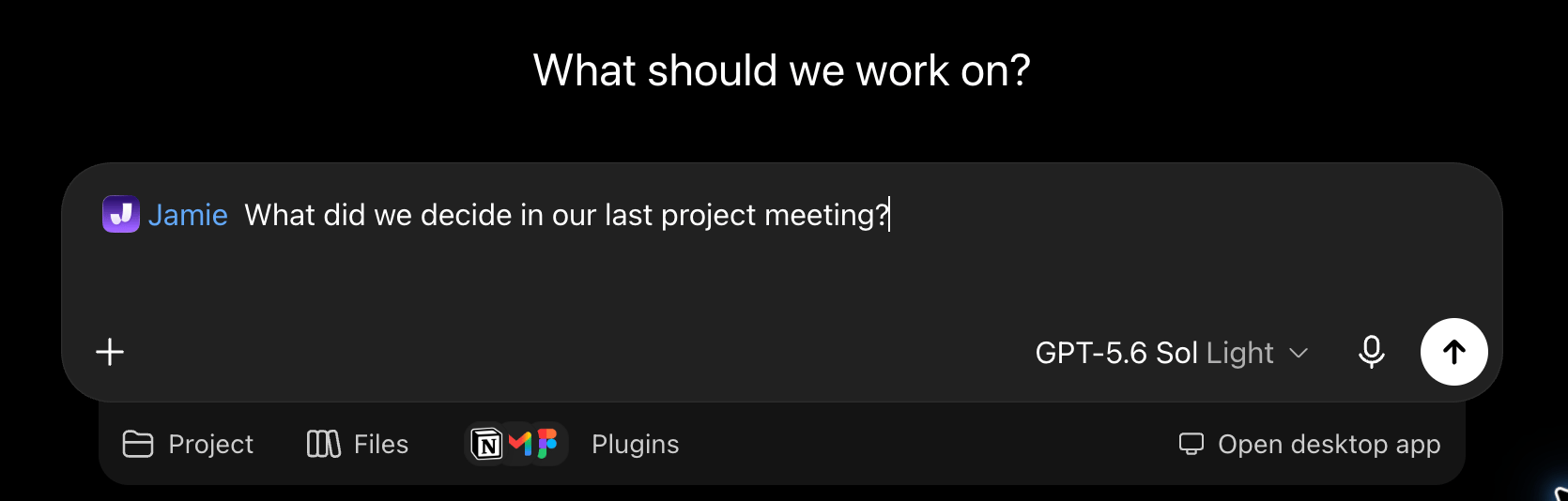
What did we decide in our last project meeting?