

MCP
Bring your meeting notes into the AI tools you already use. Jamie’s MCP server lets Claude, ChatGPT, Microsoft Copilot, Langdock, and other MCP-compatible assistants search your meetings, pull out action items, and answer questions from your meeting history.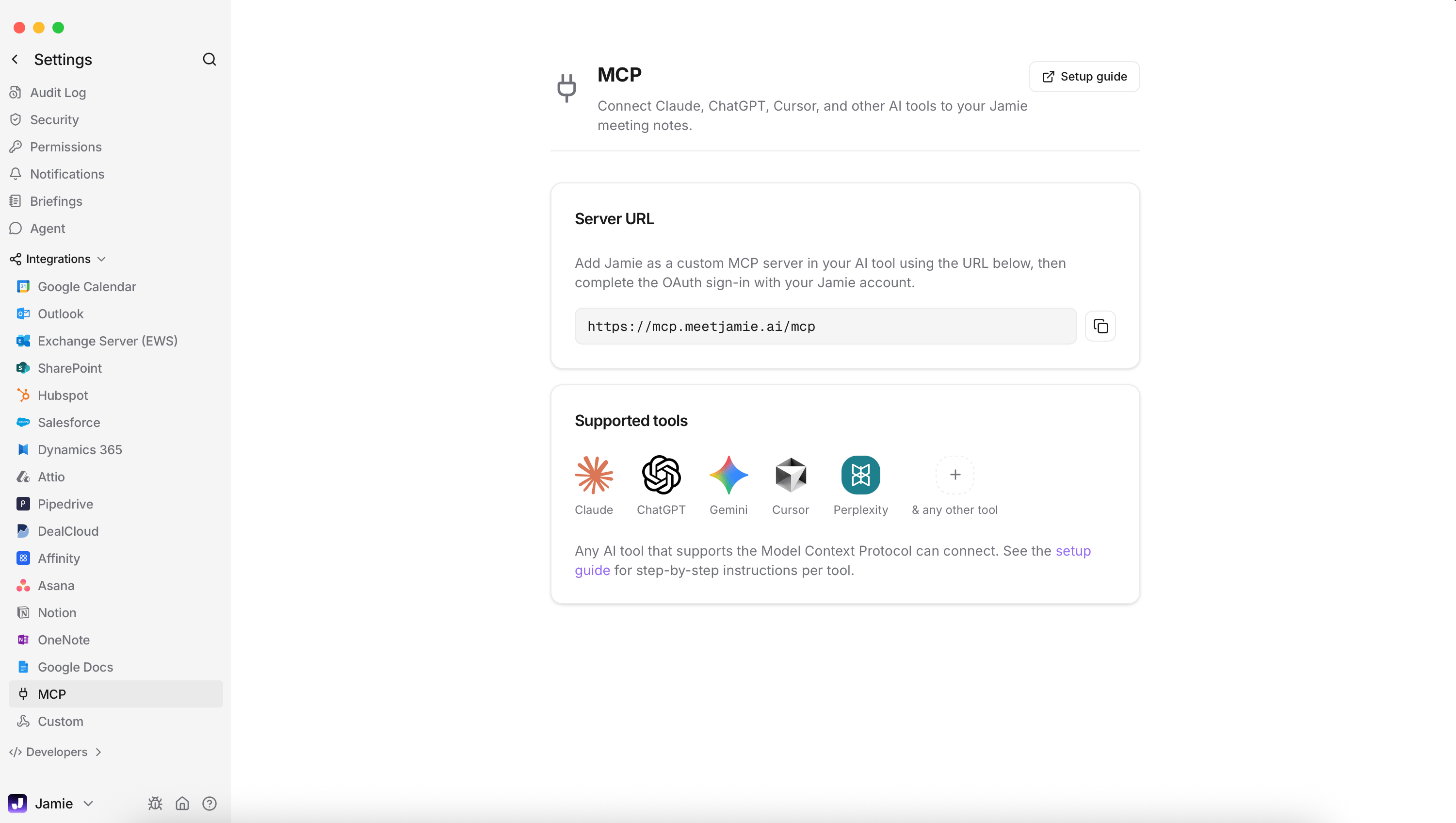
1
Add Jamie to your AI tool
In Claude or ChatGPT, add Jamie from the connector directory. In other tools, add a new MCP server with the URL
https://mcp.meetjamie.ai/mcp.2
Sign in
A browser window opens — sign in with the email address of your Jamie account. No API keys or secrets needed.
3
Ask about your meetings
Try “What did we decide in yesterday’s planning call?” or “What are my open action items?”
MCP setup guides
Step-by-step instructions for Claude, ChatGPT, Copilot, Langdock, Windsurf, and other tools.
Integrations
You can send your meeting notes straight to the tools you already use — like your CRM, docs, or other apps.1
Connect a tool
Go to Settings → Integrations, pick a tool, and click Connect.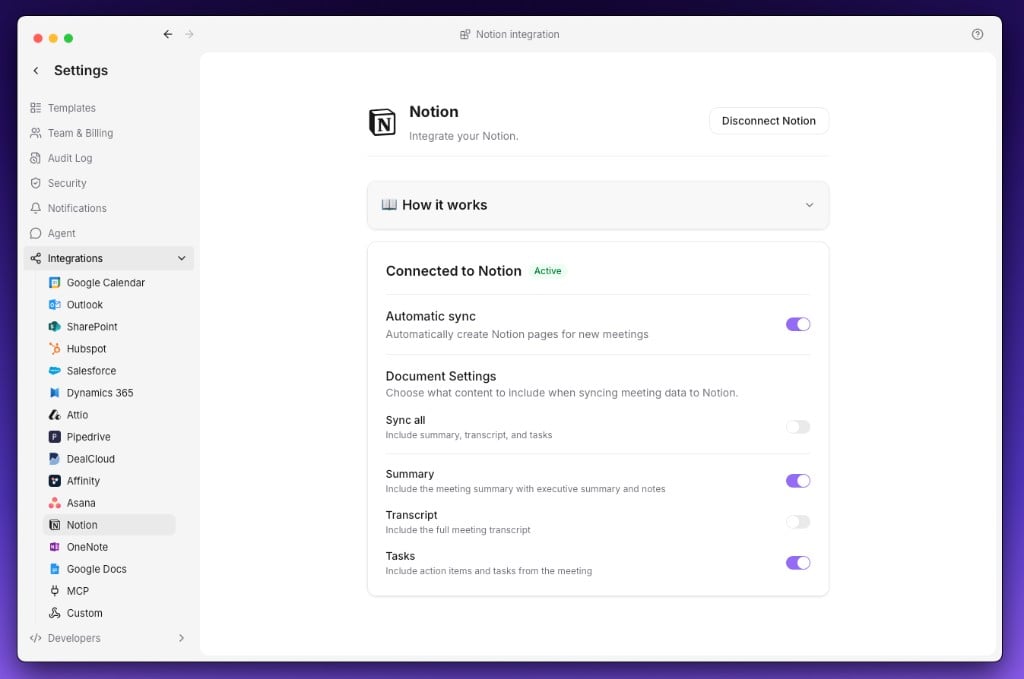
2
Send your notes
Share any meeting manually via the Integrations tab, or turn on auto-sync to send every new one.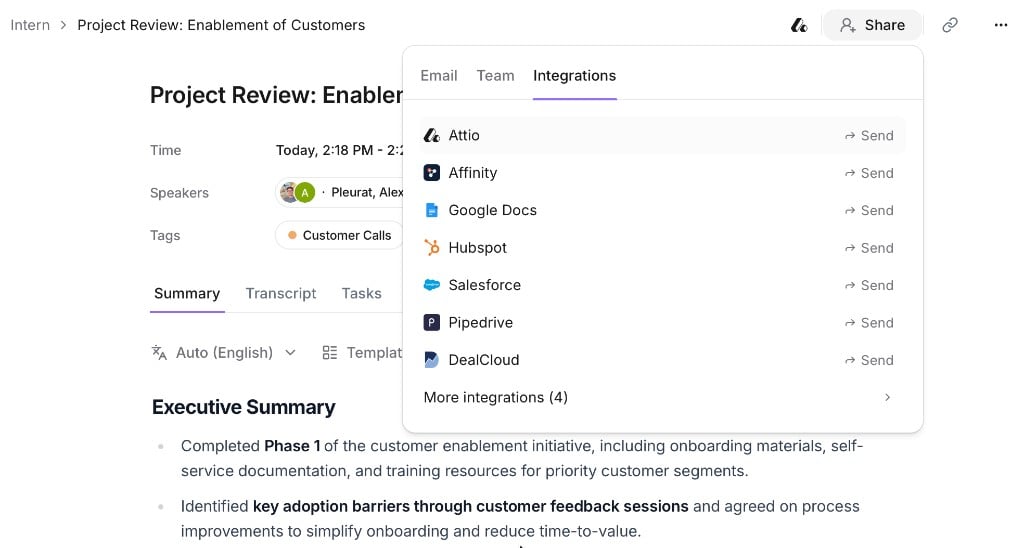
Auto-sync is currently only available for Notion, OneNote, and Google Docs.
Agent
Ask AI can do more than answer questions — it can act in your tools on your behalf: create a Linear issue, update a Salesforce opportunity, post a summary to Slack, or add decisions to a Notion page. You set this up under Settings → Agent.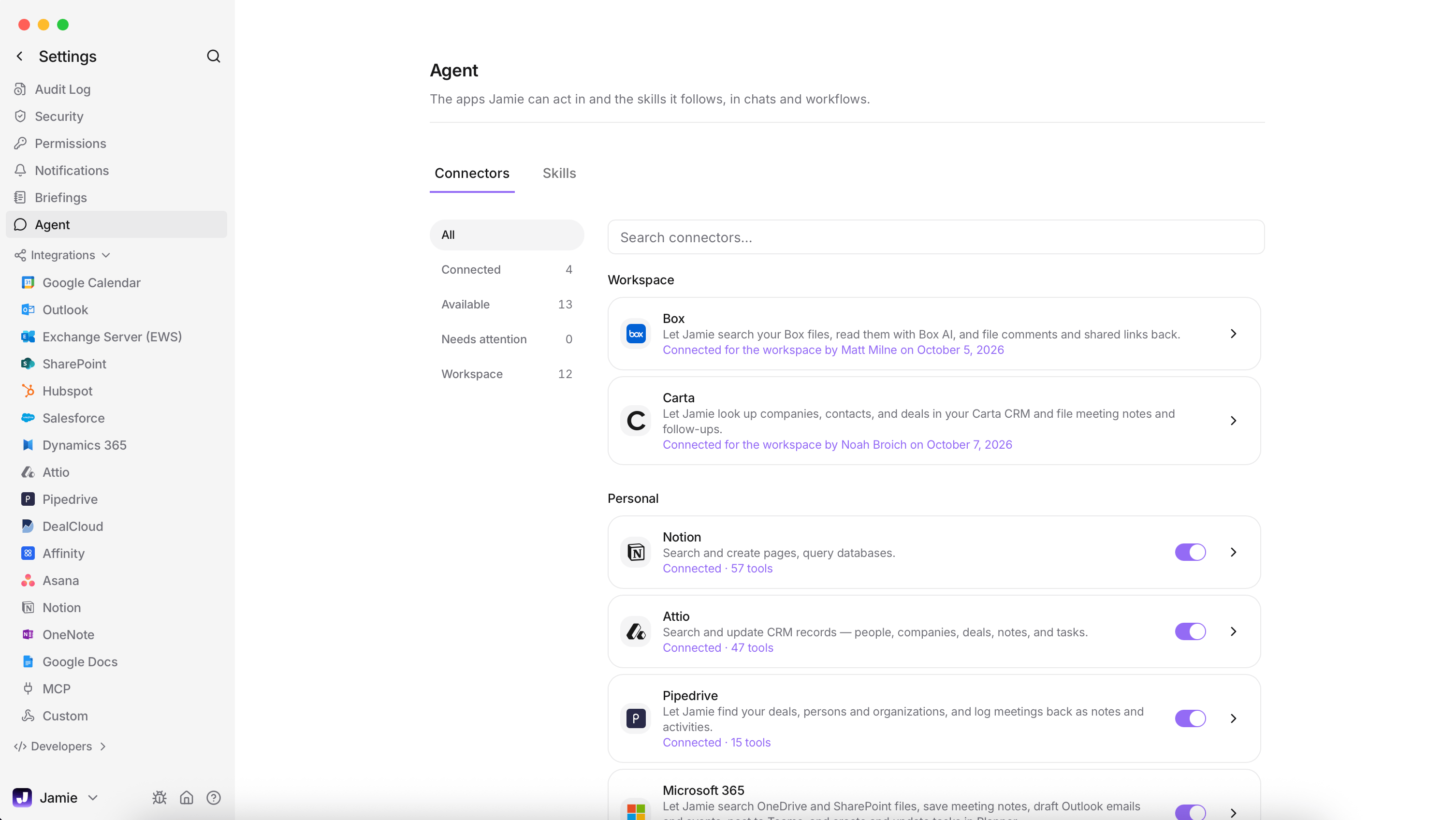
- Connectors — connect the tools Ask AI may use. Click Connectors under the Ask AI message box, or go to Settings → Agent. Each connection uses your own account, so Ask AI can only do what you can do.
- Skills — instructions Jamie remembers for every chat, such as how you like follow-up emails written or what should happen after every customer call. Add one under Settings → Agent → Skills, or just tell Ask AI: “Remember that I always want follow-ups in bullet points.”
Ask AI makes changes in your connected tools straight away, so be specific about what you want.
Everything Ask AI can do with your tools
Prompts, supported connectors, and ideas by team.
Workflows
A workflow runs automatically after your meetings. You describe what should happen — “After every external meeting, log a call activity in HubSpot with the key takeaways” — and Jamie does it for every meeting that matches, using the tools you’ve connected.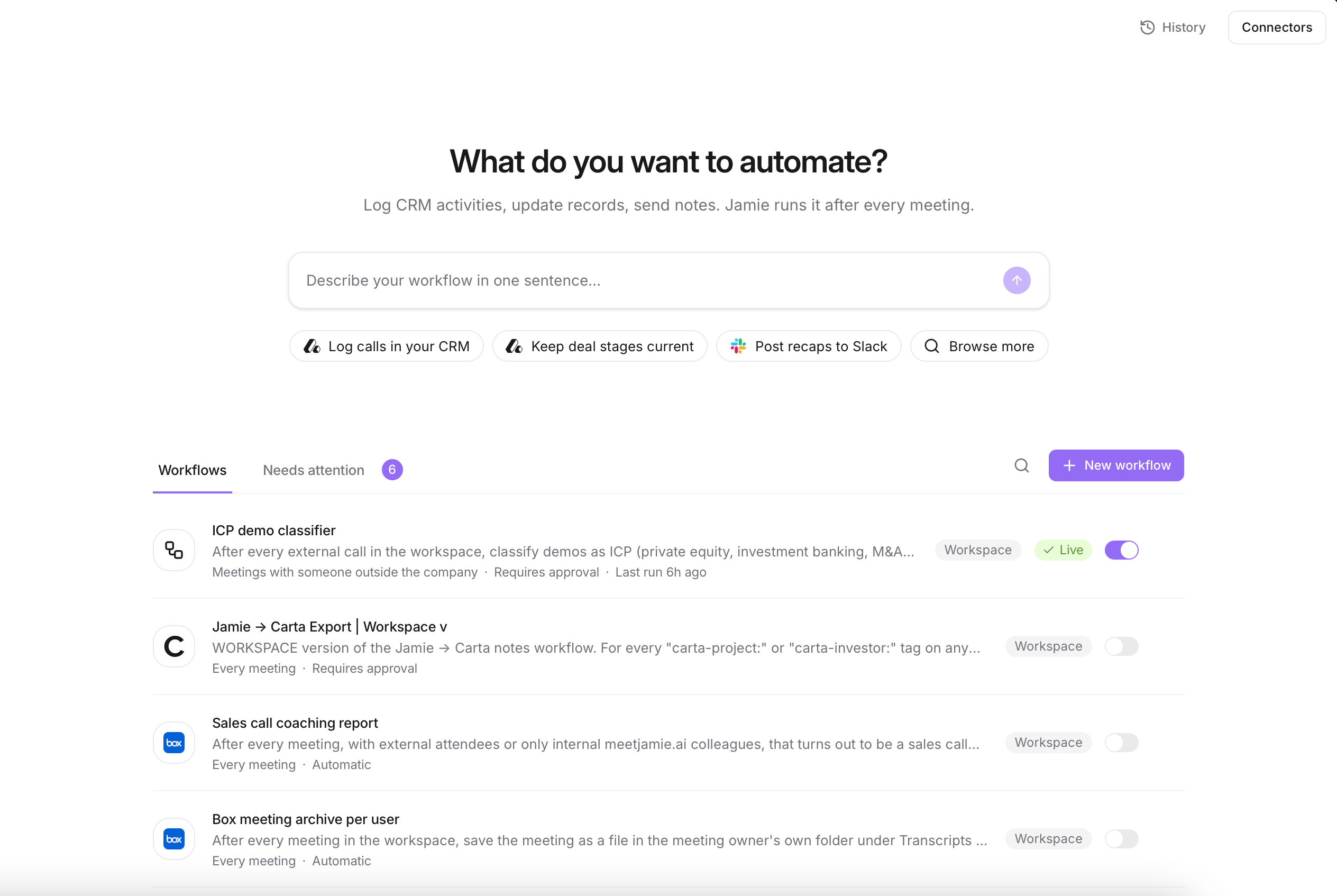
1
Describe the workflow
Open Workflows from the sidebar and describe what you want in the chat. Jamie drafts the workflow and asks follow-up questions where it needs detail.
2
Test it
Try it on a recent meeting before turning it on: “Test it on my most recent meeting.”
3
Choose the write mode
Start with Requires approval so you can check each run before anything reaches your tools. Once you trust it, switch to Automatic.
Agentic Workflows guide
Triggers, runs and results, approvals, and workspace-wide workflows.