

Jamie makes it easy to share meetings with your team. Whether you want to send a quick summary via email, share the full meeting with workspace members, or create a public link, Jamie has you covered.Documentation Index
Fetch the complete documentation index at: https://docs.meetjamie.ai/llms.txt
Use this file to discover all available pages before exploring further.
Team sharing features are available on Team and Enterprise plans. Email sharing and link sharing are available on all plans.
Sharing Options
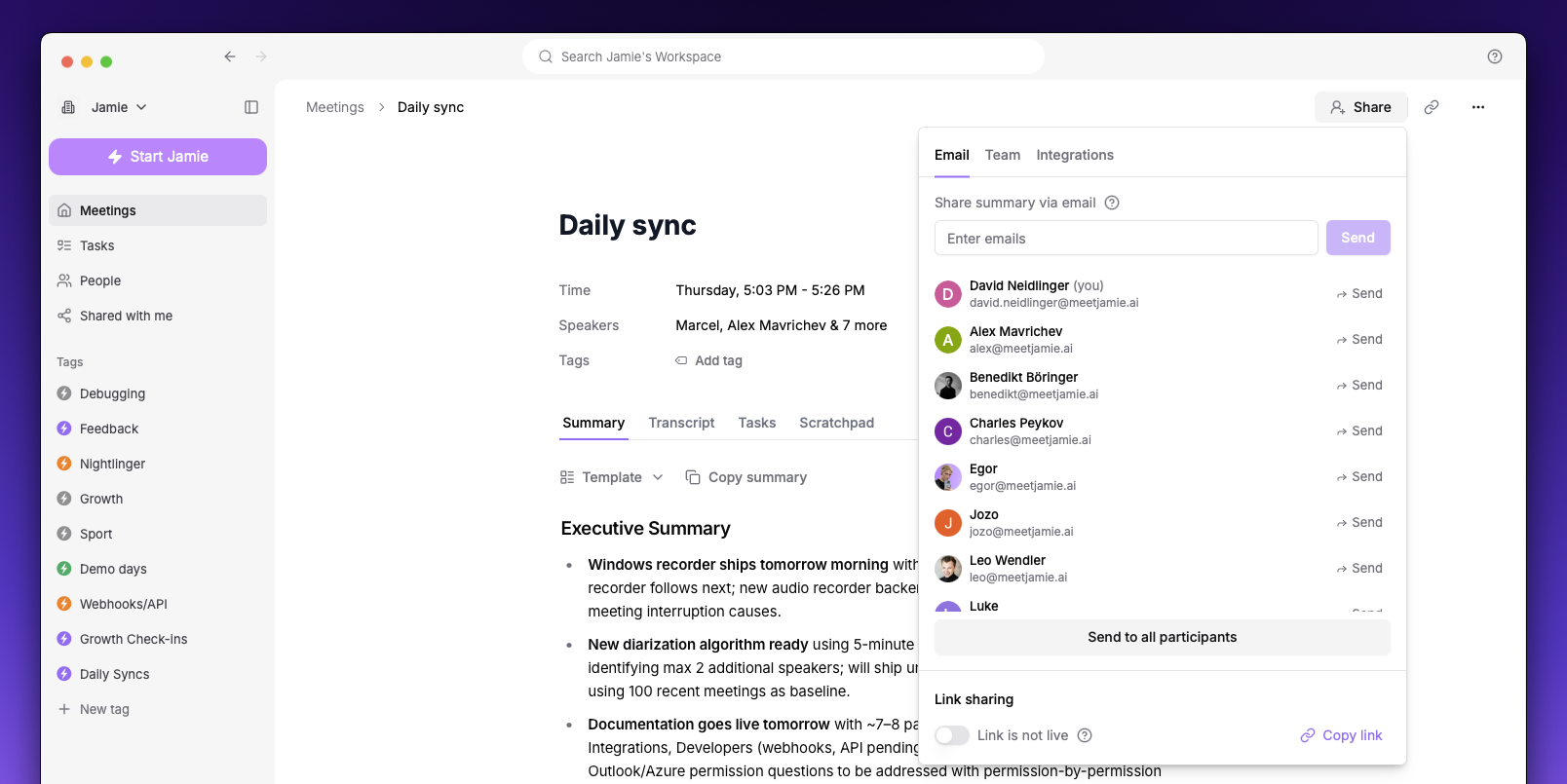
Send summaries directly to anyone’s inbox
Team
Share full meetings with workspace members
Link
Create a public link anyone can view
Email Sharing
Share your meeting summary via email with anyone, even if they don’t have a Jamie account.How It Works
- Click Share on any meeting
- Enter an email address and click Send
- The recipient receives the summary in their inbox
Team Sharing
Share complete meetings with members of your Jamie workspace. This is the best option when you want colleagues to have full access to all meeting content within Jamie.Team sharing requires a Team or Enterprise plan. Upgrade your plan to unlock this feature.
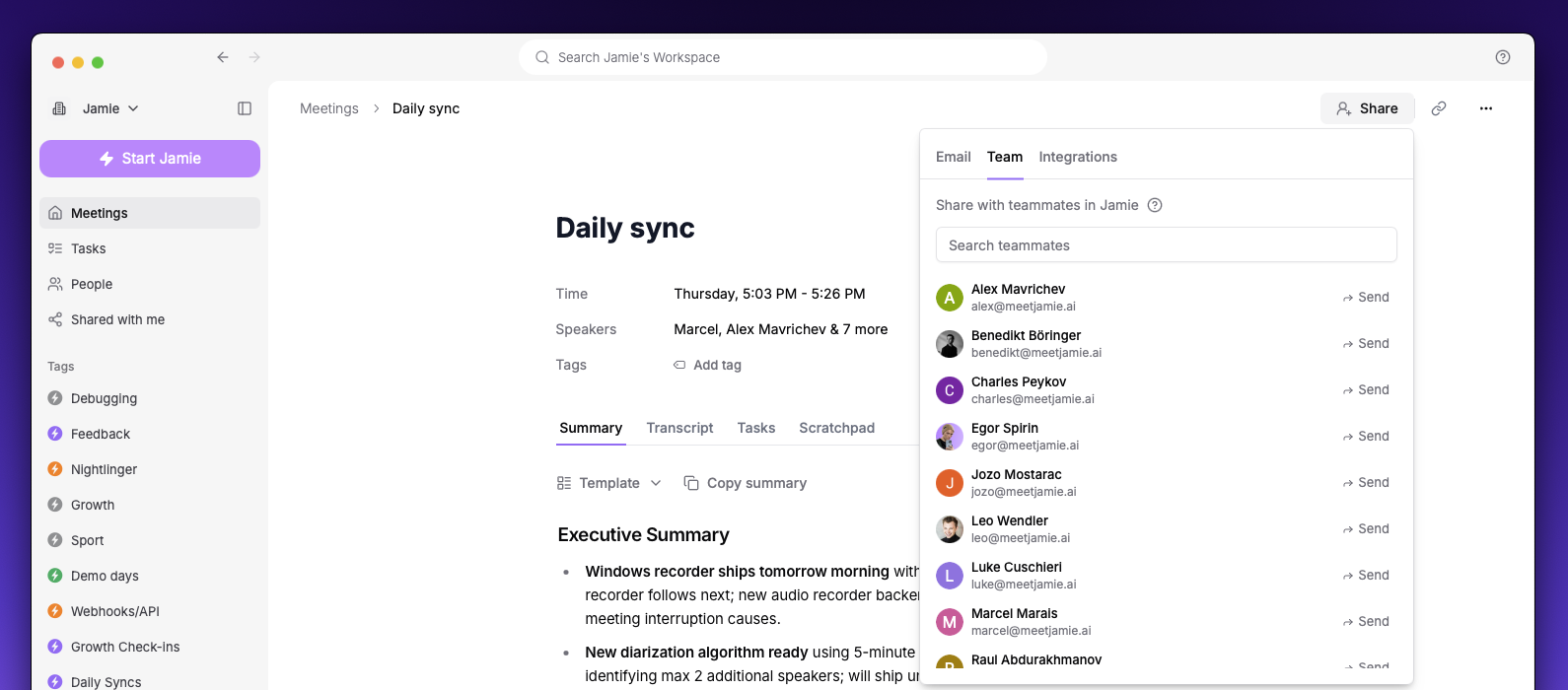
How It Works
- Click Share on any meeting
- Go to the Team tab
- Search for a teammate by name or email
- Click on their name to share
Viewing Shared Meetings
Meetings shared with you appear in the Shared with me section, accessible from the main navigation.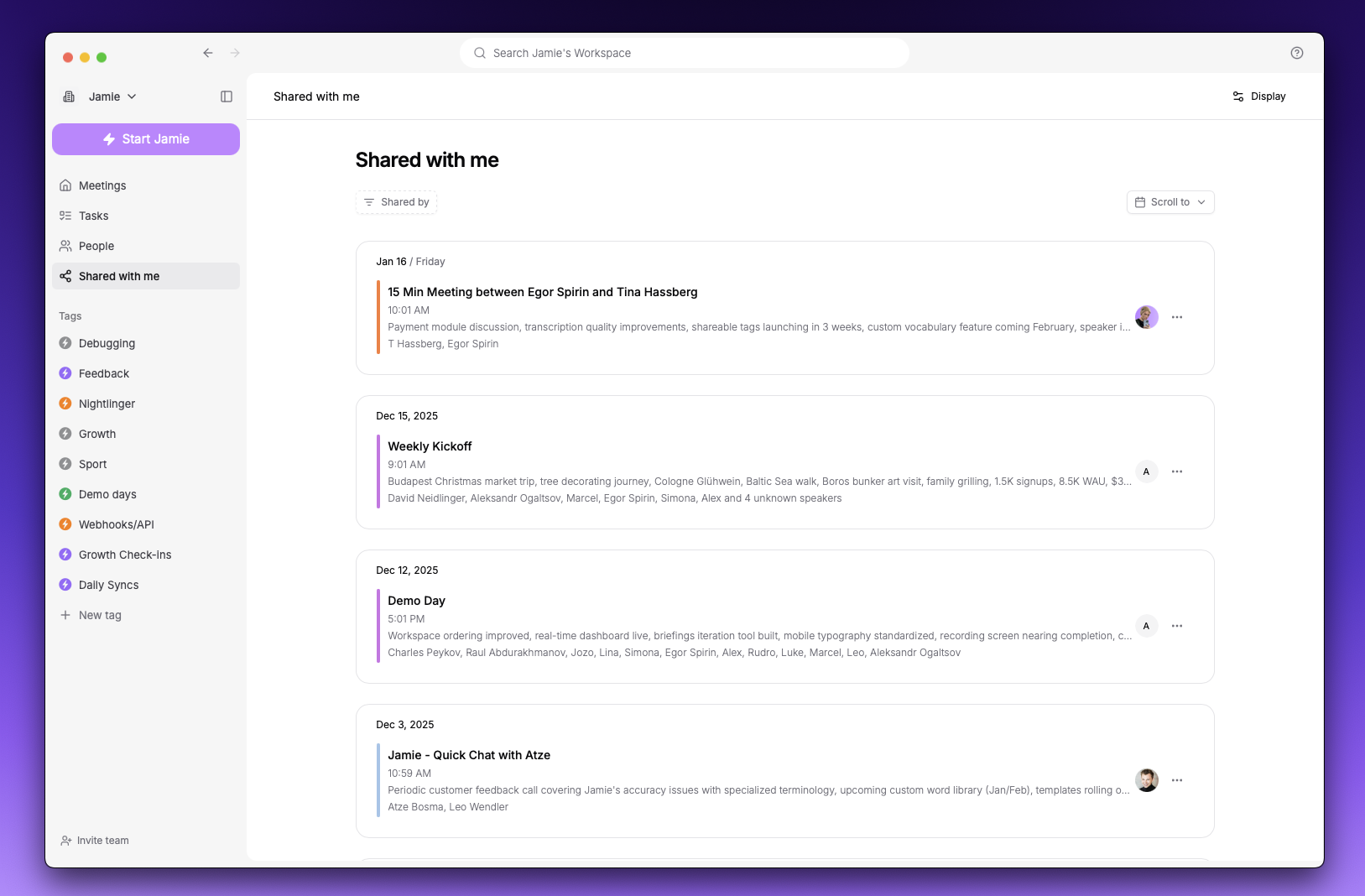
- Filter by person — See only meetings from a specific teammate
- Filter by date — Jump to meetings from a specific time period
- View any shared meeting — Click to see the full summary, transcript, and tasks
Managing Access
As the meeting owner, you can:- Revoke access — Click on a shared teammate and select “Revoke access” to remove their access
- Remove from your list — Remove a shared meeting from your “Shared with me” section (this doesn’t affect others’ access)
Link Sharing
Create a public link that anyone can use to view your meeting.How It Works
- Click Share on any meeting
- In the Email tab, find the Link sharing section at the very bottom
- Toggle the switch to make the link live
- Click Copy link to copy it to your clipboard
What Link Viewers See
People viewing via a shared link see a read-only version of your meeting with:- Meeting title and metadata
- Summary content
- Transcript content
Disabling a Link
To revoke access via a shared link, simply toggle the link switch off. The link will immediately stop working for anyone who has it.Notifications
Control how you’re notified about shared meetings in Notifications.- Team sharing emails — Get notified when a teammate shares a meeting with you (Team/Enterprise only)