

Connect Jamie to OneNote to automatically save meeting notes to your notebooks.Documentation Index
Fetch the complete documentation index at: https://docs.meetjamie.ai/llms.txt
Use this file to discover all available pages before exploring further.
Connecting OneNote
- Go to Settings → Integrations → OneNote
- Click Connect OneNote
- Select your Microsoft account and authorize the connection
Sending Meetings to OneNote
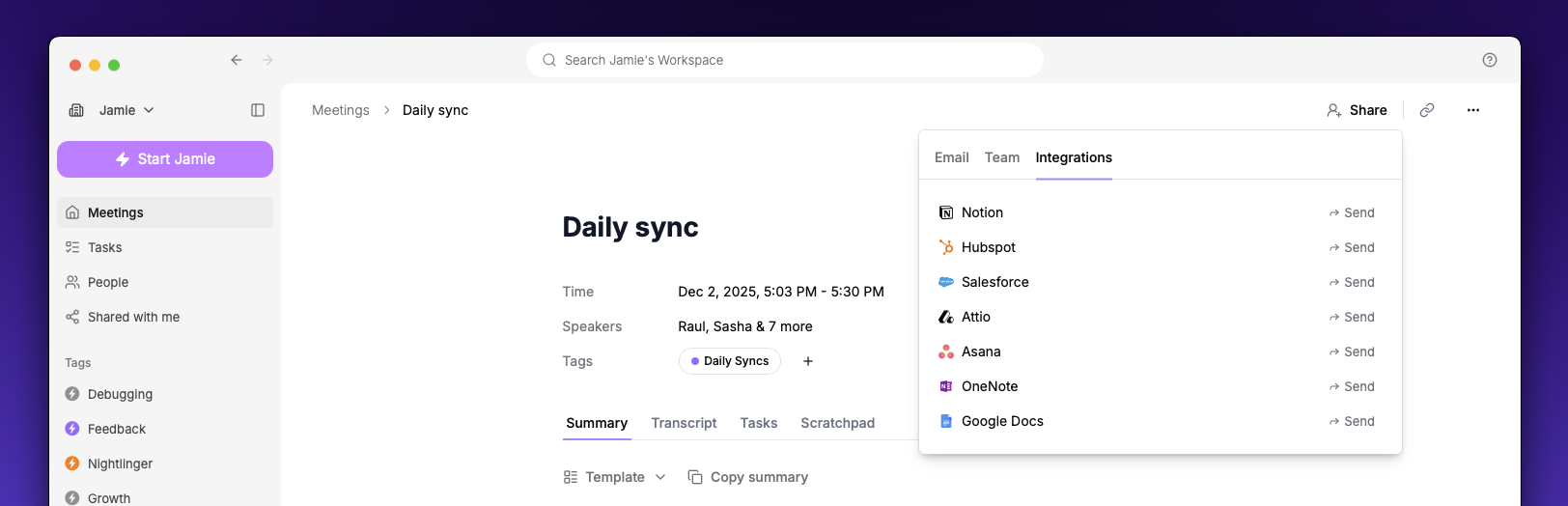
- Open a meeting in Jamie
- Click the Share button
- Select Send to OneNote
Automatic Sync
Enable Automatic sync to send every meeting to OneNote automatically after processing completes. Toggle this in Settings → Integrations → OneNote.Settings
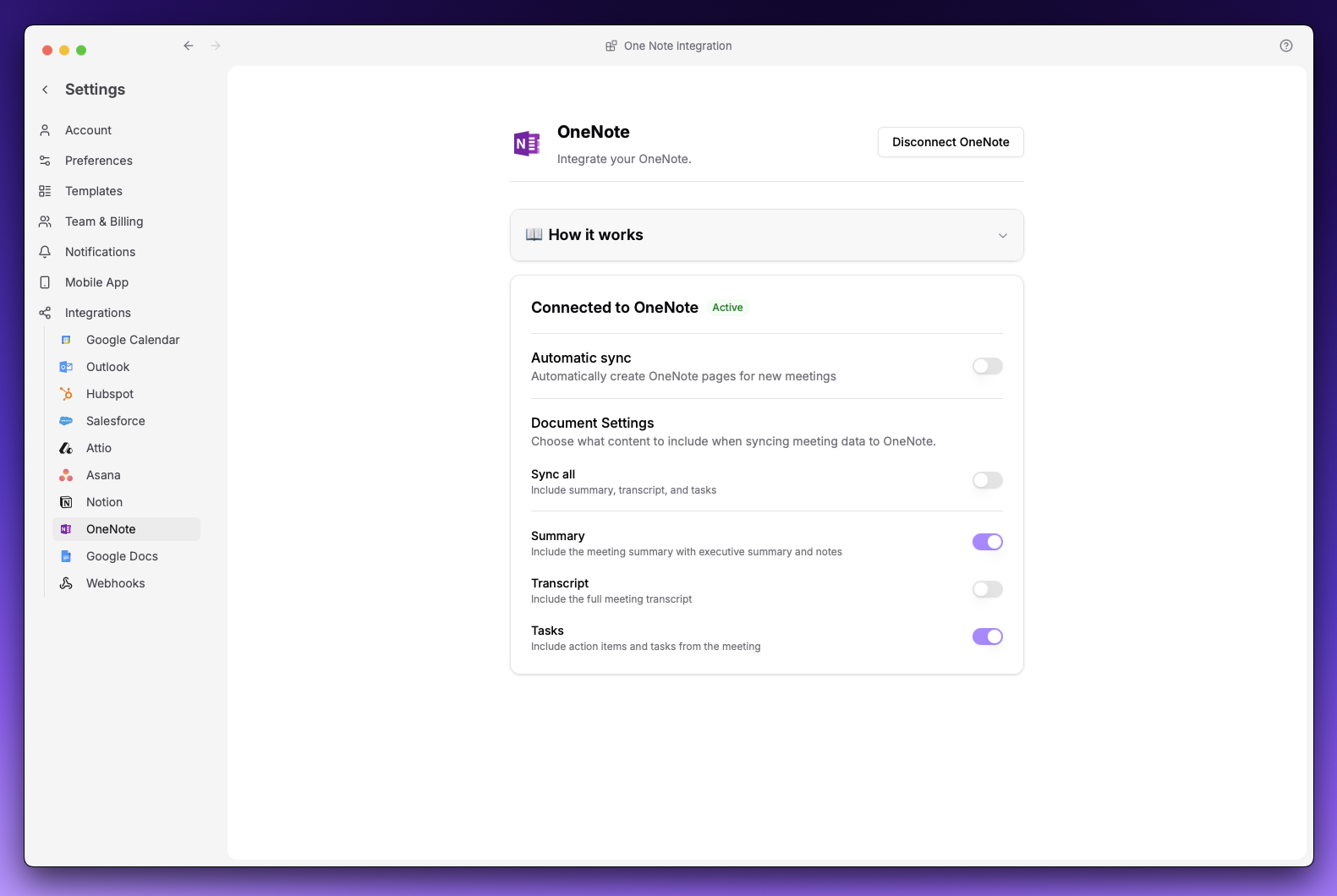
| Option | Description |
|---|---|
| Summary | Meeting notes with executive summary |
| Transcript | Full meeting transcript |
| Tasks | Action items from the meeting |
At least one option must be enabled.