

Jamie’s recorder captures your meetings and automatically generates summaries, transcripts, and action items. This guide explains how to use the recorder from start to finish.Documentation Index
Fetch the complete documentation index at: https://docs.meetjamie.ai/llms.txt
Use this file to discover all available pages before exploring further.
Starting a Recording
There are several ways to start recording a meeting with Jamie:Automatic Detection
Automatic Detection
When Jamie detects that you’ve joined a video call (e.g. Zoom, Google Meet, Microsoft Teams, etc.), a notification will appear asking if you’d like to start recording.
You can customize which apps trigger automatic detection in your Notifications settings under App notifications, or disable this feature entirely.
Manual Start from the app
Manual Start from the app
You can start a recording at any time from the navigation bar within the app: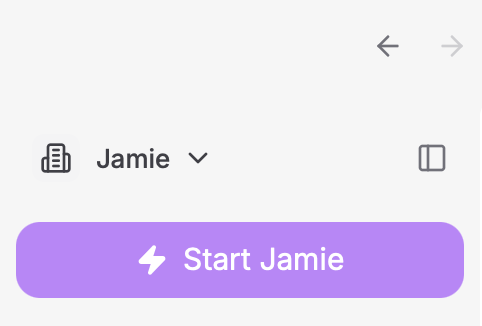
During the Recording
Once you start recording, Jamie provides several features to help you during your meeting.The Recorder Widget
When recording, a compact floating widget appears on your screen. You can drag it anywhere to reposition it.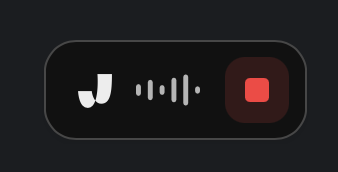
The Meeting View
The expanded meeting view gives you access to all features during your recording.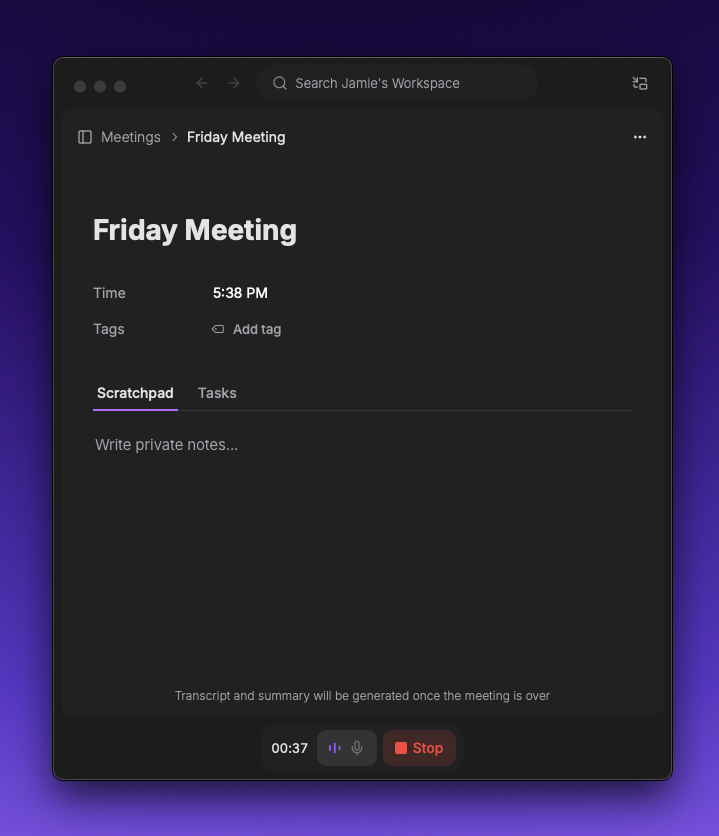
Changing Your Microphone
To switch your microphone mid-meeting, you can just click on the microphone icon in the recorder controls to open the microphone selector dropdown and choose a different microphone.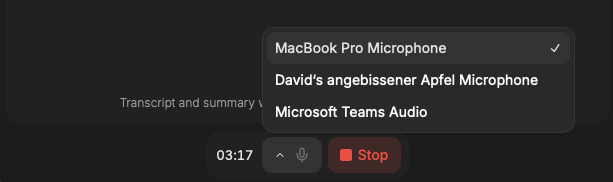
Using the Scratchpad
During a live meeting, the Scratchpad tab is selected by default. Use it to write private notes - perfect for jotting down quick thoughts, noting important points to follow up on, or writing reminders for yourself. Those notes will not be incorporated in the summary created by Jamie but are standalone.Your scratchpad notes are private by default and won’t be included when you share the meeting summary with others.
Stopping the Recording
When your meeting ends, stop the recording directly from the recorder widget or, if you have the recorder expanded to the full meeting view, from the bottom recorder bar where you will find a red Stop button.What if you close Jamie during the meeting?
If you accidentally close Jamie during a recording, don’t worry - Jamie will ask for confirmation before stopping. If you quit Jamie, the current recording will be saved.After the Recording
Once you stop recording, Jamie immediately begins processing your meeting.Troubleshooting
No Microphones Detected
No Microphones Detected
Make sure your microphone is connected and recognized by your computer. Try disconnecting and reconnecting it, then refresh the microphone list.
Recording Won't Start
Recording Won't Start
Check that Jamie has permission to access your microphone. On Mac, go to System Preferences > Privacy & Security > Microphone and ensure Jamie is enabled.
Meeting Not Detected Automatically
Meeting Not Detected Automatically
Verify that automatic meeting detection is enabled in your settings, and that the video call app you’re using isn’t in your disallowed apps list.