

Documentation Index
Fetch the complete documentation index at: https://docs.meetjamie.ai/llms.txt
Use this file to discover all available pages before exploring further.
What are templates?
Templates let you control the structure and content of your meeting summaries. You decide which sections to include and what belongs in each one, so your summaries come out ready to use with the details you care about.When you’d use a template
Team alignment
Every summary looks the same across the team so updates, decisions, and next steps are always easy to find.
Different meeting types
Standups, 1:1s, client calls, retros. Each gets its own format so people can skim for exactly what they care about.
Repeatable sales & CS calls
Every call captures pain points, objections, and next steps in the same structure.
Less time fixing notes
Instead of reformatting notes after every call, templates give you publish-ready summaries in one click.
How to use
- Applying a template
- Creating a custom template
- Going back to the original summary
Find the template dropdown
Look below the summary. You will see a dropdown showing the current template name (such as “Default”).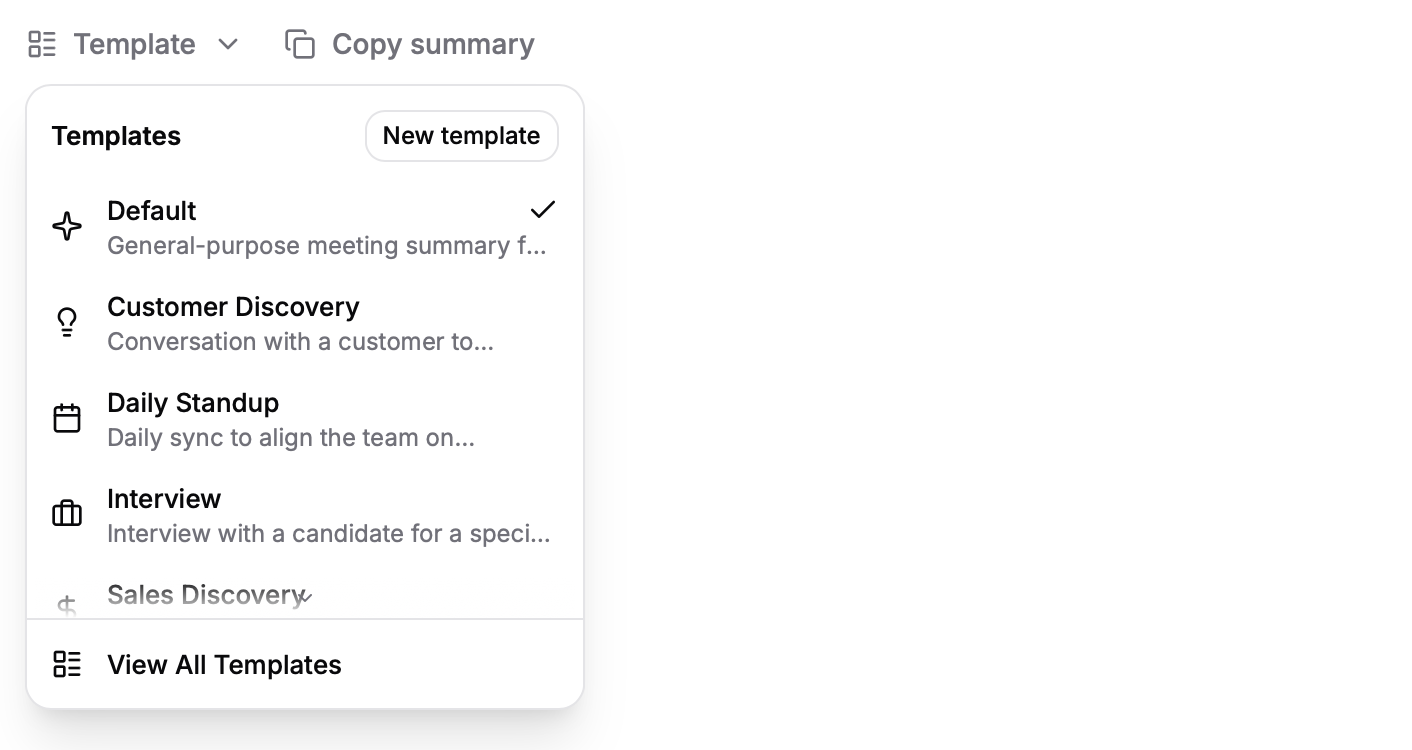
Choose a template
Click the dropdown to see your available templates. Click on any template to apply it.
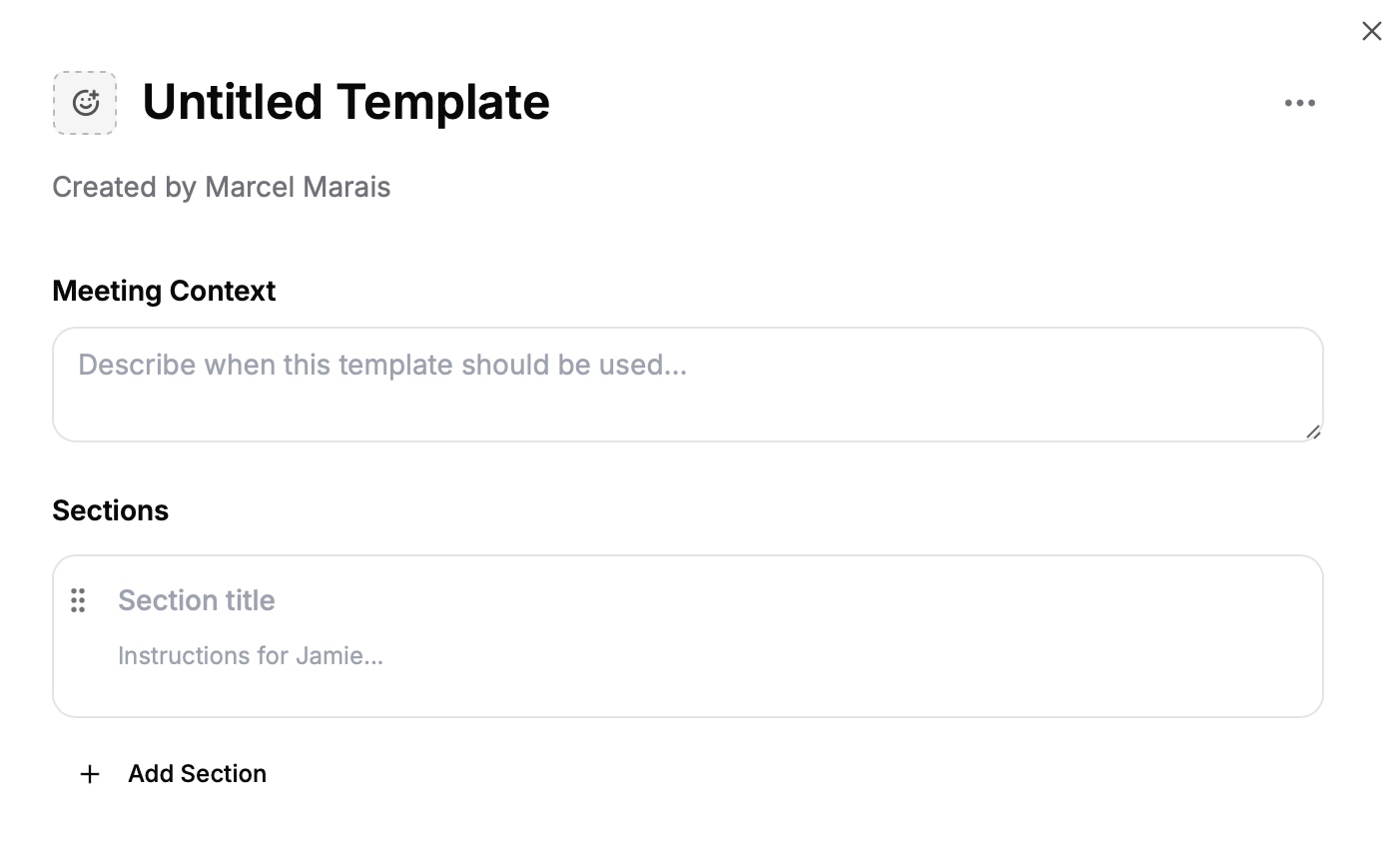
Automatically apply templates
Instead of manually choosing a template after every meeting, you can let Jamie pick the right one for you.How it works
- You mark templates for auto-apply: Enable auto-apply on any templates you want Jamie to consider.
- Jamie classifies each meeting: After a meeting ends, Jamie reviews which of your auto-apply templates best matches the meeting content.
- The best fit gets applied: If Jamie finds a relevant template, it applies that template automatically. If none of your auto-apply templates fit, Jamie uses the default format.
Enabling auto-apply on a template
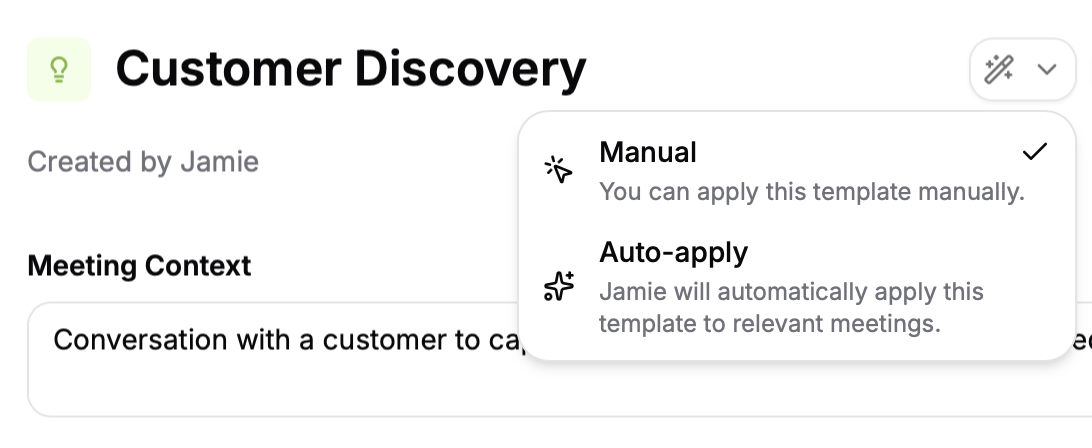
Auto-apply only considers templates you’ve explicitly marked. Your other templates remain available for manual use but won’t be applied automatically.
Tips and common questions
How do I write good section instructions?
How do I write good section instructions?
Be specific about what you want, both in terms of content and formatting. For example, an interview template with a section titled “Work Experience” could say: “List the candidate’s experience in chronological order, including their title, the company name, and how long they spent there.”
Can I use multiple templates on the same meeting?
Can I use multiple templates on the same meeting?
You can switch templates as many times as you like. Each time you apply a different template, Jamie regenerates the summary in that new format.
Will applying a template change my transcript?
Will applying a template change my transcript?
No. Templates only change how the summary is formatted. Your original transcript stays the same.
Can I edit the templates provided by Jamie?
Can I edit the templates provided by Jamie?
To customize a Jamie created template, use the Duplicate button to make your own copy, then edit that.
Who can see my templates?
Who can see my templates?
Personal templates are private to your account, only you can see and use them. If you share a template with your workspace (Enterprise & Team plans only), all workspace members can use it.
What happens if I delete a template I've used before?
What happens if I delete a template I've used before?
Meetings that used that template keep their existing summaries. You just won’t be able to apply that template to new meetings.
Limits and things to keep in mind
- When you apply a template, it may take a few moments for Jamie to generate the new summary. Very long templates or meetings may take longer to process.
- If you close Jamie or click away while a template is applying, it stops and your notes return to how they were.
- Templates work best when the meeting transcript has enough content for each section. If the meeting didn’t cover a topic, that section may be brief or empty.