

When using Jamie to take notes in your meetings, it’s important to ensure all attendees are aware that the meeting is being recorded.Documentation Index
Fetch the complete documentation index at: https://docs.meetjamie.ai/llms.txt
Use this file to discover all available pages before exploring further.
Informing Attendees
There are two ways to let attendees know you’ll be using Jamie:1. Manual Announcement
At the beginning of your meeting, simply let attendees know that you’ll be using Jamie to take notes. A quick statement like:“Just a heads up, I’ll be using Jamie to take notes during this meeting.”
2. Automated Recording Notice
Jamie can automatically send an email notification to your meeting attendees 24 hours before the meeting starts. This email informs them that you plan to use Jamie for note-taking.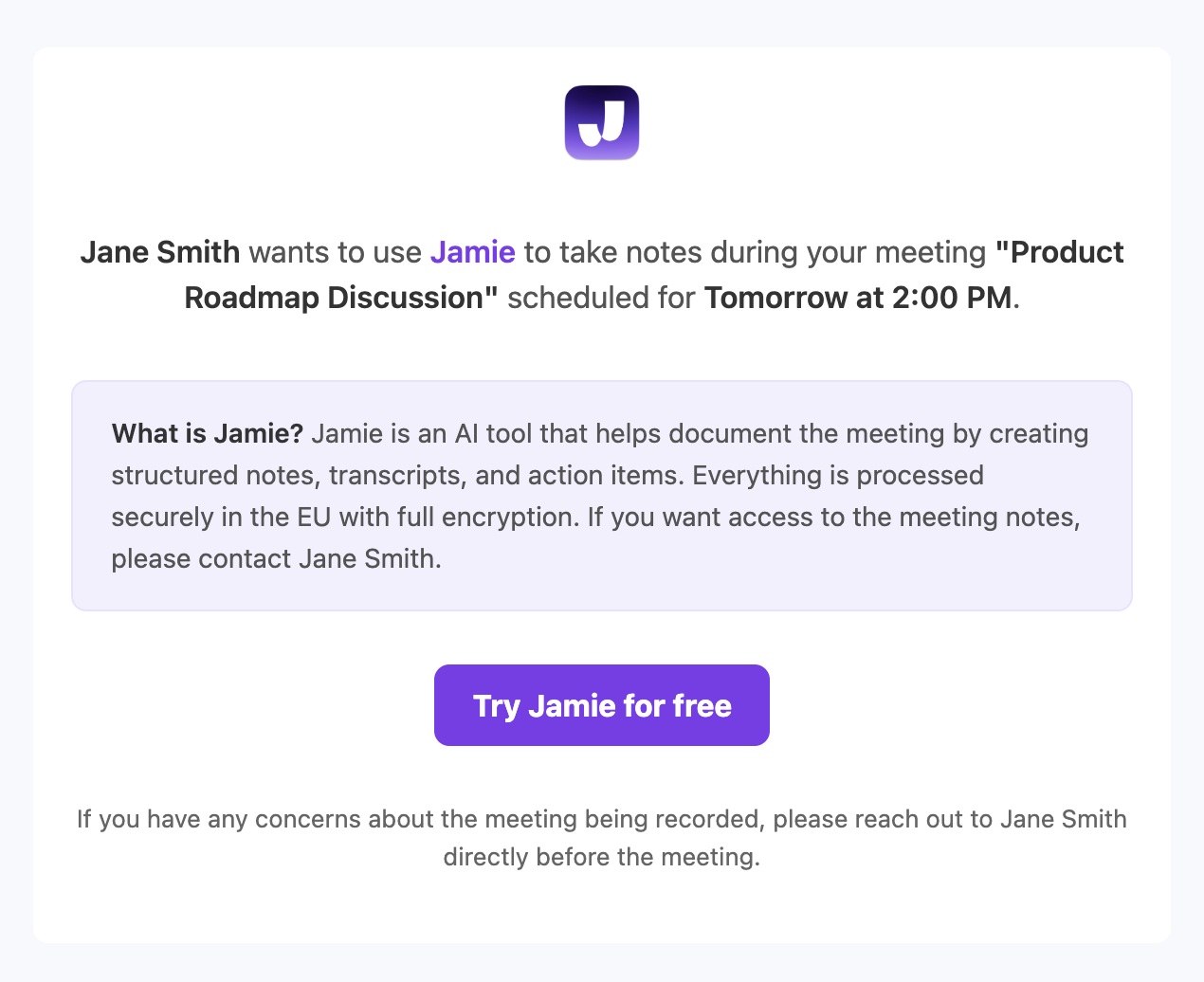
- You must have your calendar connected to Jamie
- Jamie checks your connected calendar for upcoming meetings
- 24 hours before each meeting, attendees receive an email notification
- The email explains that you’ll be using Jamie and briefly describes what Jamie does
- Attendees from your workspace are automatically excluded (they already know about Jamie)
- Go to Settings → Notifications
- Find the Recording notice toggle
- Enable the toggle to start sending automatic notifications