

Connect Jamie to Salesforce to log meeting notes as Notes on Leads, Contacts, Opportunities, and Accounts.Documentation Index
Fetch the complete documentation index at: https://docs.meetjamie.ai/llms.txt
Use this file to discover all available pages before exploring further.
Salesforce integration requires a Pro, Team, or Enterprise plan.
Admin Setup (One-Time)
A Salesforce admin must complete this setup before users can connect:- Go to Settings → Integrations → Salesforce and click Connect Salesforce
- Log in with an admin account and click Allow
- In Salesforce, go to Setup → Apps → Connected Apps → Manage Connected Apps
- Find Jamie and click Install
- Click Edit Policies
- Under Permitted Users, select All users may self-authorize
- Click Save
User Setup
After admin setup, each user can connect:- Go to Settings → Integrations → Salesforce
- Click Connect Salesforce
- Log in with your Salesforce account and click Allow
Sending Meetings to Salesforce
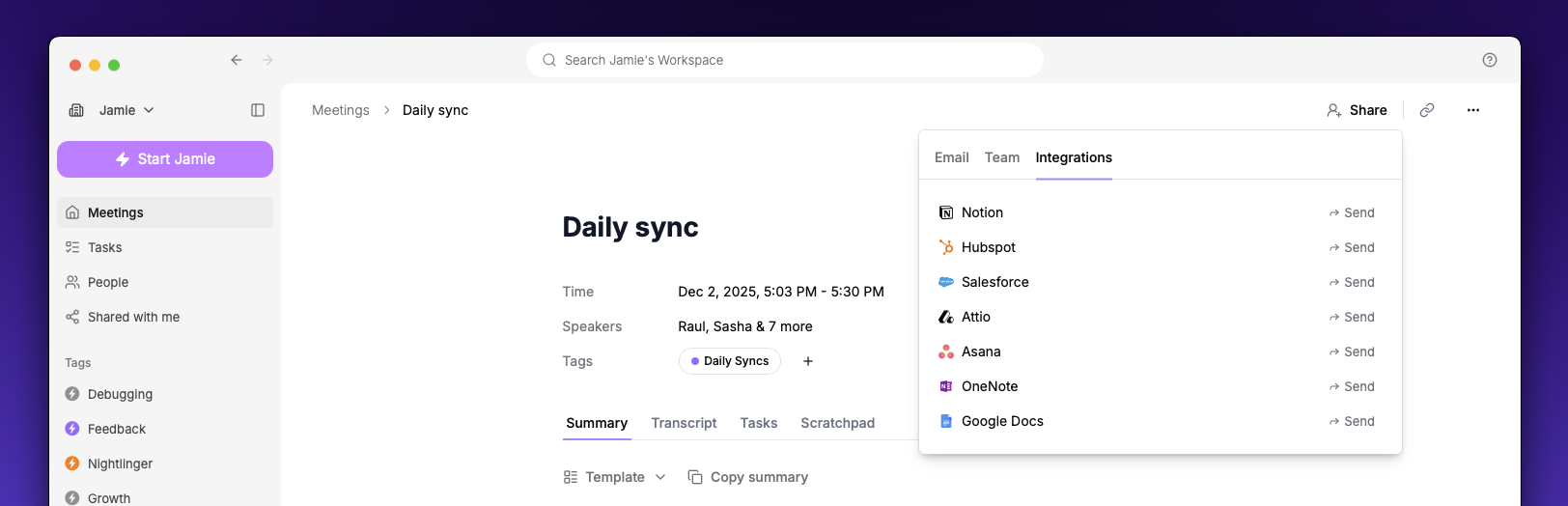
- Open a meeting in Jamie
- Click the Share button
- Select Send to Salesforce
- Search for a Lead, Contact, Opportunity, or Account
- Click Send
If you don’t see the Notes section on a record, ask your admin to add it via Setup → User Interface → Lightning App Builder.
Settings
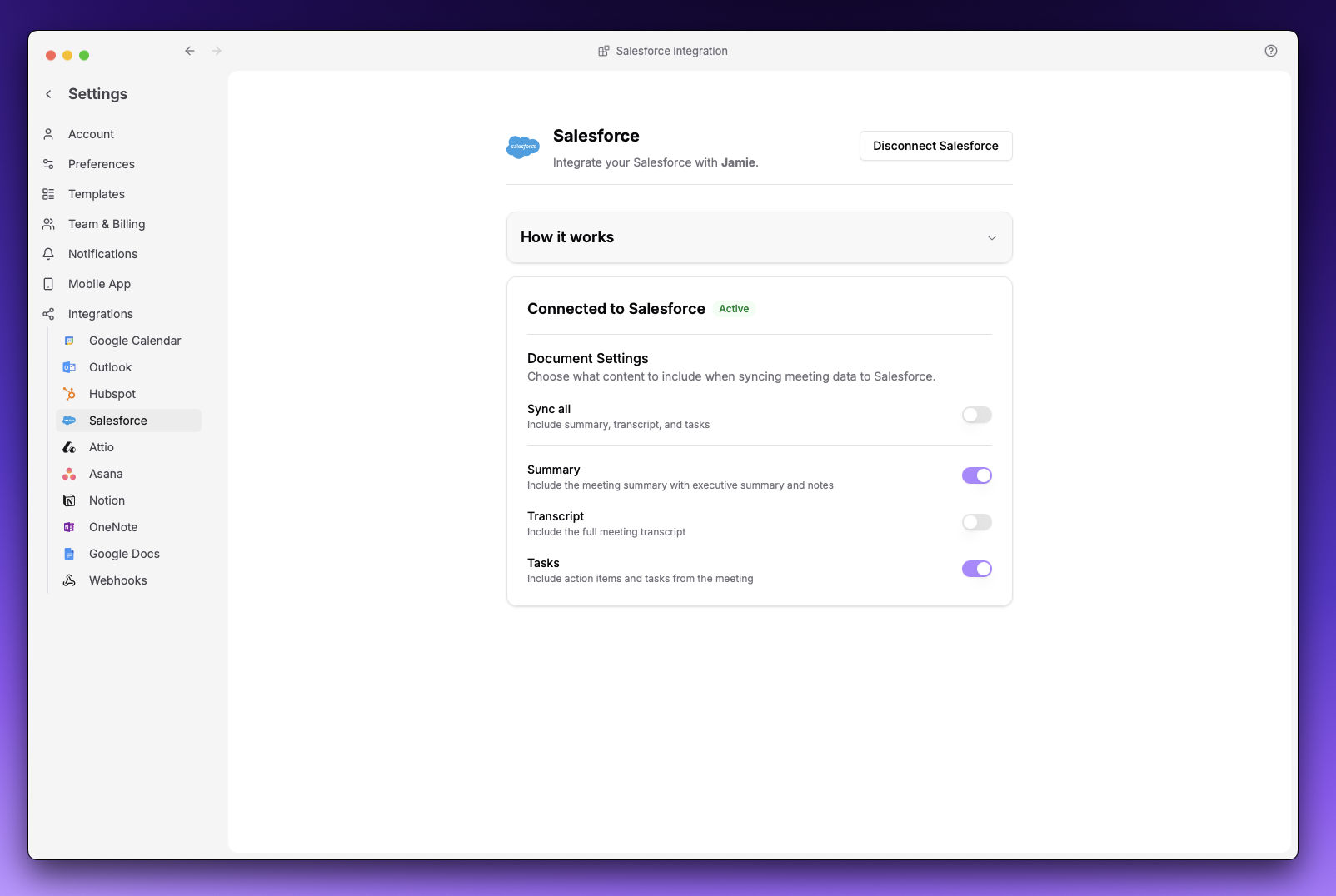
| Option | Description |
|---|---|
| Summary | Meeting notes with executive summary |
| Transcript | Full transcript |
| Tasks | Action items from the meeting |
At least one option must be enabled.