

Once you stopped your meeting, Jamie starts processing your meeting immediately. You will see live updates on each processing step and how long it is roughly gonna take to complete the summary.Documentation Index
Fetch the complete documentation index at: https://docs.meetjamie.ai/llms.txt
Use this file to discover all available pages before exploring further.
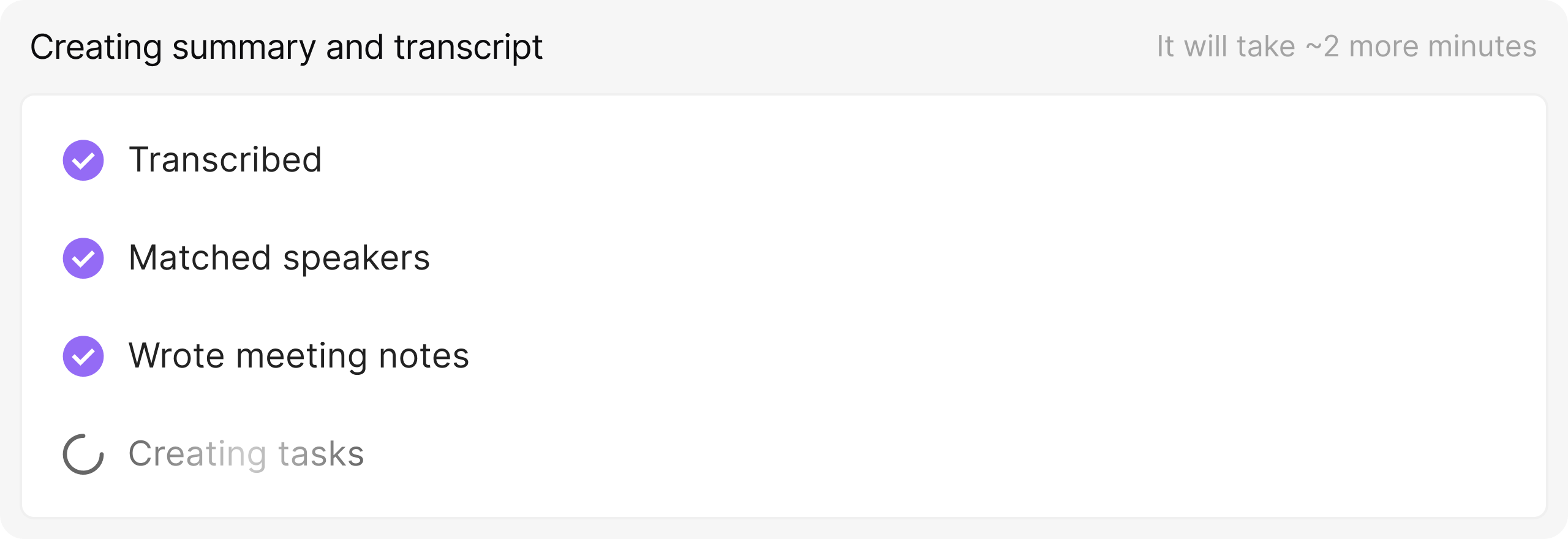
Processing Steps
Jamie processes your meeting in the following order:- Transcribing — Converting the audio to text
- Speaker Matching — Identifying who said what (if Speaker Memory is enabled)
- Writing Summary — Creating your meeting notes
- Creating Tasks — Extracting action items
Expected Wait Times
Processing typically takes about 5 - 10 minutes total, though this can vary based on meeting length.What You’ll Get
When processing completes, you’ll have access to:Summary
AI-generated meeting notes in a structured format
Transcript
Full word-for-word transcript of your meeting
Tasks
Action items extracted from the meeting with assignees
Scratchpad
Your private notes from during the meeting
Summary
The Summary tab contains your generated meeting notes. Jamie structures the notes with an Executive Summary and a Full Summary, structured by topics discussed in the meeting. If you’d like to have your summary in a different format, you can use or create summary templates.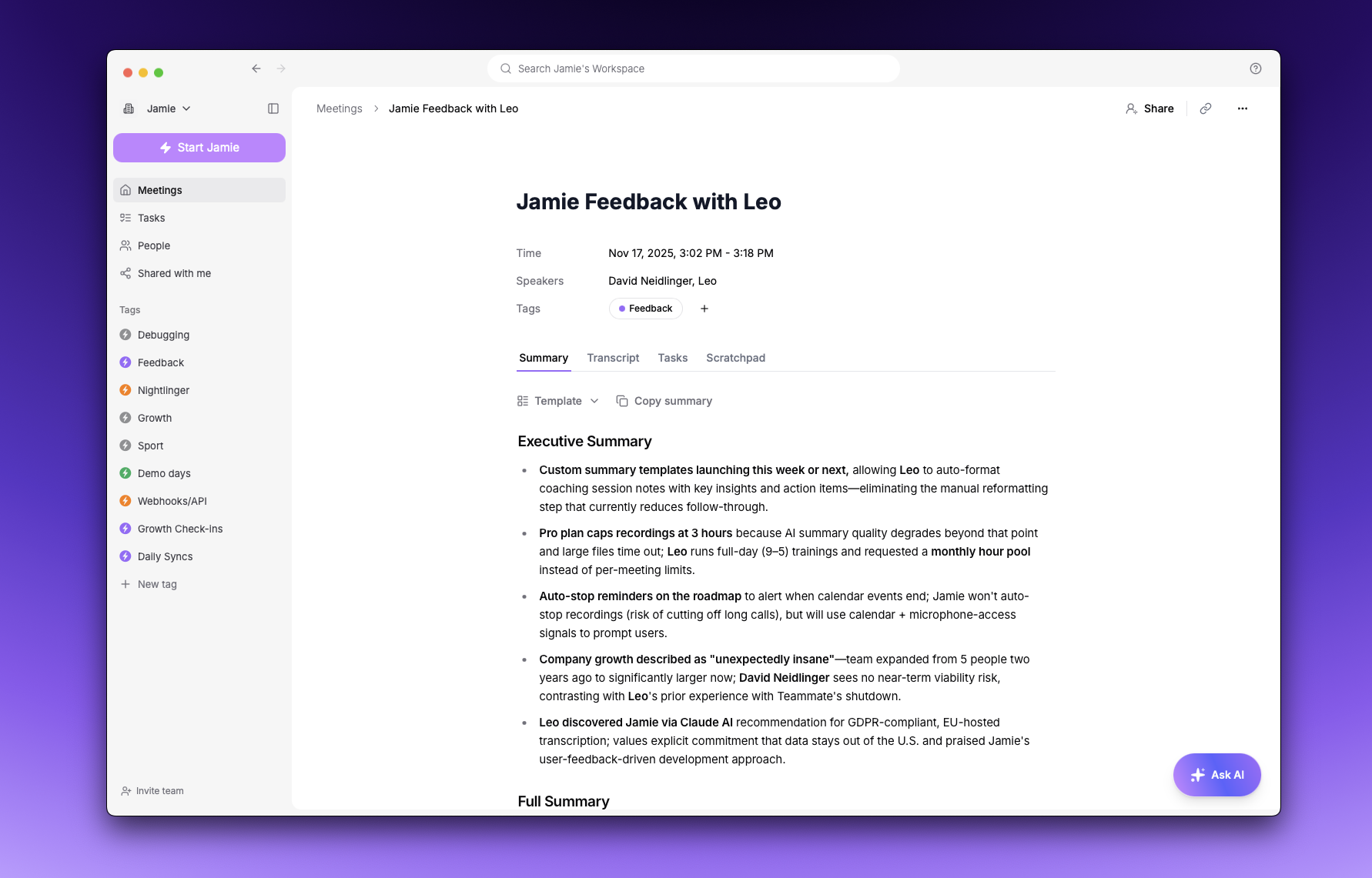
You can set the detail level for your summaries in the Summary settings under Summary detail. You can choose between Extensive (default) and Brief.
Transcript
The Transcript tab shows the full word-for-word record of your meeting, organized by speaker.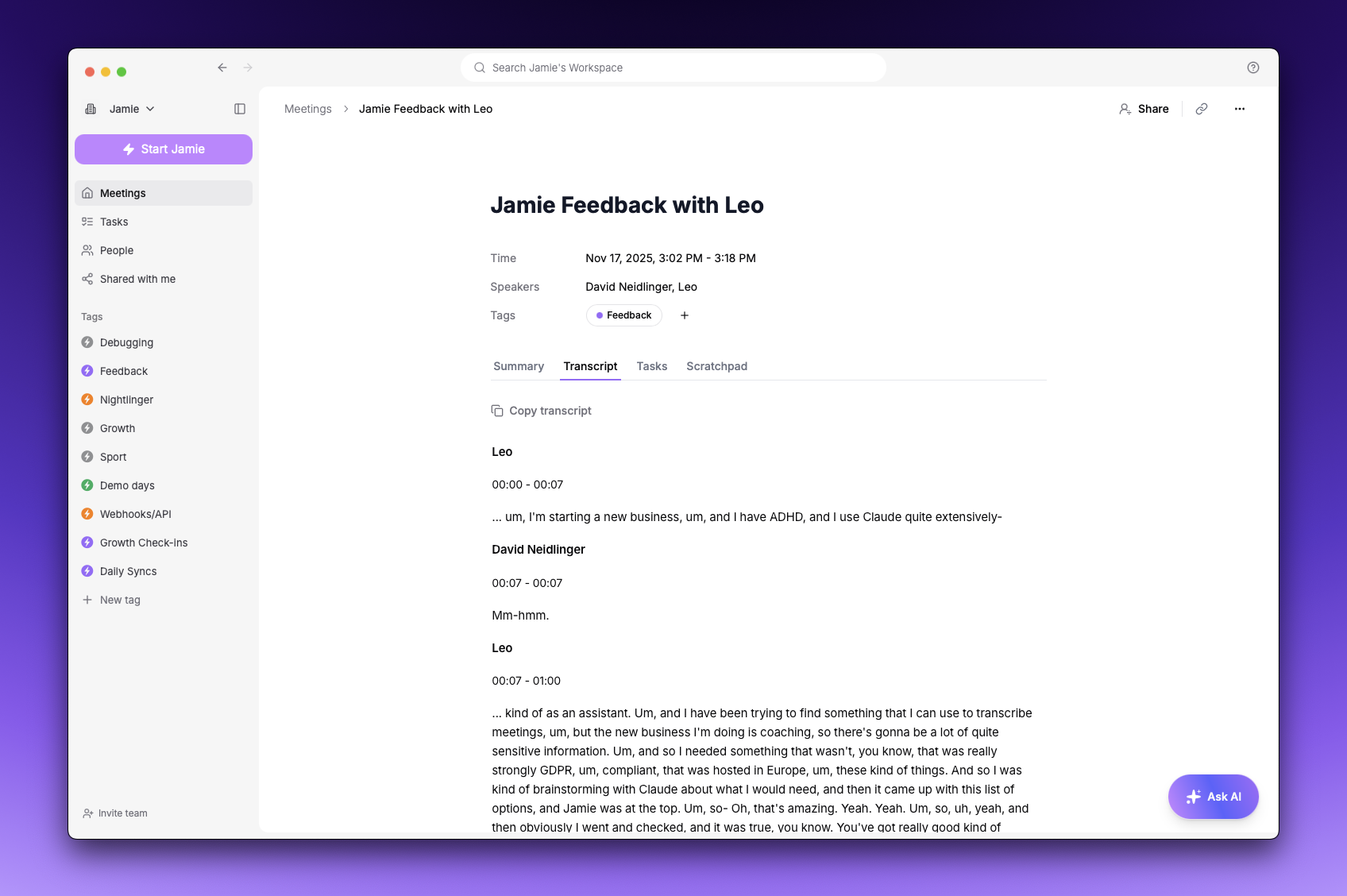
Tasks
The Tasks tab lists all action items Jamie extracted from your meeting.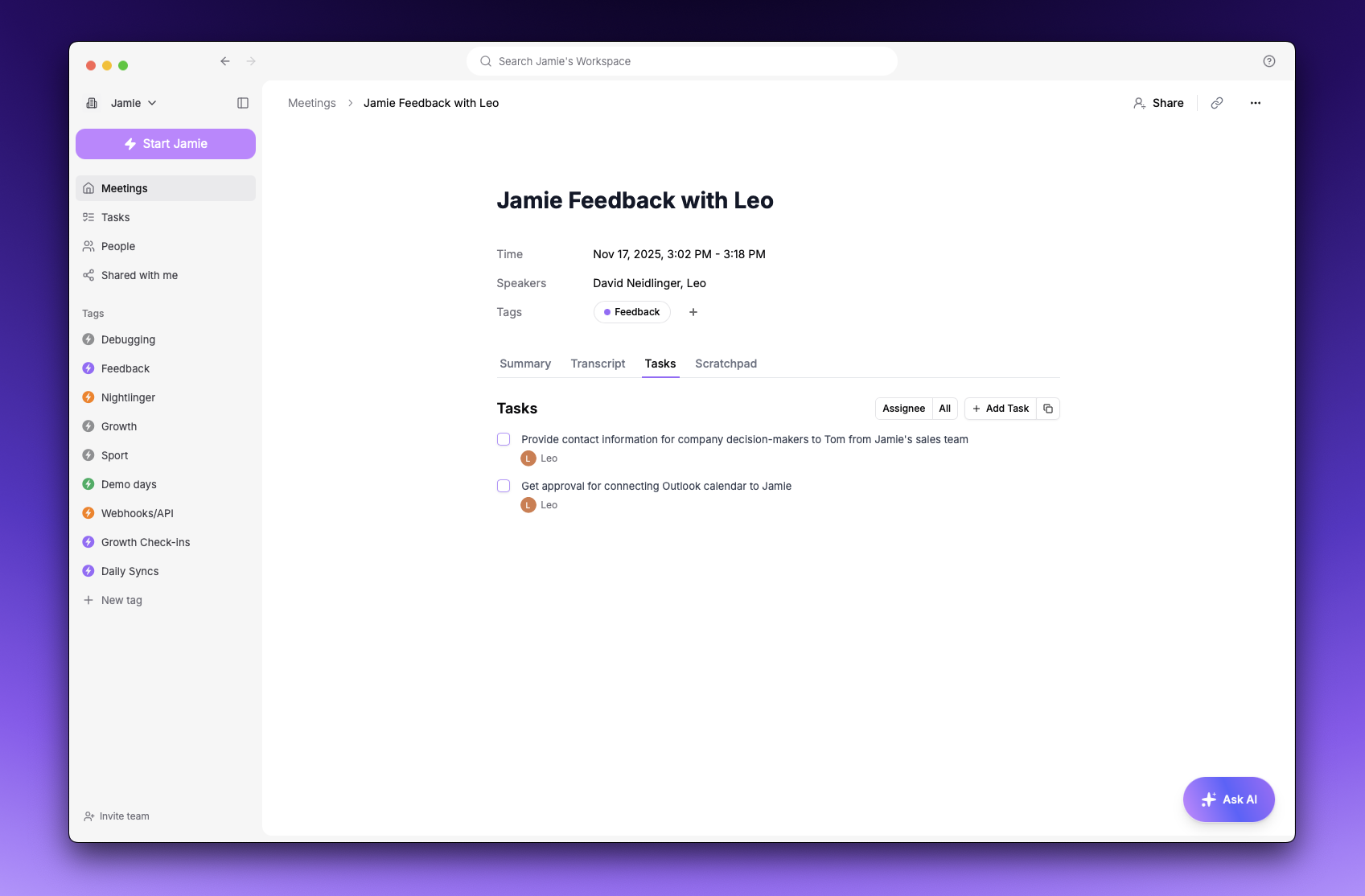
- Mark as complete - Click the checkbox
- Edit the text - Click on the task to edit it
- Assign to someone - Click the assign icon to add an assignee
- Delete - Hover over the task and click the delete icon
- Add new tasks - Click the + button to create additional tasks
Editing Content
To edit content, just click where you want to edit something and start typing. You are now able to access the Jamie text editing toolbar - to open it, simply select the text that you would like to edit:Copying Content
You can copy any content to your clipboard:- Use the copy icon in the header to copy the current tab’s content
- Select text and use
Ctrl/Cmd + Cto copy specific sections