

Connect your Microsoft Outlook calendar to Jamie to see upcoming meetings, get automatic meeting titles, and enhanced speaker identification.Documentation Index
Fetch the complete documentation index at: https://docs.meetjamie.ai/llms.txt
Use this file to discover all available pages before exploring further.
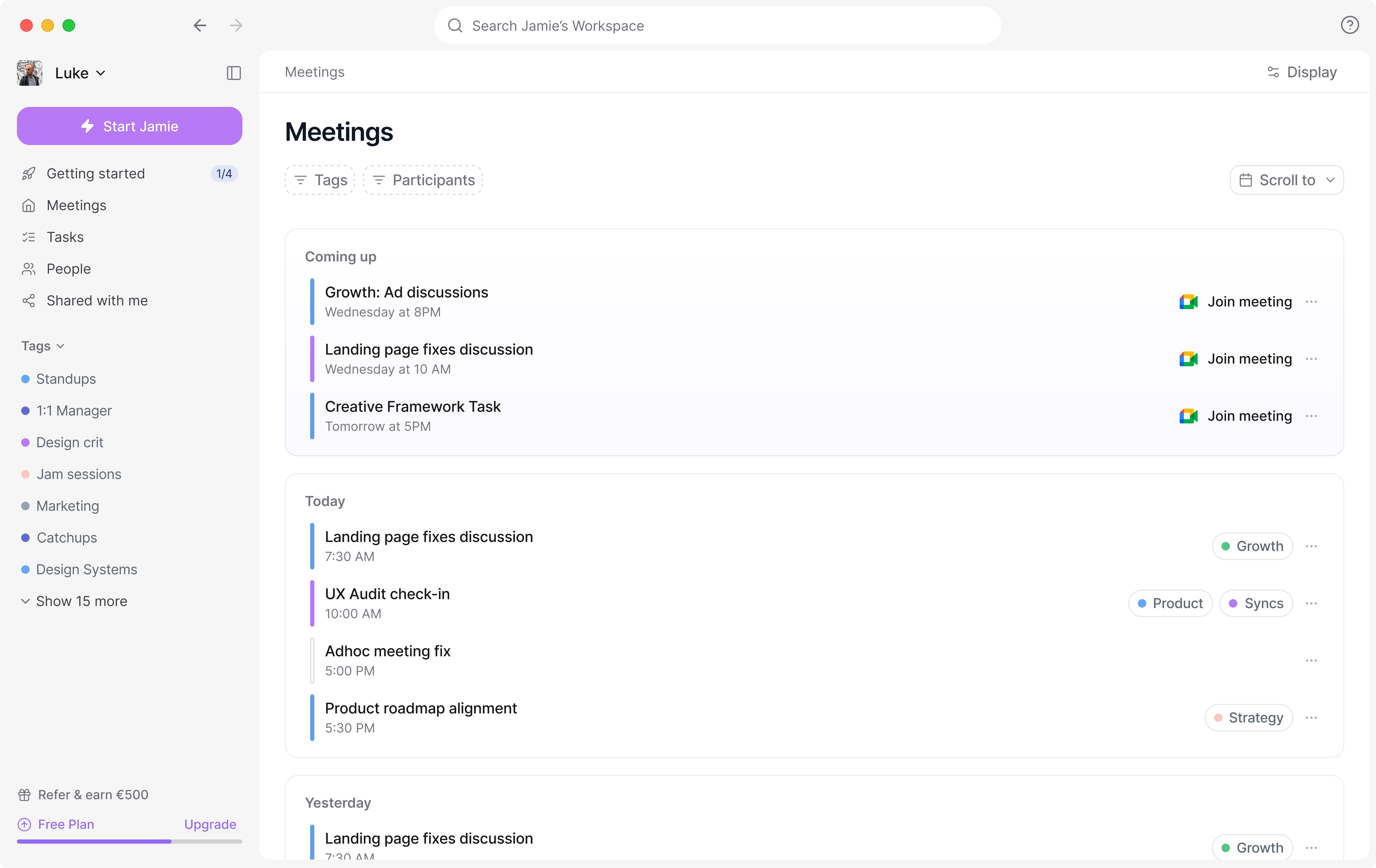
How to Connect Your Calendar
Connecting your Microsoft calendar takes just a few steps:- Click on your workspace name (top left corner)
- Go to Settings
- Navigate to Integrations > Outlook
- Click Connect Outlook Calendar
- Sign in with your Microsoft account when prompted
- Grant the requested permissions
- Once complete, you’ll be redirected back to Jamie
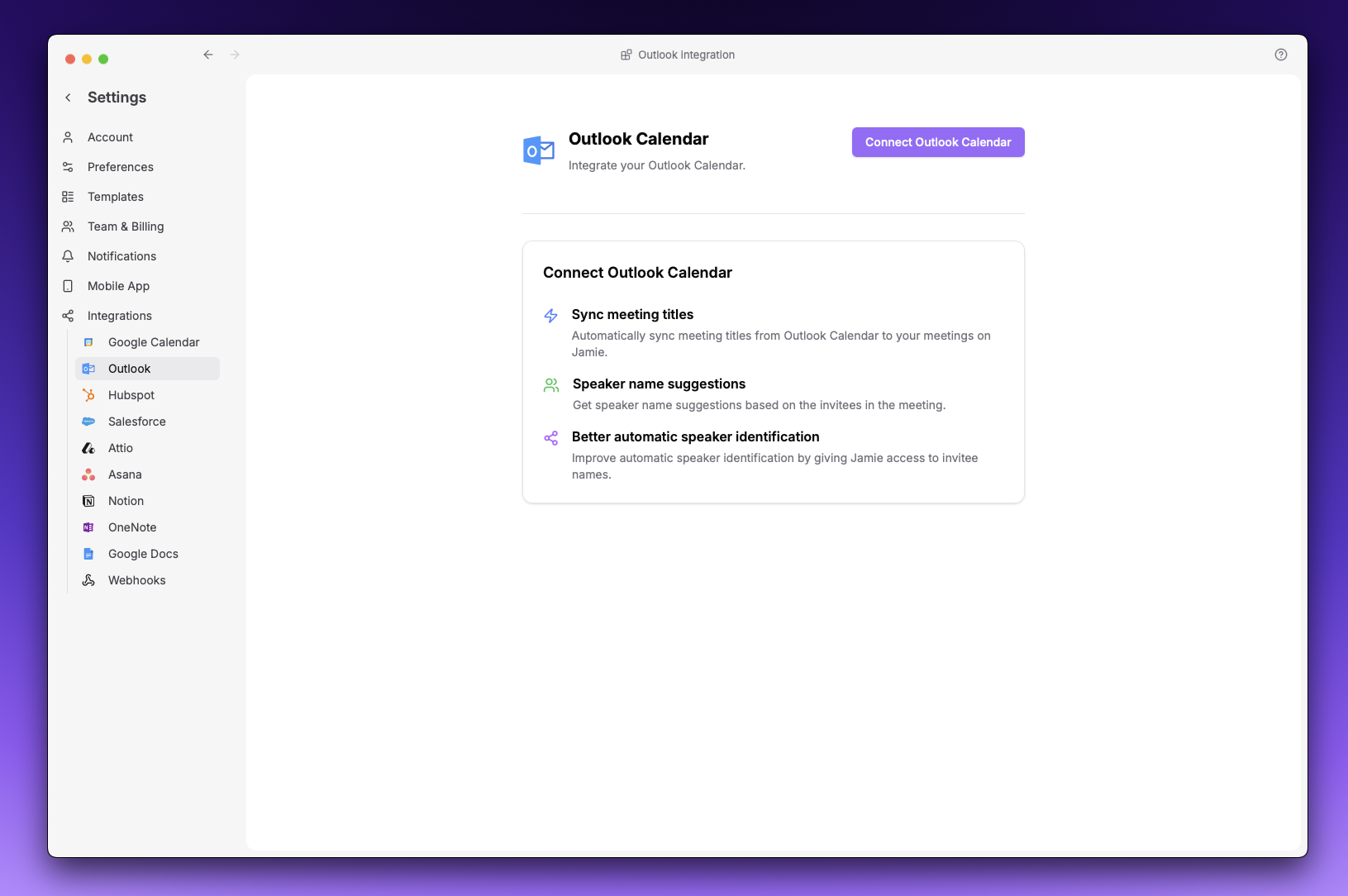
Tip: If you have multiple calendars in your Microsoft account, you can select which ones to sync by selecting the calendars and pressing Apply. The system will schedule those callendars to sync.
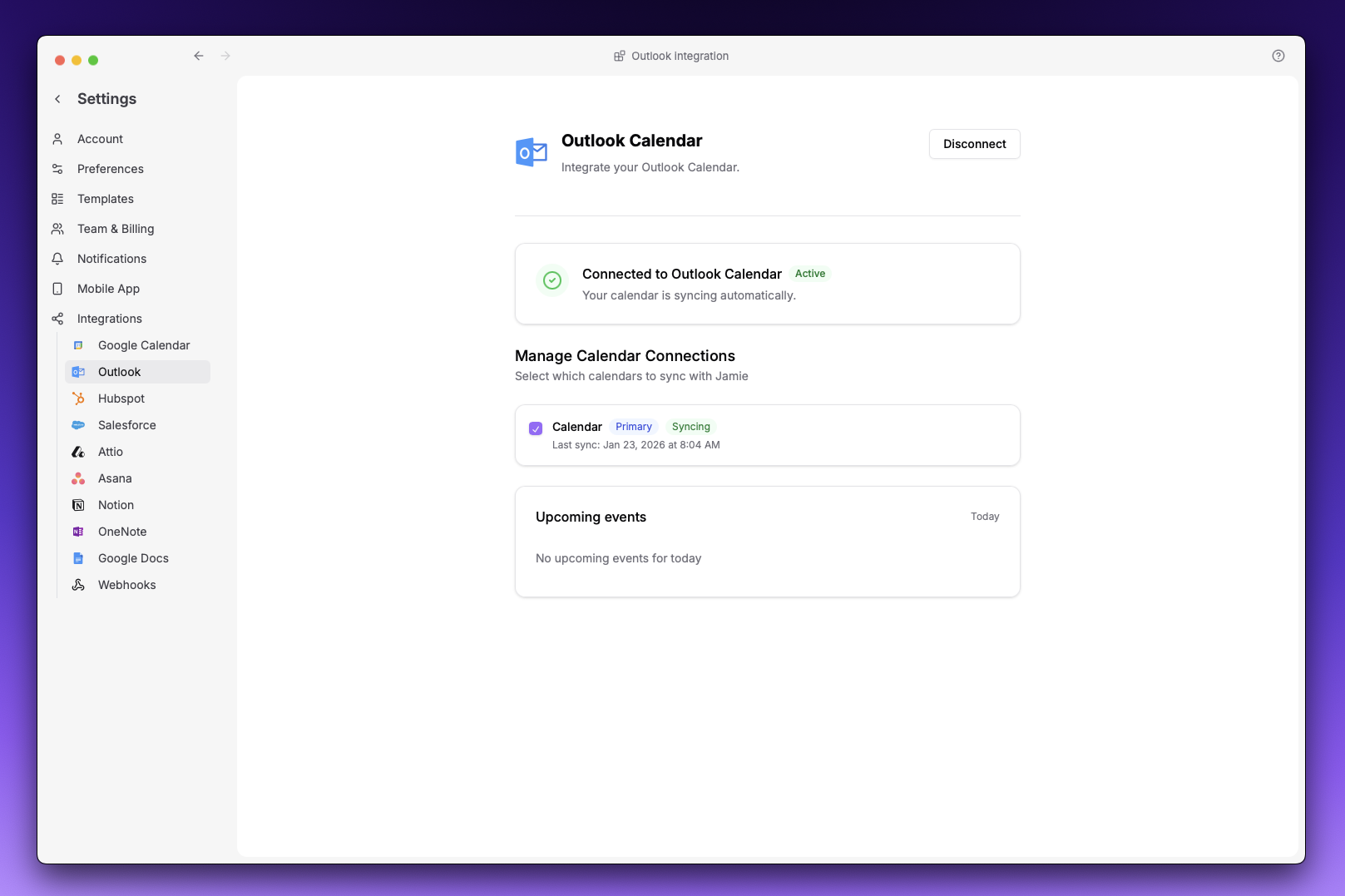
Connecting with a Microsoft Entra (Enterprise) Account
If your organization uses Microsoft 365 with Entra ID (formerly Azure AD), you may need administrator approval before connecting your calendar.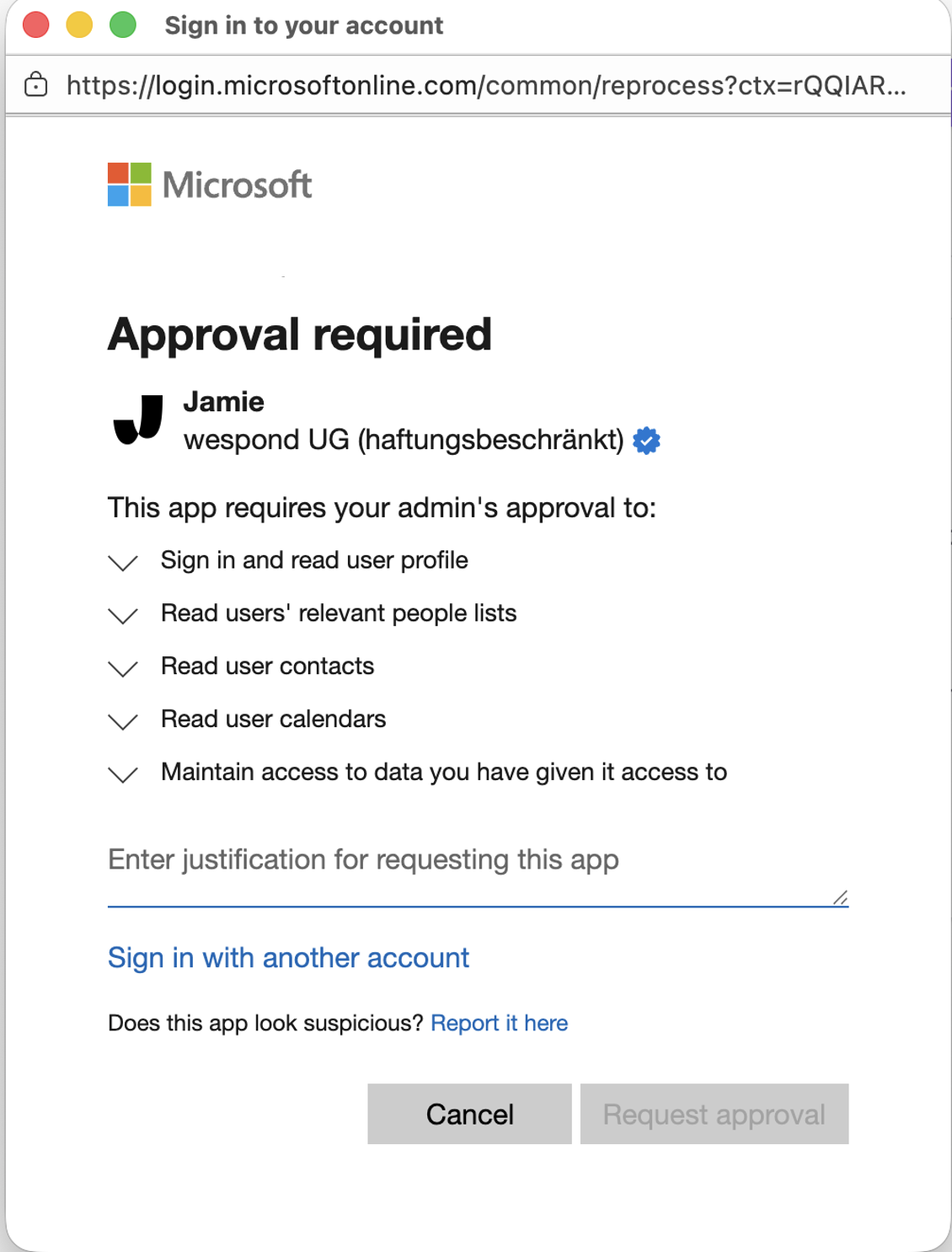
What You’ll See
When you try to connect your calendar, Microsoft may show a message saying:“Approval required"This happens because your organization has policies that require an administrator to review and approve third-party applications before employees can use them.
"This app requires your admin’s approval… Enter justification for requesting this app.”
What to Do
- Submit the consent request — When you see the admin approval screen, enter justification and click “Request approval” (if available). This sends a notification to your IT administrators.
- Contact your IT administrator — Let them know you’d like to use Jamie and that the app is waiting for approval in Microsoft Entra.
- Wait for approval — Once an administrator approves Jamie, you’ll be able to connect your calendar by following the standard steps above.
For Administrators
To approve Jamie for your organization:- Sign in to the Microsoft Entra admin center
- Go to Identity → Applications → Enterprise applications
- Look for pending admin consent requests, or search for “Jamie”
- Review the requested permissions (see details below)
- Click Grant admin consent to approve Jamie for your organization
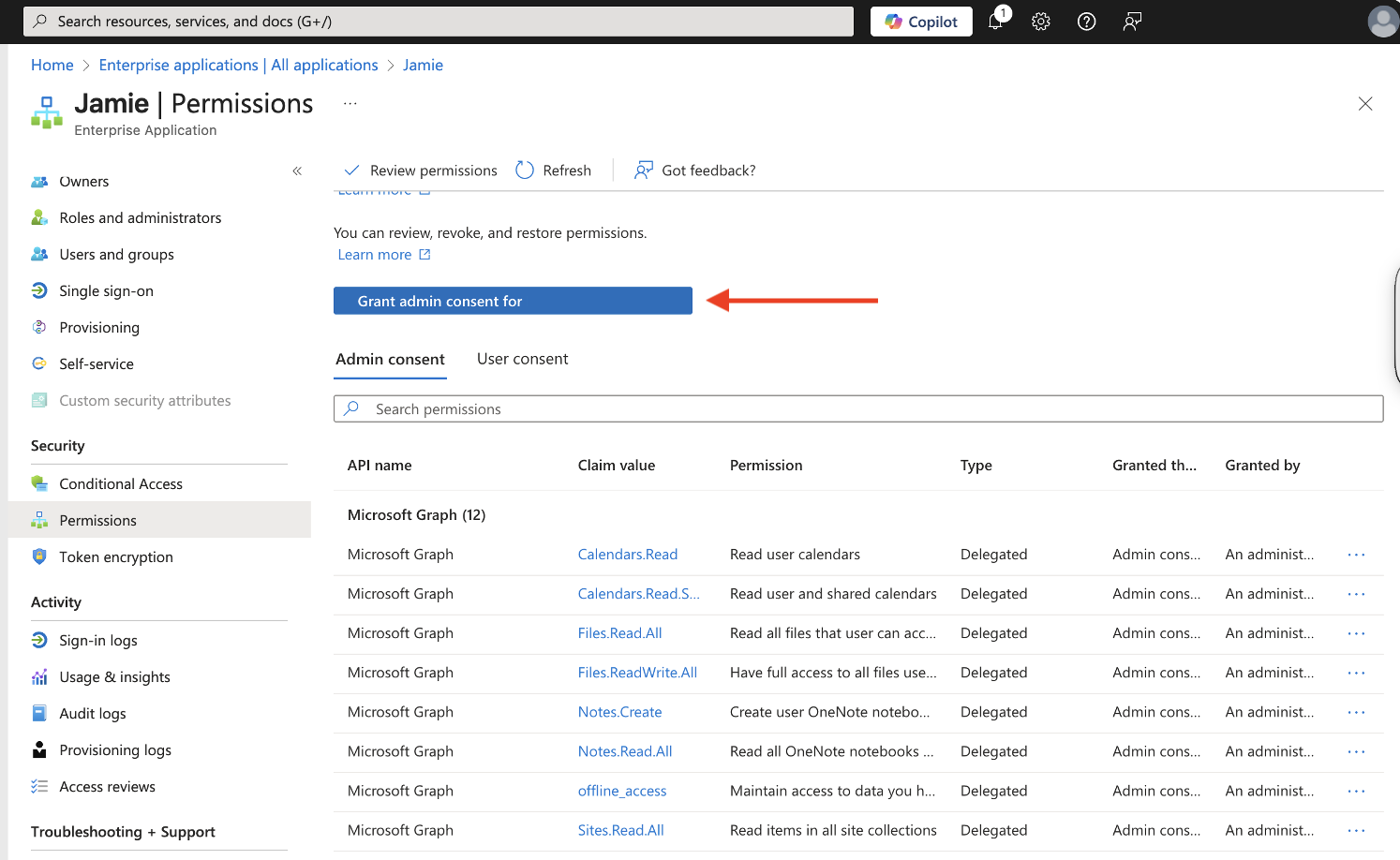
Permissions We Request
When you connect your Microsoft calendar, Jamie requests the following permissions. Here’s what each one does and why we need it:Required Permissions
| Permission | What it does | Why Jamie needs it |
|---|---|---|
openid | Standard sign-in authentication | Required to securely sign you in |
profile | Access your name and basic profile | Shows your name in Jamie and personalizes your experience |
email | Access your email address | Identifies your account and enables sharing features |
User.Read | Read your basic profile from Microsoft | Retrieves your account information during sign-in |
Calendar Integration Permissions
These permissions are requested when you enable calendar integration:| Permission | What it does | Why Jamie needs it |
|---|---|---|
Calendars.Read | Read your calendar events | Detects upcoming meetings, sends smart reminders, and auto-populates meeting titles |
People.Read | Access your frequently contacted people | Improves speaker identification by recognizing meeting participants |
Contacts.Read | Read your contacts | Enhances speaker memory by matching voices to people you know |
offline_access | Prevent constant reconnections | Keeps your calendar synced and up-to-date without requiring you to sign in repeatedly |
About Speaker Memory
Jamie usesPeople.Read and Contacts.Read to power Speaker Memory — a feature that helps Jamie recognize who’s speaking in your meetings. By accessing your contacts and frequently contacted people, Jamie can:
- Automatically identify speakers based on meeting attendees
- Remember speaker names across multiple meetings
- Provide more accurate meeting notes with proper speaker attribution
What Data Does Jamie Store?
Jamie only stores the information needed to provide you with a great experience:- Event details: Title, time, location, description and conferencing links (so you can join meetings directly from Jamie). Sometimes, description of the event provides important informaton for speaker identification and other related metadata.
- Attendee information: Names and emails of meeting participants (for speaker identification)
- Contact information: Names, emails, and profile photos (for speaker memory)
On-Premise Exchange Users
If your organization uses an on-premise Exchange server (or a hybrid environment where mailboxes haven’t been fully migrated to Exchange Online), you may see the following error when trying to connect your calendar:“Resource not found: The mailbox is either inactive, soft-deleted, or is hosted on-premise.”
Why This Happens
Jamie uses the Microsoft Graph API to access your calendar. This API only works with mailboxes hosted in Exchange Online (Microsoft 365). If your mailbox is hosted on an on-premise Exchange server, the Graph API cannot reach it.What Are Your Options?
- Migrate to Exchange Online — If your organization migrates your mailbox to Exchange Online (Microsoft 365), Jamie’s calendar integration will work automatically.
- Hybrid environment with Exchange Web Services (EWS) — In some cases, organizations with hybrid deployments can enable access through Exchange Web Services. This requires additional configuration on your organization’s side. Please contact our support team if you’d like to explore this option.
On-Premises Architectural Requirements for the REST API