

Asana integration requires a Pro, Team, or Enterprise plan.
Connecting Asana
- Go to Settings → Integrations → Asana
- Click Connect Asana
- Select your Asana account and authorize the connection
- Choose your Workspace from the dropdown
Asana grants Jamie access to every workspace your account belongs to, so the workspace cannot be
picked during authorization. If your account belongs to more than one workspace, select the right
one after connecting — it decides which projects Jamie can find. Accounts with a single workspace
are selected automatically.
Sending Meetings to Asana
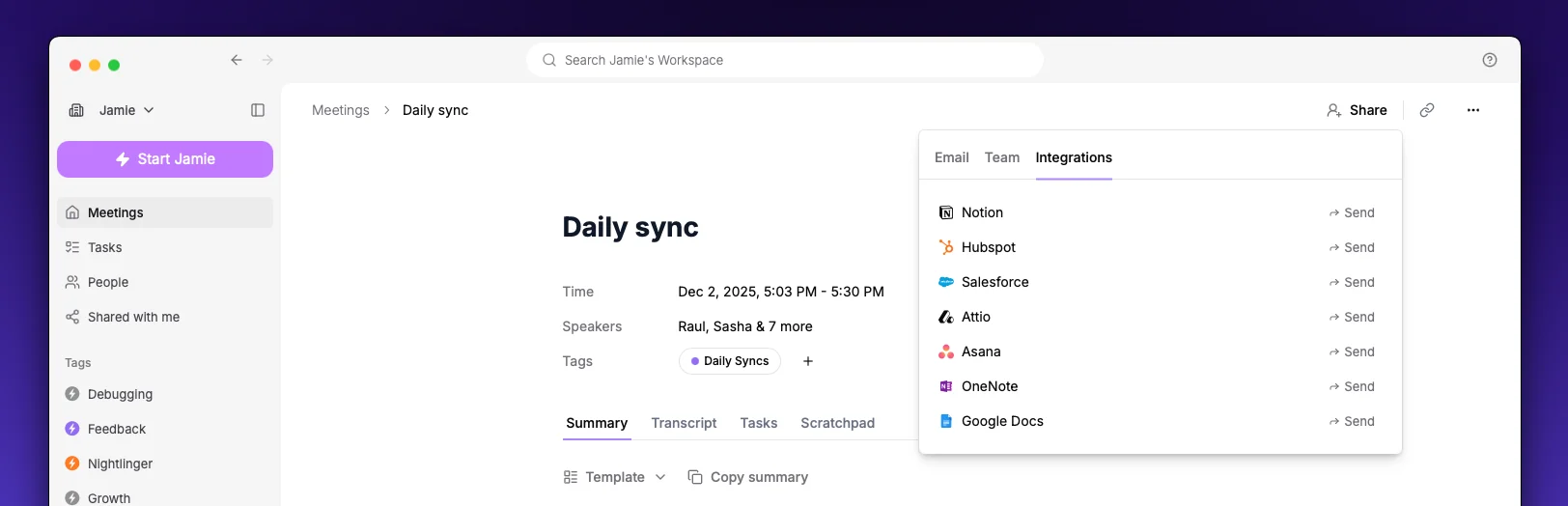
- Open a meeting in Jamie
- Click the Share button
- Select Send to Asana
- Search for and select a project
- Click Send
- Tasks from your meeting appear in the project’s task list
- Meeting notes are attached as a PDF in the project’s Files section
Settings
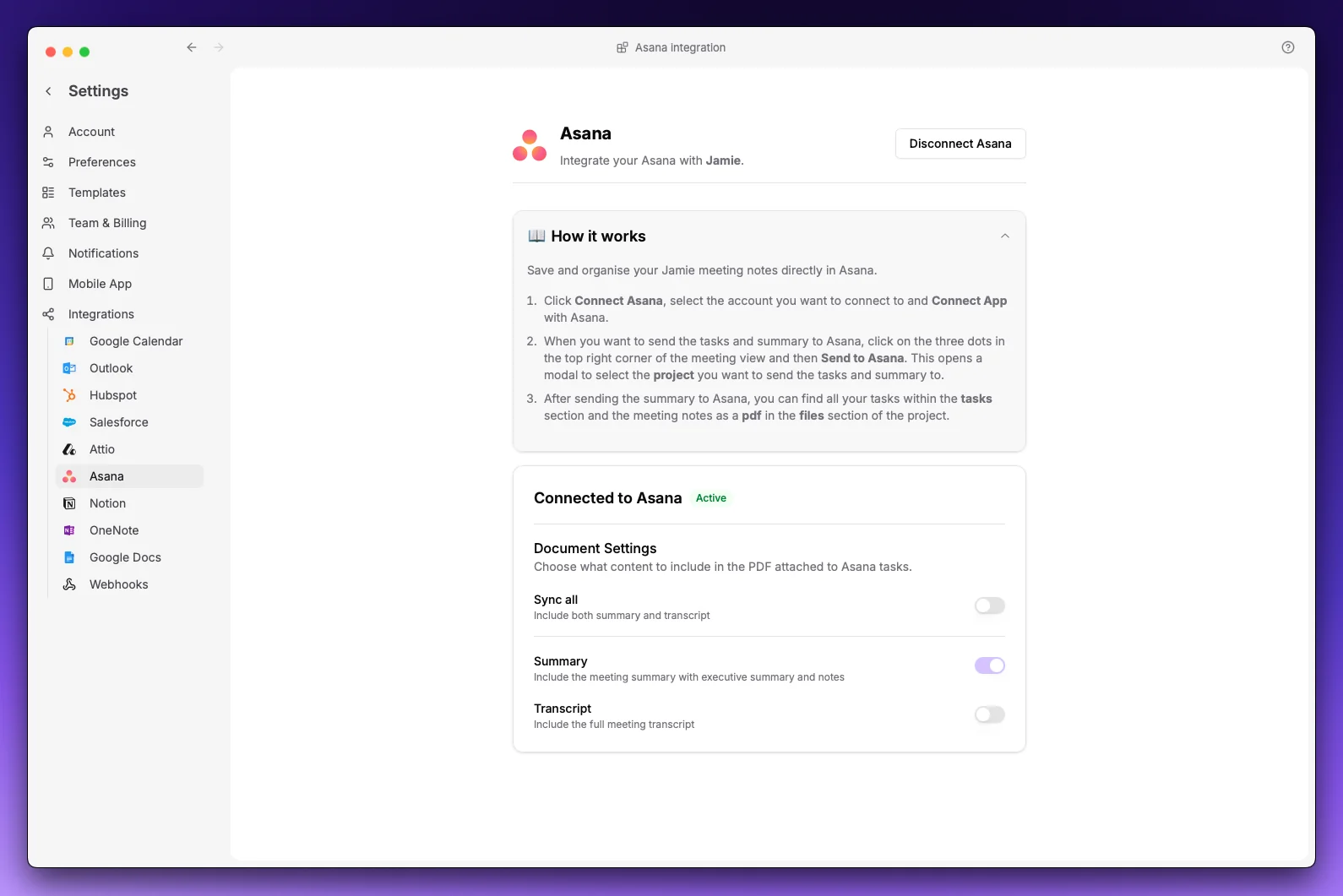
At least one option must be enabled.