

Connecting OneNote
- Go to Settings → Integrations → OneNote
- Click Connect OneNote
- Select your Microsoft account and authorize the connection
Sending Meetings to OneNote
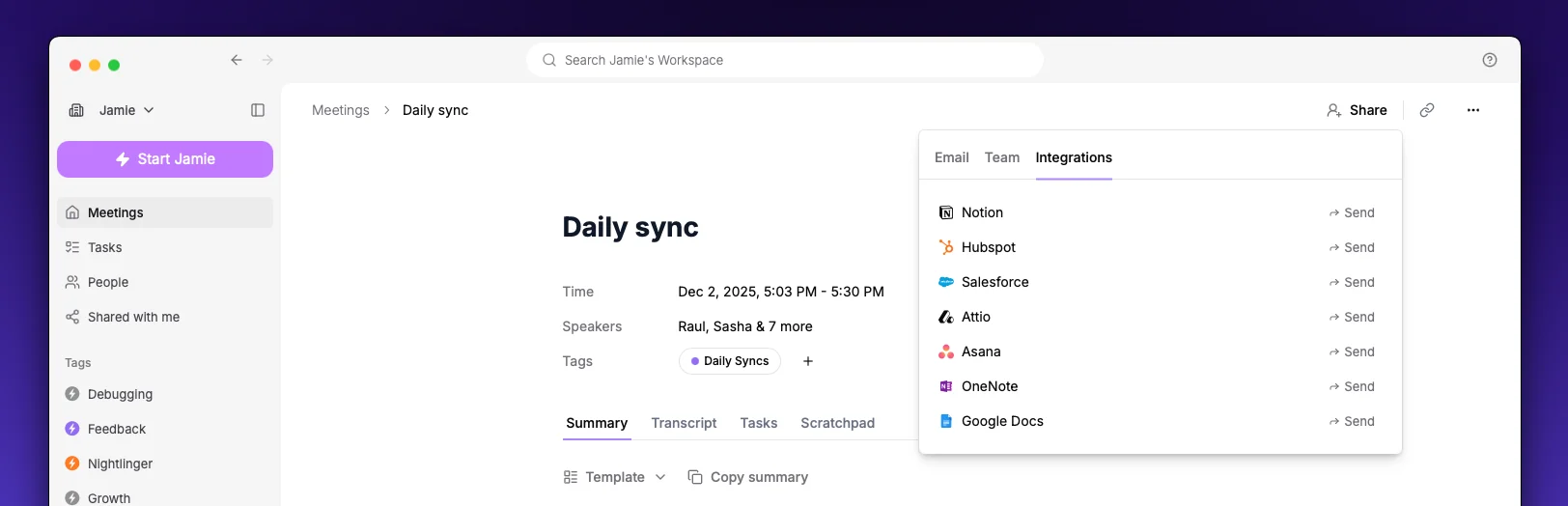
- Open a meeting in Jamie
- Click the Share button
- Select Send to OneNote
- Search across your notebooks and choose the section where you want to save the meeting
Automatic Sync
Enable Automatic sync to send every meeting to OneNote automatically after processing completes. Toggle this in Settings → Integrations → OneNote. When automatic sync is on, pick a default section. Every meeting is then saved as a new page in that section.Settings
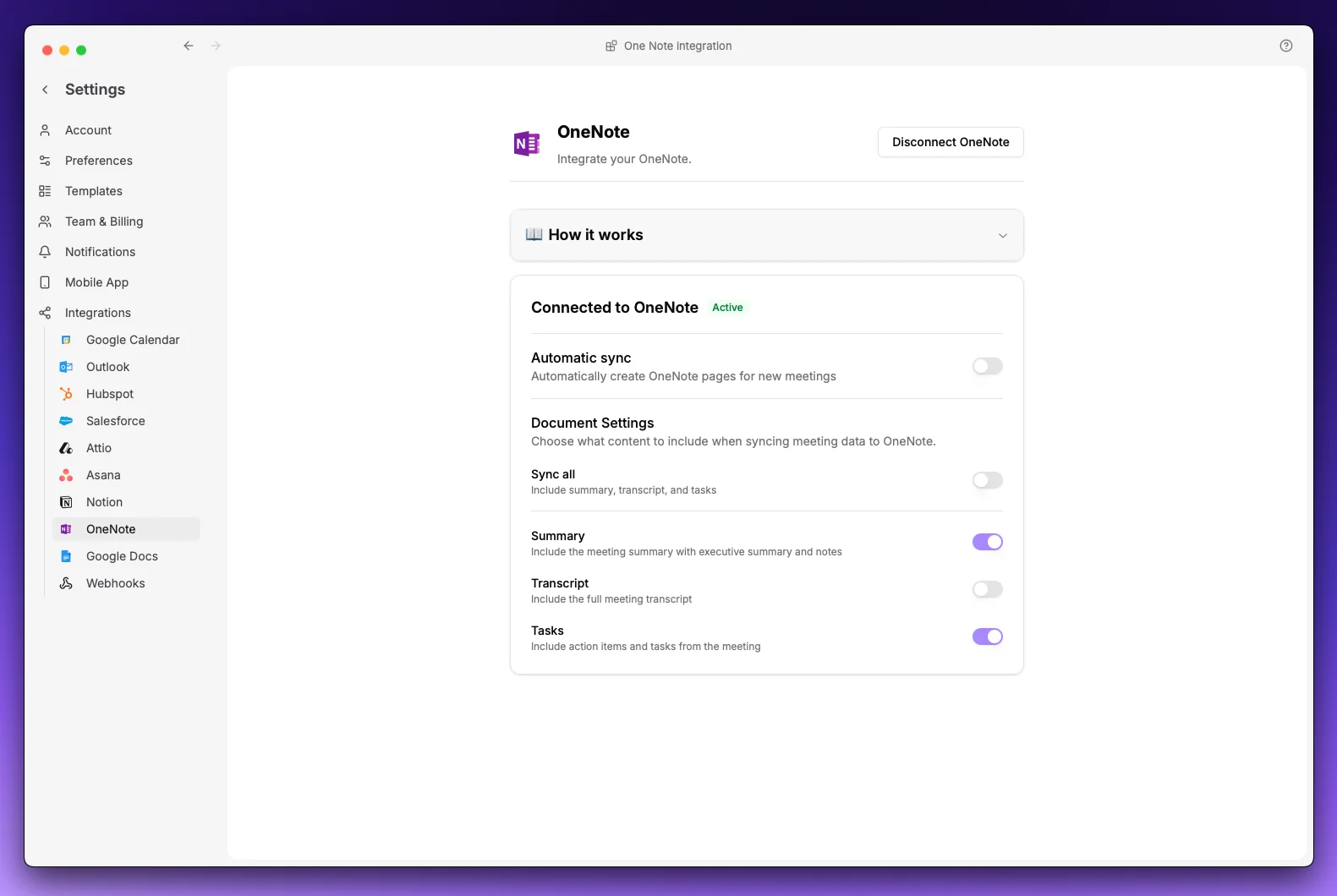
At least one option must be enabled.