

Dynamics 365 integration requires a Pro, Team, or Enterprise plan.
Admin Setup (One-Time)
A Dynamics 365 admin should complete this setup before users connect:- Ensure the Jamie app registration has the necessary API permissions in your Azure AD / Entra ID tenant
- Go to Settings → Integrations → Dynamics 365 and click Connect Dynamics 365
- Enter your environment subdomain and log in with your admin account
- Grant the required permissions on the OAuth consent screen
Connecting Dynamics 365
After admin setup, each user can connect:- Go to Settings → Integrations → Dynamics 365
- Click Connect Dynamics 365
- Enter your environment subdomain (e.g.
org123.crm) — you can find this in your Dynamics 365 URL, which looks likehttps://<subdomain>.dynamics.com - Log in with your Microsoft account and grant access
- Once verified, the integration shows as Active
You only need the subdomain — the
.dynamics.com suffix is added automatically. Pasting the full URL works too; Jamie cleans it up for you.Sending Meetings to Dynamics 365
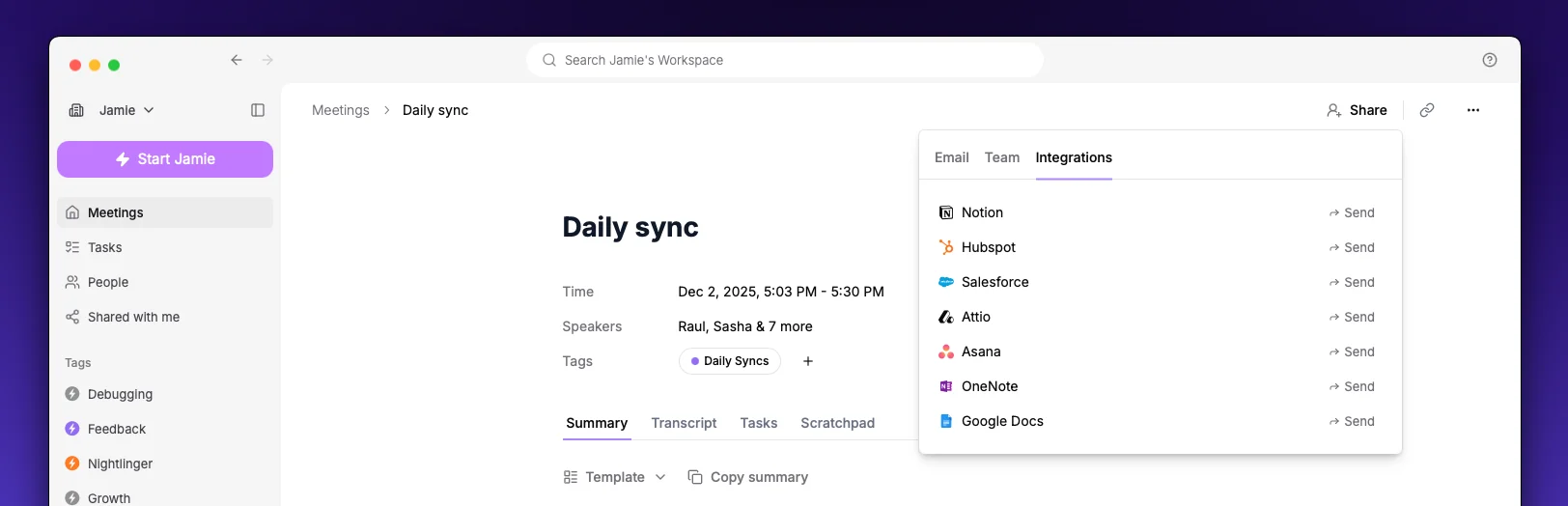
- Open a meeting in Jamie
- Click the Share button and navigate to Integrations
- Select Send to Dynamics 365
- Choose how you want to send the meeting:
Create a note & link to records
- Search for and select one or more Leads, Contacts, Opportunities, or Accounts
- Click Send
Dynamics 365 notes can only be linked to a single record, so Jamie creates one note per selected record.
Update an existing meeting
- Search for and select an existing Dynamics 365 meeting (appointment)
- Click Send
Updating a note
If you’ve already sent this meeting to Dynamics 365, the Create note option becomes Update note & linked records. Sending again updates the existing note content and adjusts the linked records instead of creating a duplicate.Settings
Once connected, each member can configure what content to include when sending:
Use the Sync all toggle to include everything at once.
At least one option must be enabled.