

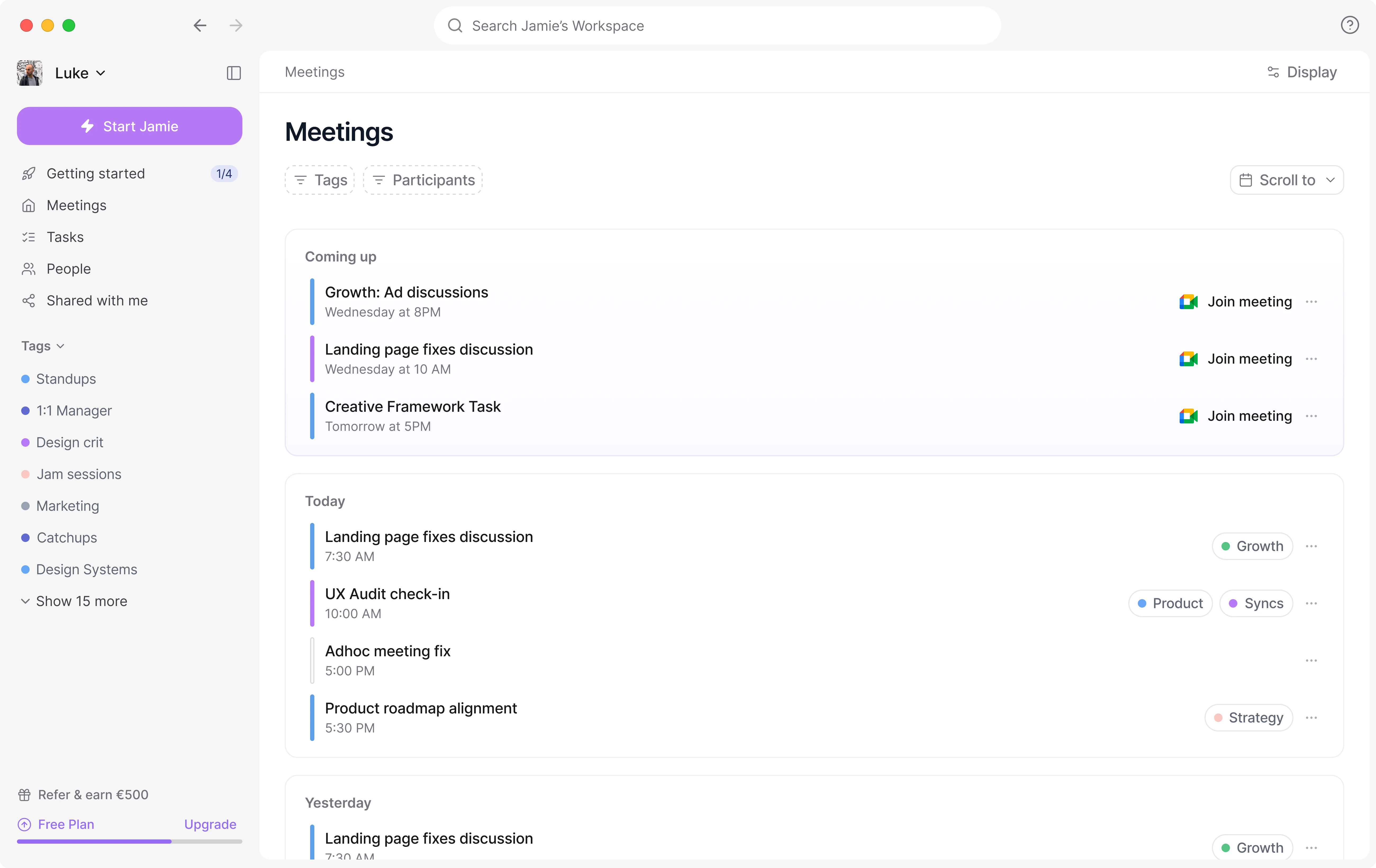
How to Connect Your Calendar
Connecting your Microsoft calendar takes just a few steps:- Click on your workspace name (top left corner)
- Go to Settings
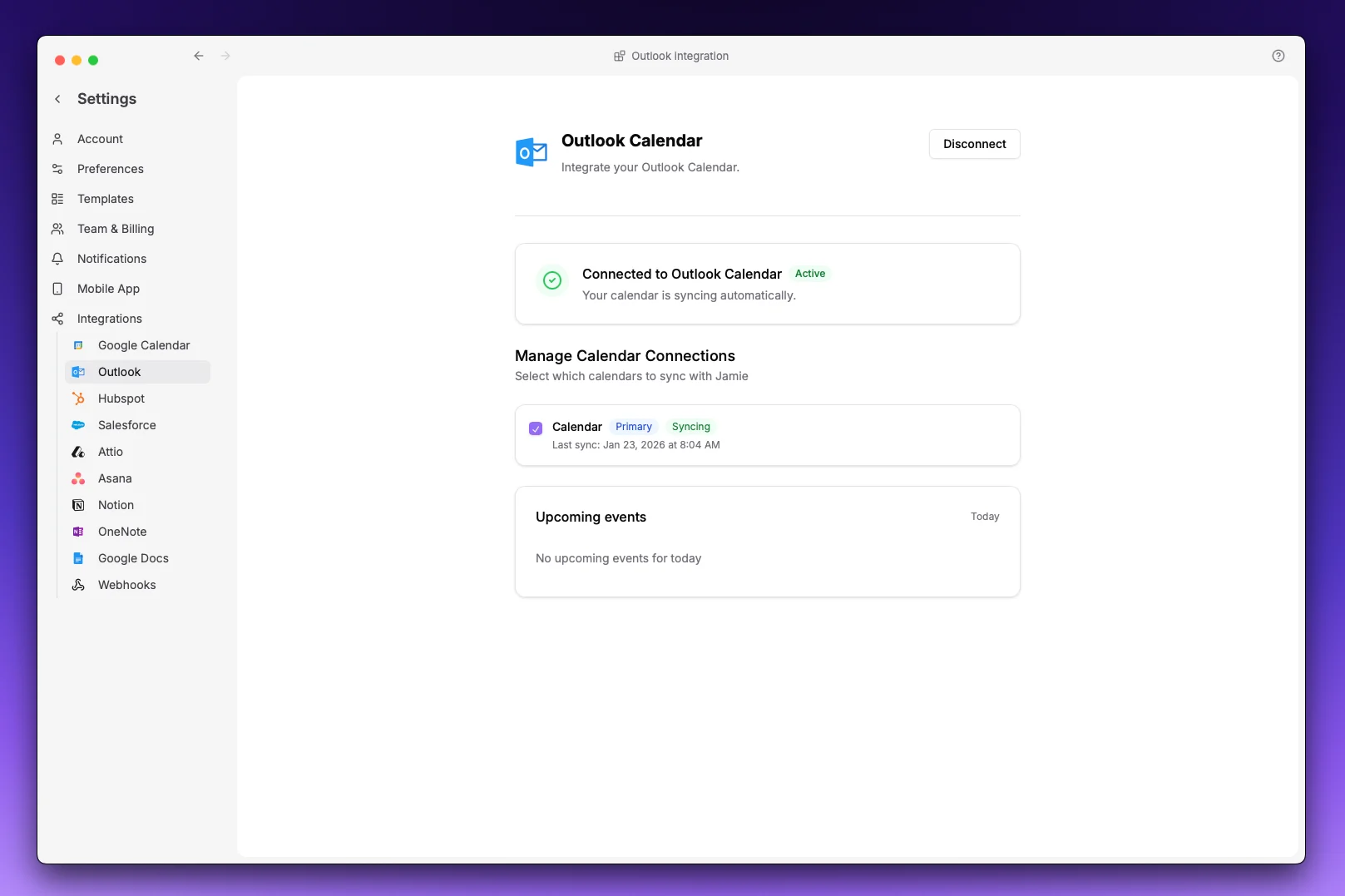
- Navigate to Integrations > Outlook
- Click Connect Outlook Calendar
- Sign in with your Microsoft account when prompted
- Grant the requested permissions
- Once complete, you’ll be redirected back to Jamie
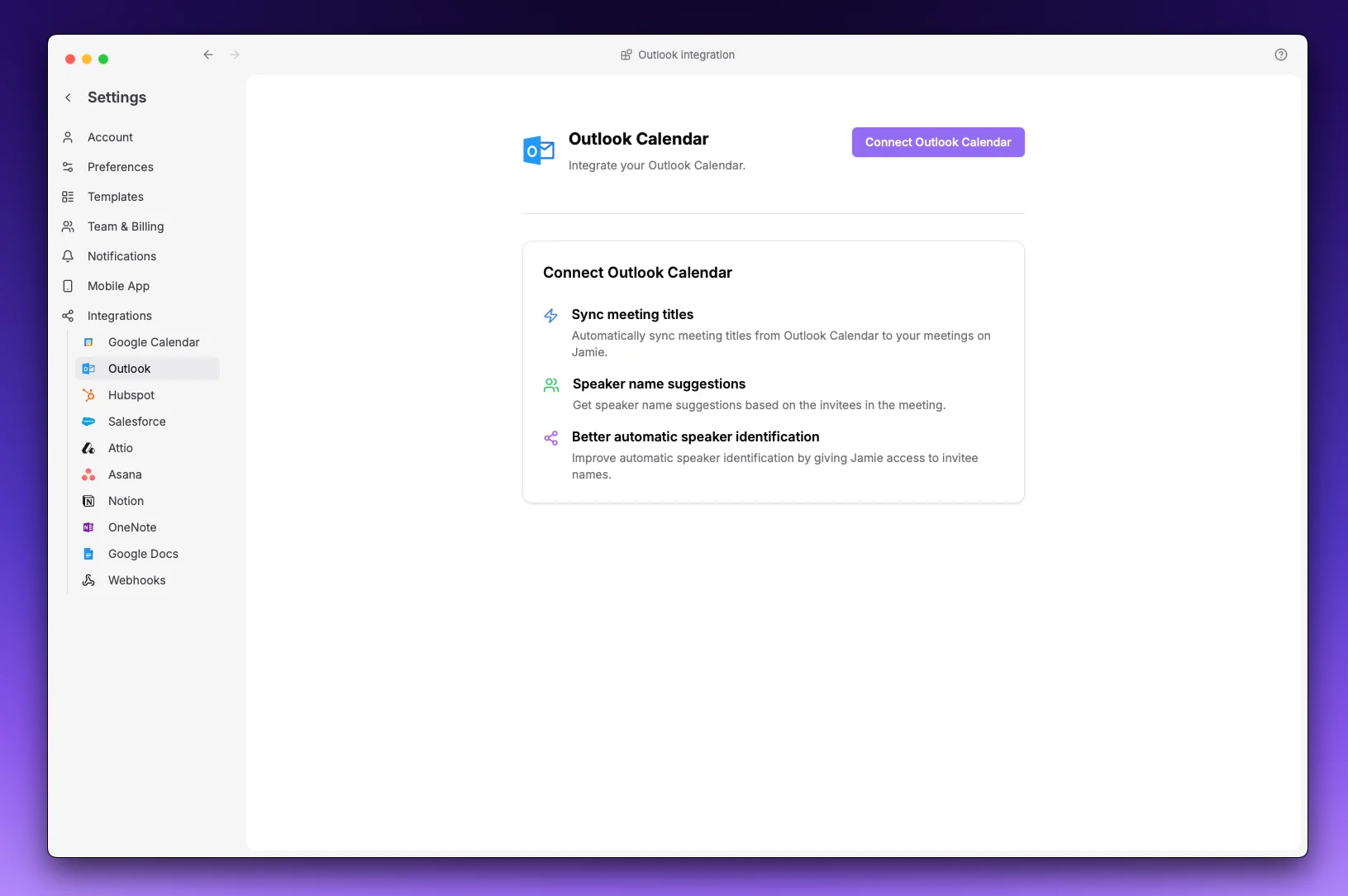
Tip: If you have multiple calendars in your Microsoft account, you can select which ones to sync by selecting the calendars and pressing Apply. The system will schedule those calendars to sync.
Connecting with a Microsoft Entra (Enterprise) Account
If your organization uses Microsoft 365 with Entra ID (formerly Azure AD), you may need administrator approval before connecting your calendar.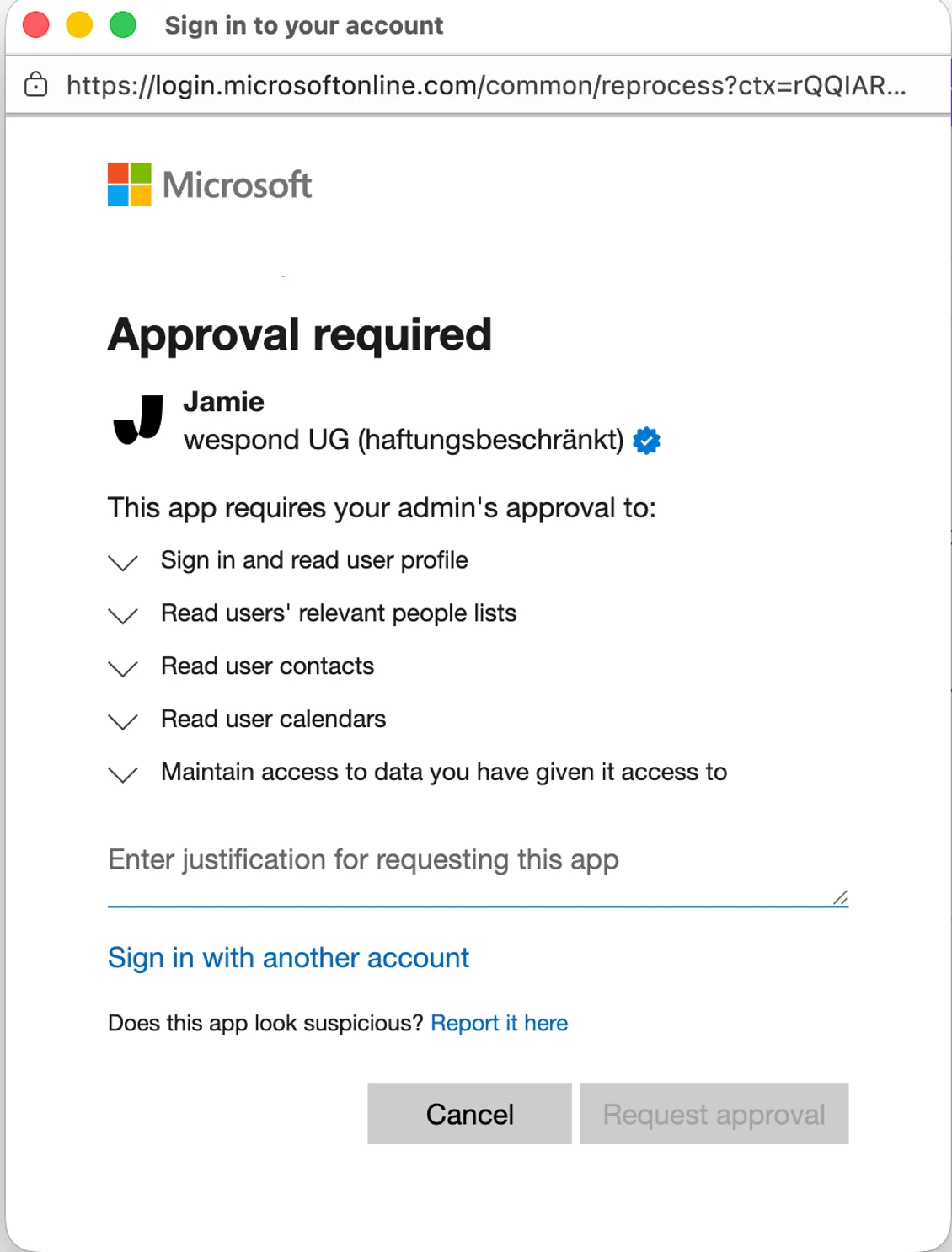
What You’ll See
When you try to connect your calendar, Microsoft may show a message saying:“Approval required"This happens because your organization has policies that require an administrator to review and approve third-party applications before employees can use them.
"This app requires your admin’s approval… Enter justification for requesting this app.”
What to Do
- Submit the consent request — When you see the admin approval screen, enter justification and click “Request approval” (if available). This sends a notification to your IT administrators.
- Contact your IT administrator — Let them know you’d like to use Jamie and that the app is waiting for approval in Microsoft Entra.
- Wait for approval — Once an administrator approves Jamie, you’ll be able to connect your calendar by following the standard steps above.
For Administrators
Approve Jamie’s calendar access for everyone in one step, without granting any other permission:- Ask any Jamie user in your organization to open Settings → Integrations → Outlook Calendar and send you the approval link from the “Approval for your organization” card.
- Open the link and sign in with a Microsoft 365 administrator account.
- Review the permissions. The link requests exactly
openid,profile,email,User.Read,Calendars.Read, andoffline_access. - Click Accept. A confirmation page opens; you do not need a Jamie account.
Permissions We Request
When you connect your Microsoft calendar, Jamie requests the following permissions. Here’s what each one does and why we need it:Required Permissions
Calendar Integration Permissions
These permissions are requested when you enable calendar integration:What Data Does Jamie Store?
Jamie only stores the information needed to provide you with a great experience:- Event details: Title, time, location, description and conferencing links (so you can join meetings directly from Jamie). Sometimes, the description of the event provides important information for speaker identification and other related metadata.
- Attendee information: Names and emails of meeting participants (for speaker identification)
- Contact information: Names, emails, and profile photos (for speaker memory)
When Jamie Can’t Reach Your Mailbox
Jamie uses the Microsoft Graph API to read your calendar, and that API only works with mailboxes hosted in Exchange Online (Microsoft 365). When Microsoft can’t return a mailbox for the account you signed in with, Jamie shows which account was used and the most likely cause.No Mailbox on This Account
The account you signed in with has no Exchange Online mailbox. This usually happens when you sign in with a dedicated administrator account (often an@yourcompany.onmicrosoft.com address) or an account without an Exchange Online license.
- Click Use a different account and sign in with the account you use for email.
- Or ask your IT administrator to assign an Exchange Online license to the account.
On-Premise Exchange Users
If your organization uses an on-premise Exchange server (or a hybrid environment where mailboxes haven’t been fully migrated to Exchange Online), the Graph API cannot reach your mailbox. Your options:- Migrate to Exchange Online — If your organization migrates your mailbox to Exchange Online (Microsoft 365), Jamie’s calendar integration will work automatically.
- Connect through Exchange Web Services (EWS) — On the Enterprise plan, Jamie can connect directly to your on-premise Exchange Server. Jamie shows an Exchange Server card with a Request access button when your mailbox may be on-premise. See Exchange Server (EWS) for requirements and setup.
On-Premises Architectural Requirements for the REST API
Blocked by a User-Agent Allow List
Some organizations restrict which applications may access mailboxes with an Exchange Online application access policy (EwsApplicationAccessPolicy set to EnforceAllowList). Despite its name, the policy also covers the Microsoft Graph calendar API that Jamie uses, and it recognizes applications by their user agent. When Jamie isn’t on the list, loading or connecting the calendar fails with:
Access to OData is disabled: [ESAPRC_3]: Request was blocked due to a Tenant-Configured UserAgent AllowList being set for this Organization.Jamie identifies itself on every Microsoft Graph request with the user agent
Jamie/1.0 (+https://meetjamie.ai). An Exchange administrator can allow it by adding Jamie/* to the organization’s allow list in Exchange Online PowerShell:
Set-CASMailbox <user> -EwsAllowList @{Add="Jamie/*"} for each one. Exchange Online can take some time to apply the change; afterwards, reconnect from Settings > Integrations > Outlook.
The newer EwsAllowedAppIDs setting only governs Exchange Web Services and does not affect this error, so adding Jamie’s application ID there won’t help.
FAQs
Which calendar events does Jamie sync?
Which calendar events does Jamie sync?
Jamie only syncs events that look like real meetings, so your upcoming list stays focused on what matters. An event is synced when it:
- Falls within roughly the next 10 days (Jamie keeps a rolling window of upcoming events)
- Has at least two participants (you plus at least one other person)
- Hasn’t been declined by you
- Isn’t an all-day or multi-day event (24 hours or longer)
- All-day and multi-day events
- Events you’ve declined
- Solo events with no other participants (personal holds and time blocks)
- Events whose title looks like focus or availability time — for example “Focus time”, “Focus block”, “Do not disturb”, “No meetings”, “Out of office”, or “Off work”
Recurring meetings are synced as individual occurrences within the window, and events you cancel or delete are removed from Jamie automatically.